How to manage your directory
The build is the start, not the finish. Once your directory is live, everything you do to it happens in one place: the directory dashboard. This guide walks through it tab by tab, so you know where to change a page, feature a business, refresh the data, or connect your domain.
If you have not built one yet, start with How to create a directory website. For naming and publisher identity, see How to brand your directory. To expand into more cities or set a region identity, see Add locations to a directory. Wondering what the subscription covers, or whether you can self-host? See Directory hosting, refresh and export.
1The dashboard at a glance
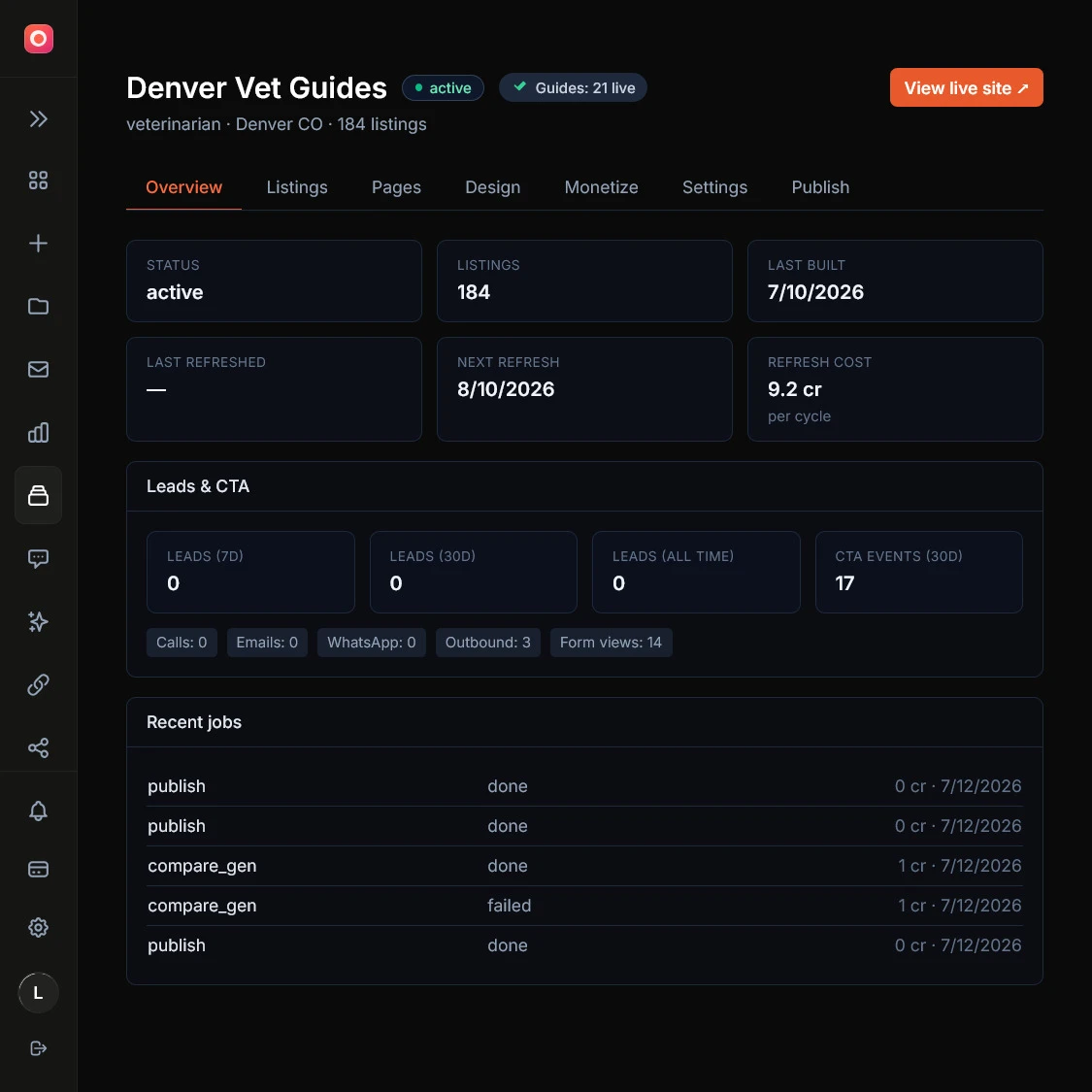
Open any directory from your directories list and you land on a dashboard with eight tabs. Here is what each one is for.
| Tab | What it is for |
|---|---|
| Overview | Status, listing count, last built and refreshed dates, recent jobs, and a leads snapshot. |
| Listings | Every business on the site. Hide one, feature one, add one, fix its details, override its SEO. |
| Opportunities | Expired domains, businesses with no website, and businesses on a weak one. See section 5. |
| Pages | Edit editorial pages, curate best-of lists, add best-of and comparison pages, edit your About and guides. |
| Design | The full design studio, re-openable any time. Colors, fonts, layout, logos. |
| Monetize | Featured placement pricing, partner quote routing, banner ads, and your media kit. |
| Settings | Name, brand assets, publisher and trust, contact channels, lead capture, content policy, analytics, domain, delete. |
| Publish | Push your edits live, refresh the data, and set the refresh schedule. |
The one rule that ties it all together: most edits save as a draft first and only appear on the live site when you publish. So the pattern is always the same: change something on any tab, then hit Publish now to push it live. A banner appears across the tabs whenever you have unpublished changes waiting.
2Getting changes live: publish vs refresh
Two different buttons put changes on your site, and they do very different things. This is the one distinction worth learning before anything else.
Publish now
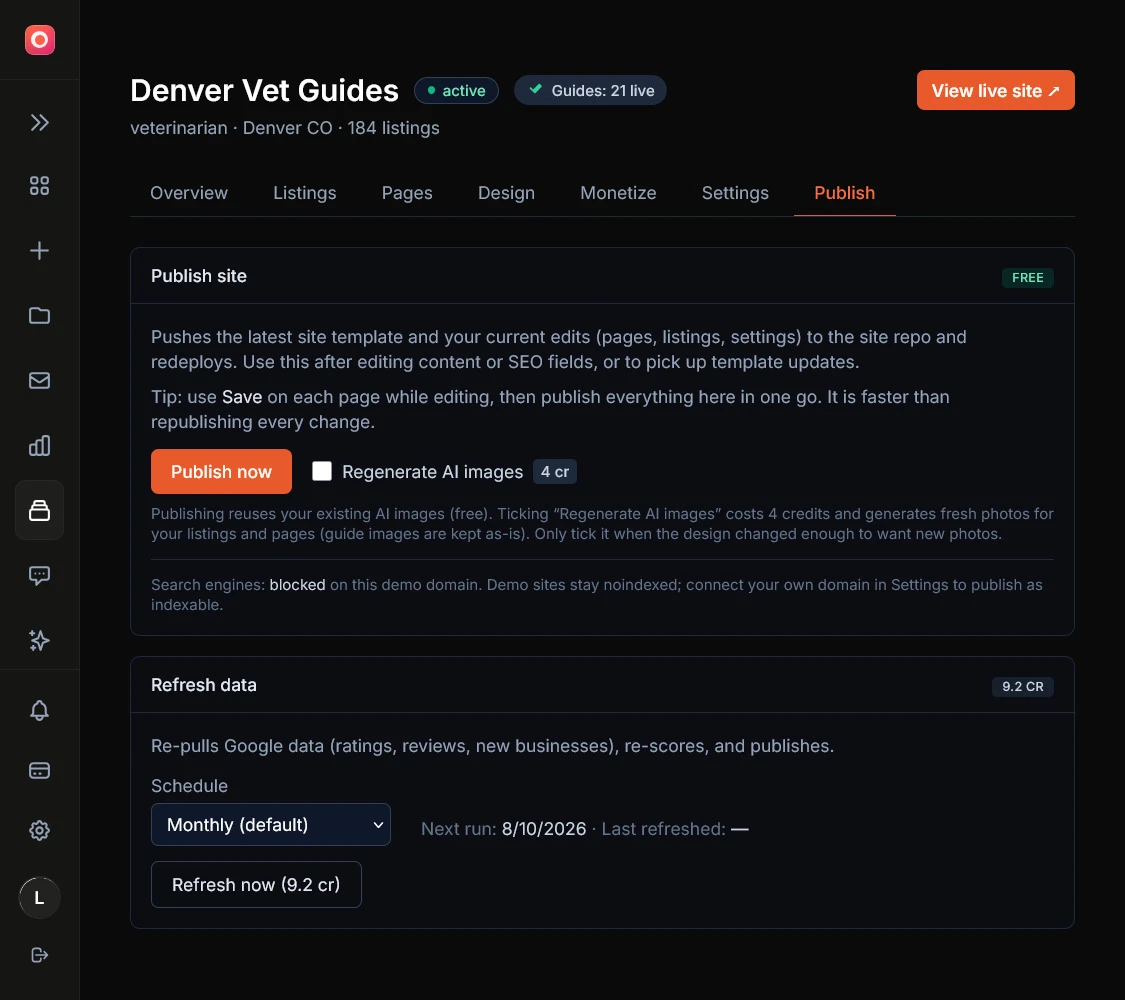
FreeTakes the edits you have made across the tabs and pushes them to the live site. No new data is pulled and no credits are charged. This is your everyday button: reworded a page, hid a listing, changed a color? Publish. There is an optional “Regenerate AI images” tick that costs 4 credits if you want fresh imagery on the same publish; leave it off and it stays free.
Refresh data
0.05 credits per listingRe-pulls the live data from Google: new businesses that have opened, closures, updated ratings, and fresh reviews. It re-scores the rankings, re-analyzes review sentiment where the reviews changed, re-stamps every page with a real date, and then publishes the result. This is the paid one, because it does real work every cycle. Most operators let the schedule run it and rarely press it by hand.
Two more actions you will meet only in specific moments. If a build ever fails right at the deploy step, a recovery card offers a free Retry deploy (the data was already gathered, so there is nothing to pay for again). And a full Rebuild from scratch is a support-side tool; if a directory ever needs one, reach out and we run it for you.
3The refresh cycle
A directory that never updates goes stale, and stale is exactly what Google and AI assistants demote. The refresh is what keeps yours current without you touching it.
Set the cadence
On the Publish tab, choose Monthly, Weekly, or Manual. Monthly suits most niches. Pick Weekly if your category churns fast (new openings, frequent closures); pick Manual if you would rather press the button yourself.
What it costs
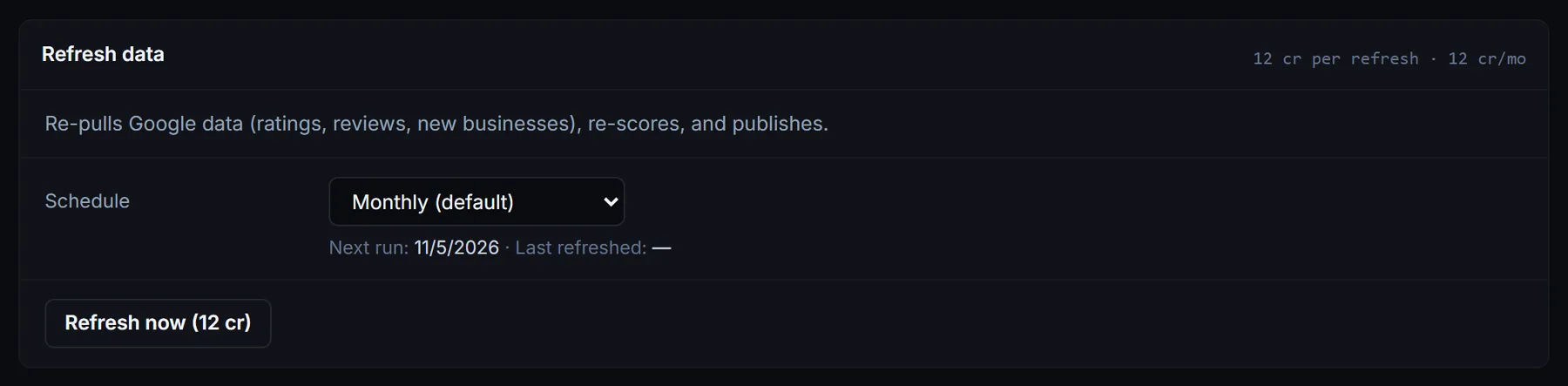
0.05 credits per listing, per cycle. A 100-listing directory is 5 credits a refresh; a 300-listing one is 15. The Overview and Publish tabs both show your exact per-cycle cost. Listings you hide drop out of that count from the next refresh, so cleaning out junk listings lowers the bill.
Your edits survive it
Anything you pinned or rewrote (a listing’s corrected details, an edited page, an SEO override) carries through a refresh untouched. The refresh updates the raw data around your edits, not the edits themselves.
If credits run low
The schedule pauses rather than failing, and a banner tells you the directory is in a grace period. Top up or resubscribe and it resumes on the next cycle. While a refresh is actually running, content edits are paused for a few minutes so a save cannot collide with it.
4Managing listings
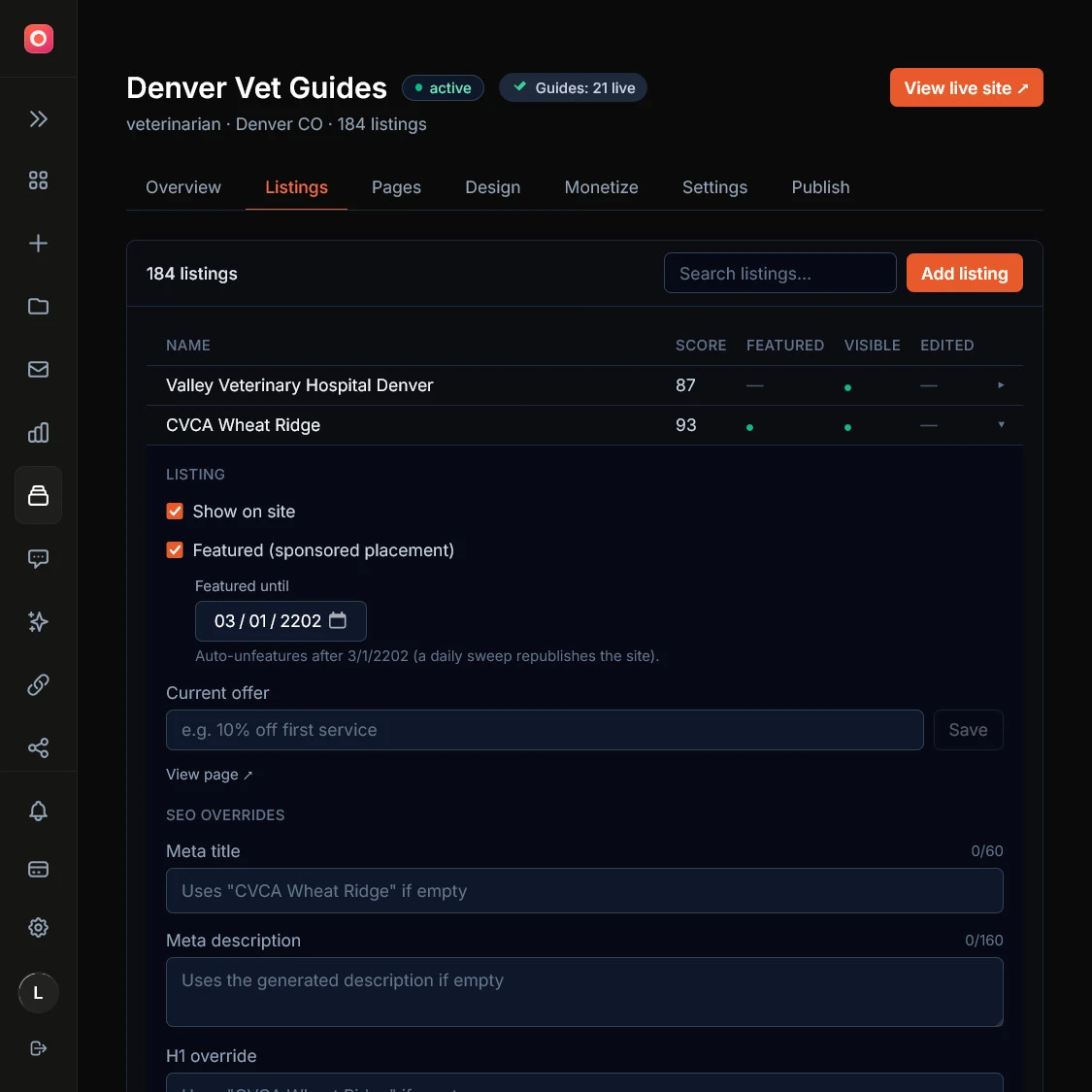
The Listings tab is the full roster of businesses on your site, searchable and paginated. Expand any row to work on it.
Hide a listing
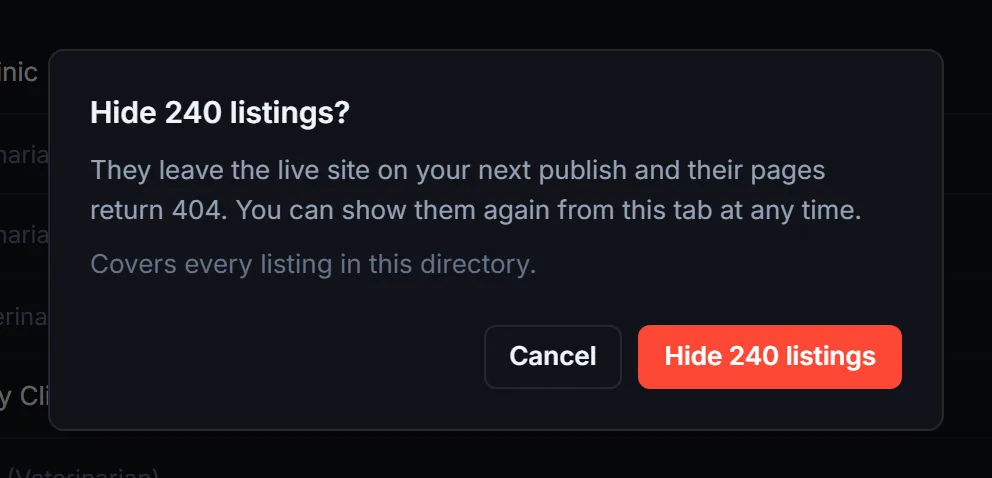
Untick “Show on site” and the business drops off everywhere on the next publish: the listings, the rankings, best-of pages, area counts, and the sitemap. Its own page starts returning a 404. Use it for a business that does not belong, or one that asked to be removed.
Hidden listings stop costing refresh credits. At the next refresh we leave a hidden business out of your directory’s data, so it no longer counts toward the listing total your refresh is billed on, and the counts on your homepage match what visitors see. Its slot goes to the next business that fits your directory. Featured listings and businesses you added yourself are the exception: they stay in the data while hidden, and still count.
After that refresh the business moves to a collapsed group under the table, “hidden listings removed at the last refresh”, with its name, address and Google category. Click Show to bring it back: the next refresh fetches its latest details from Google, then publish to put it on the site. If Google no longer lists it after three refreshes, the tab tells you so. Show on a listing that has not been through a refresh yet works straight away, as before.
Feature a listing
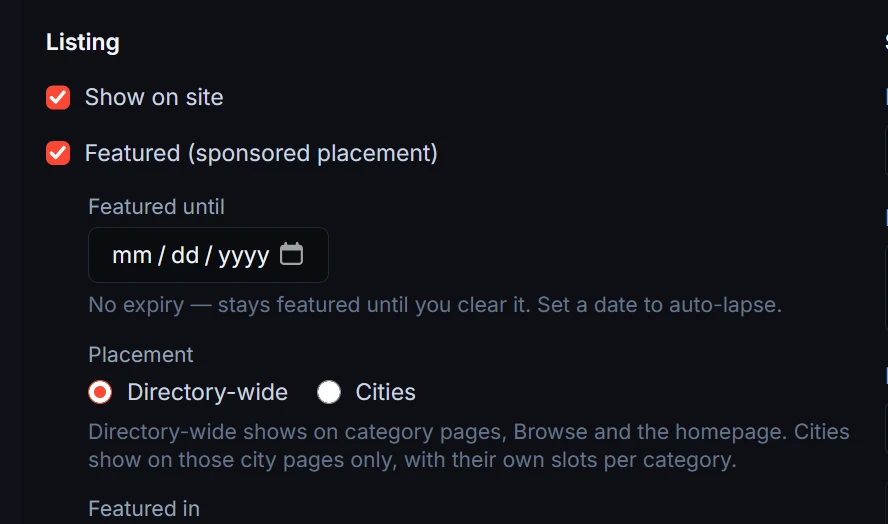
Turn on Featured and set a “Featured until” date. The business gets a sponsored, clearly labelled placement above the results until the date passes, when it unfeatures itself. The earned ranking underneath never changes, which is what keeps the site credible enough to sell placement on. See section 7 for the pricing side.
Featured in. Once you tick Featured, a business listed in two or more categories gets a row of category chips under it. Each ticked category uses one of that category’s featured slots (up to 4 per category), so untick the ones the sponsor is not paying for. A business tagged with 9 categories no longer has to take 9 slots.
Placement. If your directory has city pages, pick Directory-wide or Cities. Directory-wide shows the business on the homepage, Browse and the category pages. Cities puts it in a Sponsored strip on the city pages you choose: the city page, its category pages and its category rankings. Each city has its own 4 slots per category, separate from the directory-wide ones, so a Toronto sponsor never uses up a slot in Ottawa. City sponsors stay off the homepage, and directory-wide sponsors stay out of the city strips. Click Save placement after a change, then Publish.
If a listing shows no city chips yet, its cities have not been worked out since this feature arrived. Run Apply now under Ranking weights (free) or wait for the next refresh.
Fix a listing's categories
Now and then a business lands in a category it does not offer, like a med spa showing up under breast surgery, or misses one it does. Expand the row and look under Categories: every category the listing sits in is a chip. Click one to remove it. A removed category stays on the row, struck out, with Restore next to it. To put the listing in another of your directory's categories, pick it from + Add category. The list only offers categories your directory already has, so nothing new gets created. A category you added carries an "added" label; click it to take it off again. Refreshes keep your choices, so the engine never undoes them.
To clean up a whole category, pick it in the All directory categories filter, tick the rows (or select every matching listing), choose the category under Category in the selection bar and click Remove category. Add to category works the same way in the other direction, and also puts back listings you removed from that category. The filter keeps listings you removed or added in view, so you can always find them again. Rows you changed carry a marker such as "2 categories removed" or "1 category added".
Nothing changes on the live site until you publish. Then a removed listing leaves that category's pages and best-of lists, and an added one shows on the category page and in its filters. The category's city pages and best-of lists pick up an added listing at the next refresh, or straight away with Apply now under Ranking weights (free). A category with no page yet is marked "shows after the next refresh": your choice is saved and the listing appears once that category has a page. If the business is featured in a category you remove you get a warning first, because removing the category also takes it off that category's featured spots. Adding a featured listing to a category whose featured spots are full is refused, with a message naming the category. A listing with every category removed still shows on its city and browse pages.
If you connected Claude or ChatGPT to your account, you can ask it to do this for you, for example "find listings that offer link building but are not in Content & Link Building". It shows you the list first and changes only the ones you approve. The key needs the Edit listings access option, and the changes wait for you to publish like any other edit.
Show staff names for one business
This checkbox only appears when your content policy hides staff names site-wide (section 9). When a business gives you permission to name its people, tick it and publish: the review-sourced staff details return on their page while every other listing stays anonymous.
Add a current offer
A short free-text line (“10% off first visit”) that shows on the listing.
Override the SEO
Set a custom meta title, meta description, or H1 for a listing when you want to steer how it appears in search. These are pinned, so they survive refreshes.
Rewrite the review summary
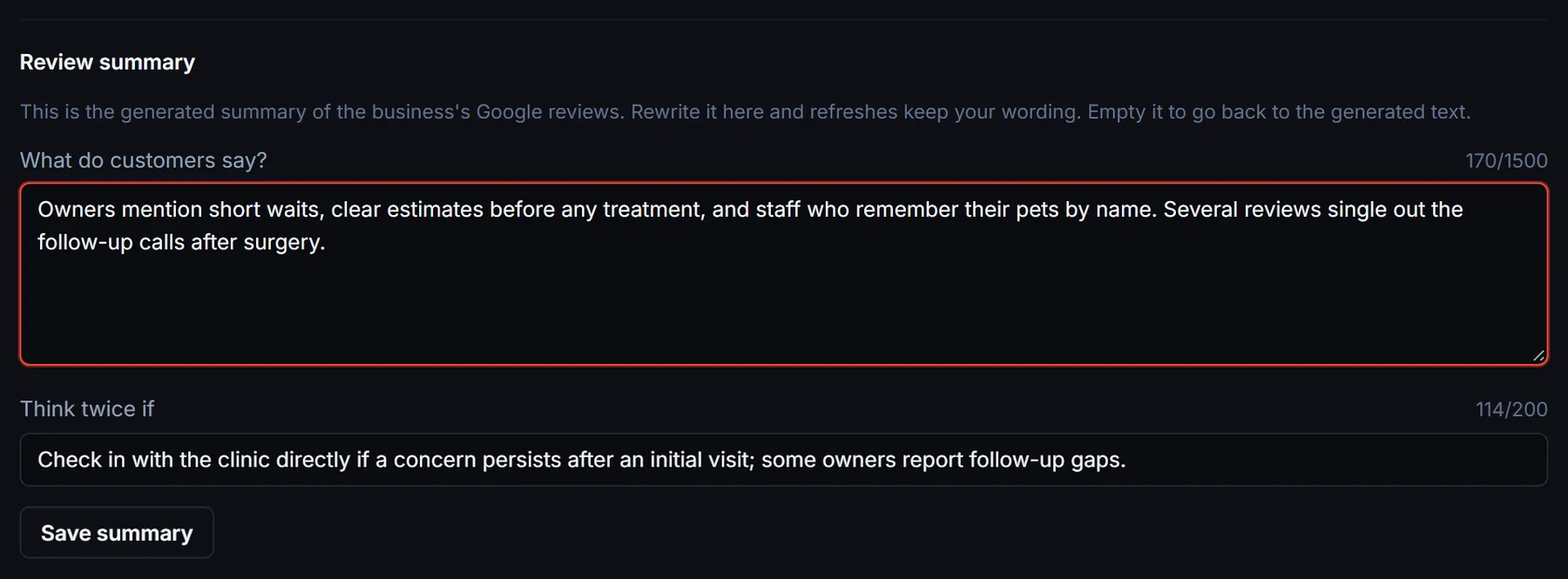
Open Review summary in the expanded row to edit the “What do customers say?” paragraph (up to 1,500 characters) and the “Think twice if” note (up to 200). Both are generated from the business’s Google reviews; if a client asks you to reword theirs, this is where you do it. Your wording is pinned, so a refresh updates the numbers around it but never overwrites it, and an “Edited” pill marks the row.
To go back, click Reset to generated next to the field, or empty it and save. Reset restores the text your site would write today from the latest reviews, not the text from the day you first edited. Owners only; a business editing its own listing cannot change these fields.
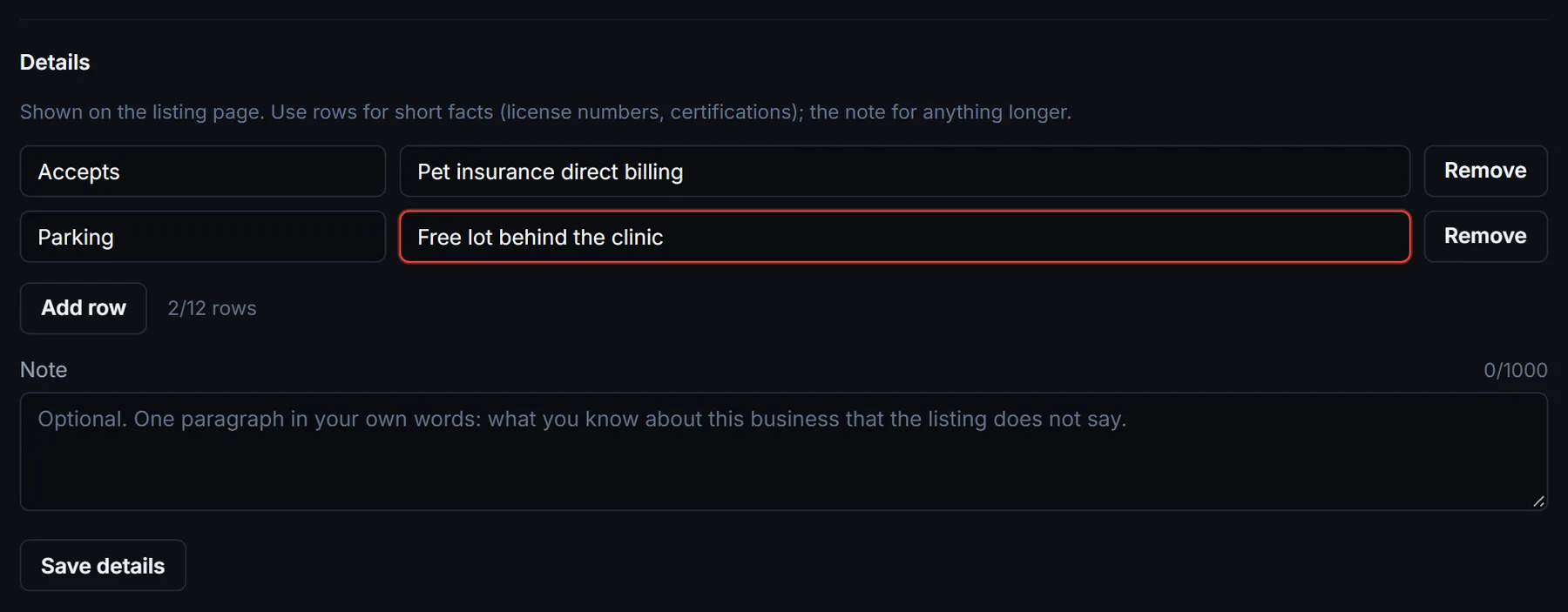
Add details of your own
The Details block in the expanded row holds facts you know and the listing does not: short rows such as a licence number, parking or the insurance a clinic accepts (up to 12), plus one note in your own words (up to 1,000 characters). They show on the listing page.
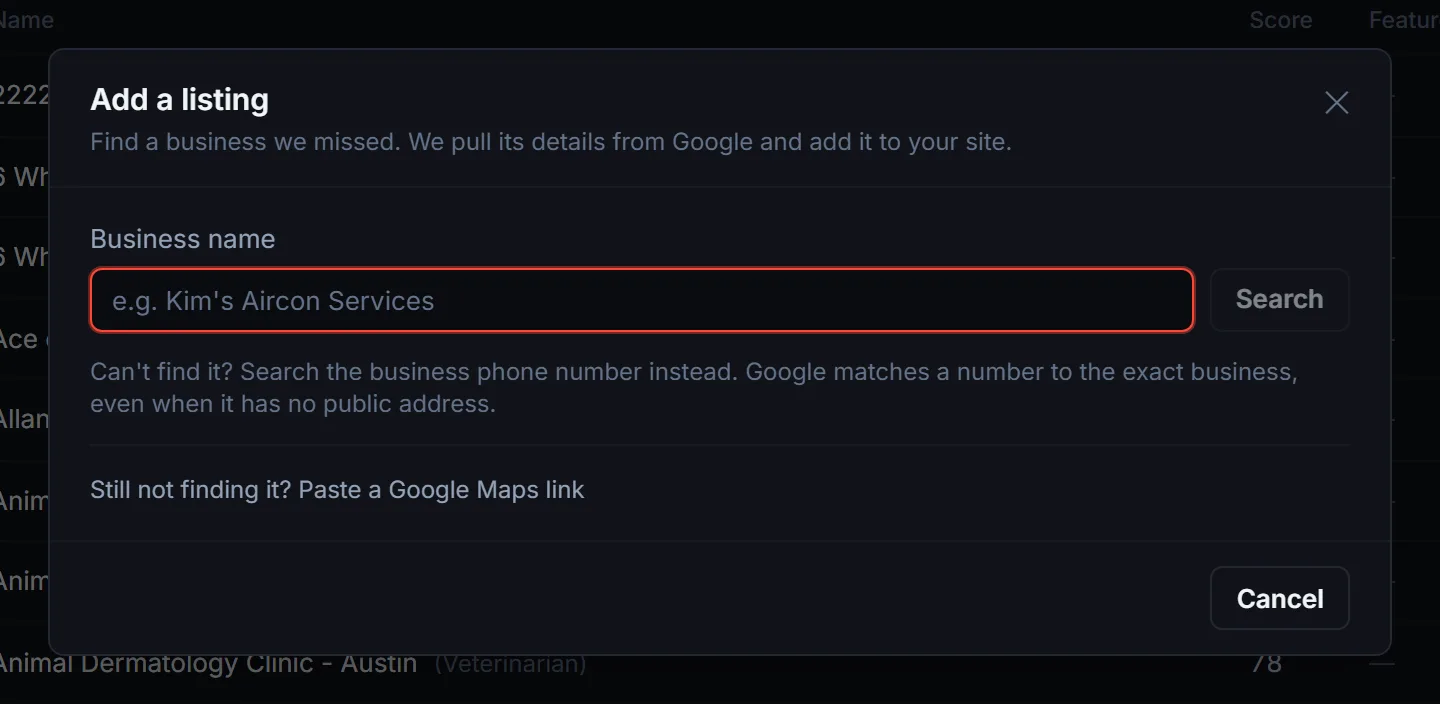
Add a listing by hand
The build finds businesses automatically, but if one is missing you can add it. Search by name, phone, or a Google Maps share link, preview the match, and confirm for 0.1 credits. You never have to dig up an ID; the search does that for you.
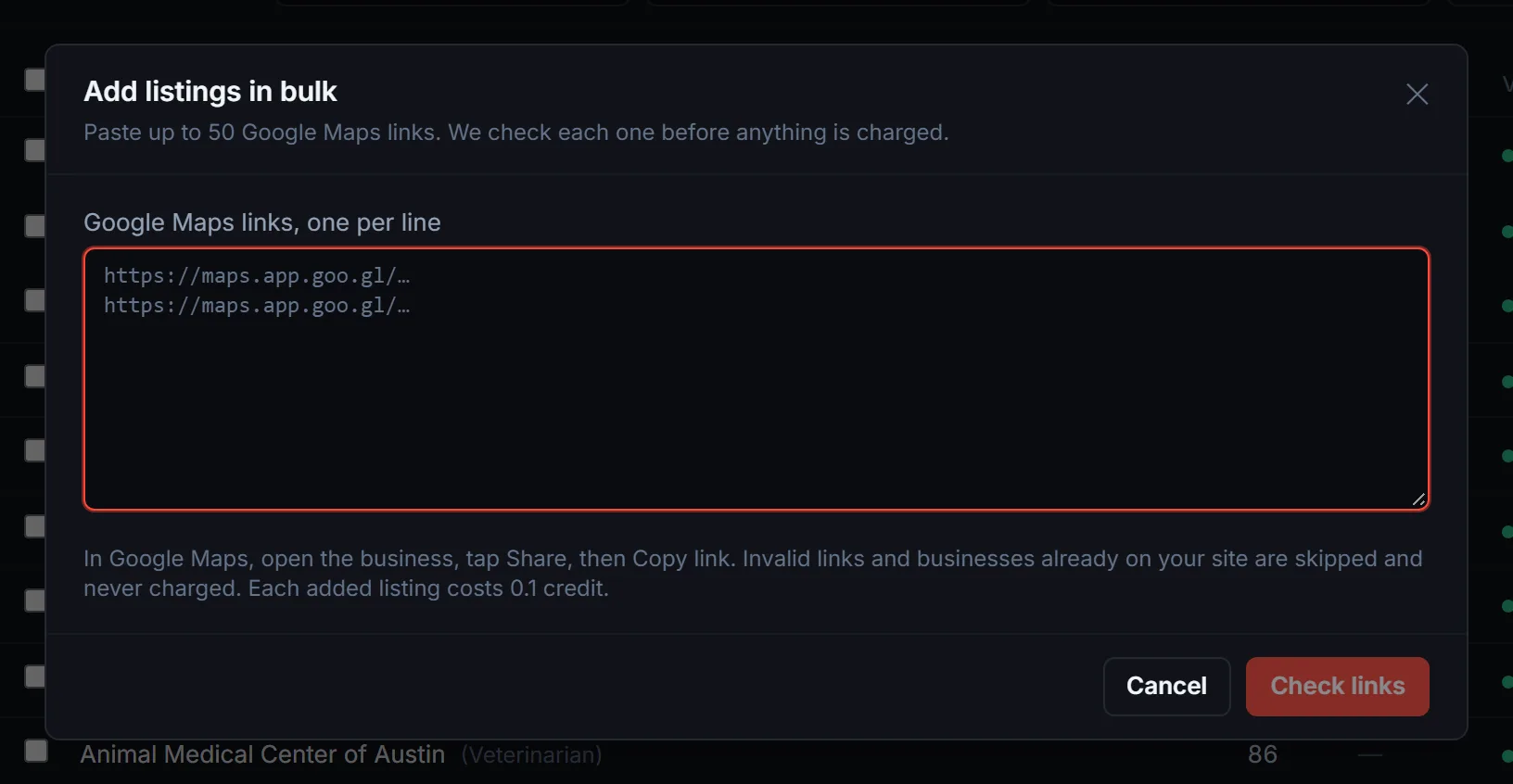
Add listings in bulk
Need more than one or two? The Bulk add button takes up to 50 Google Maps links pasted at once. Every link is checked first for free, line by line: ready to add, already on your site, invalid, or unavailable.
You confirm with the exact total in front of you and only pay for the ones that passed. While the batch runs, editing is paused for a few minutes (a banner shows the progress), and the site publishes itself when it finishes, so there is no separate publish step to remember.
Watch for stale pins
If a listing you added or pinned cannot be found live on Google for a few refresh cycles in a row, the row flags it. Usually it means the business closed or delisted itself.
5Finding opportunities: expired domains and businesses without a website
Every refresh checks whether each listed business still has a working website. The ones that do not are often expired domains with years of Google reviews still attached. Plenty more never had a site at all, or run on a Facebook page. The Opportunities tab collects all of them for you in three segments: Expired domains, No website and Weak website.
Why it is worth your time
- Buy the domain. A business that closed often leaves a domain with years of reviews, backlinks and people still searching its name. Register it when it drops and point it at your directory, or at a new site of your own, and that traffic is yours.
- Win the business. A company with 40 reviews and a dead website is a lead for your own services: they need a site, a listing, or a redirect, and you already know it before they do.
- Keep your directory honest. Visitors who click a dead link stop trusting the rest of the page. Hide or replace those links and the directory stays useful.
- Watch the market. Several dead sites in one category is a gap: fewer live competitors for the businesses you feature, and a signal about which niches are worth a second directory.
- Sell them a website. A business with reviews and no site is the easiest web design conversation you will have, and a site is the door to an SEO retainer.
Where to find it
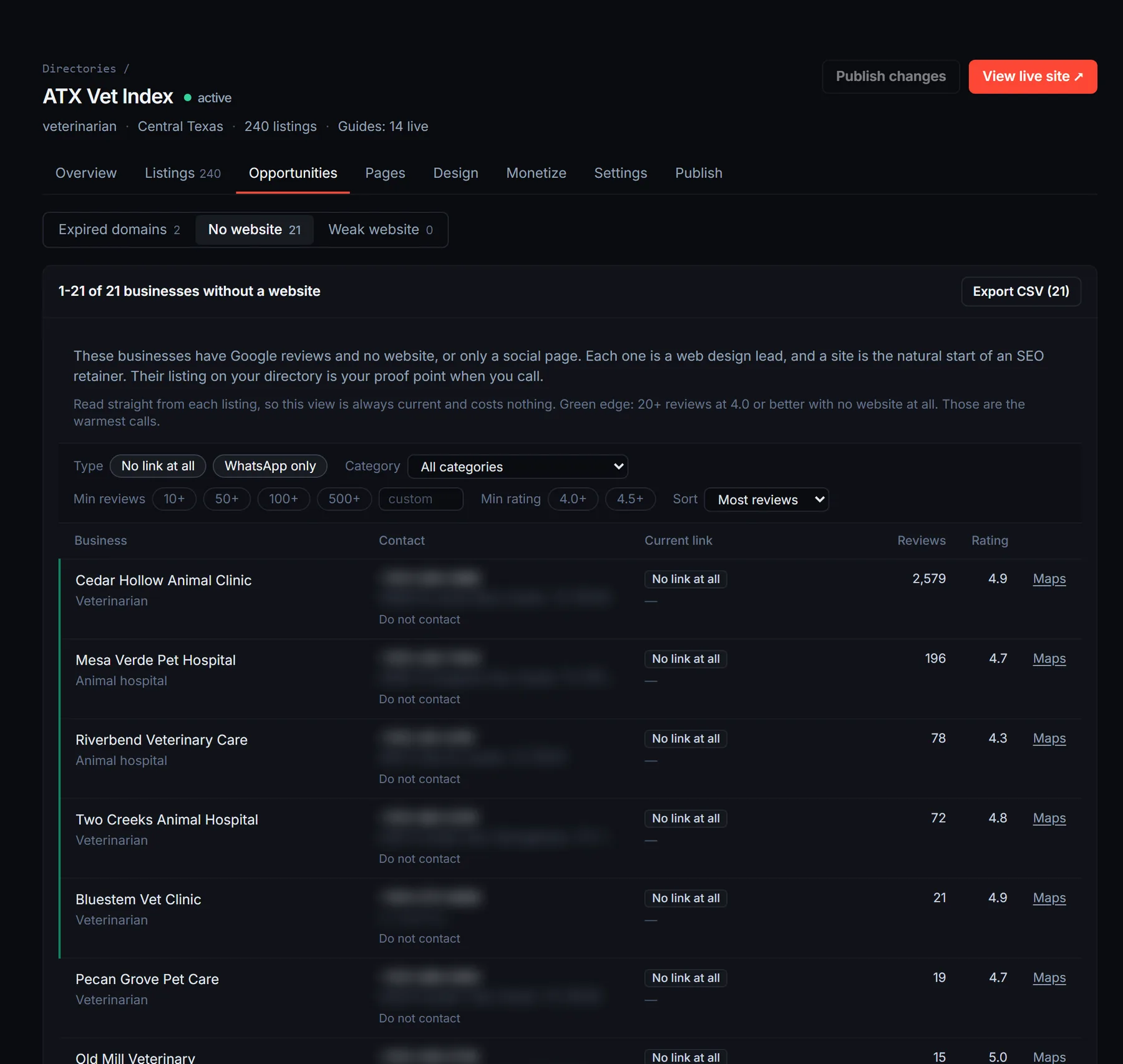
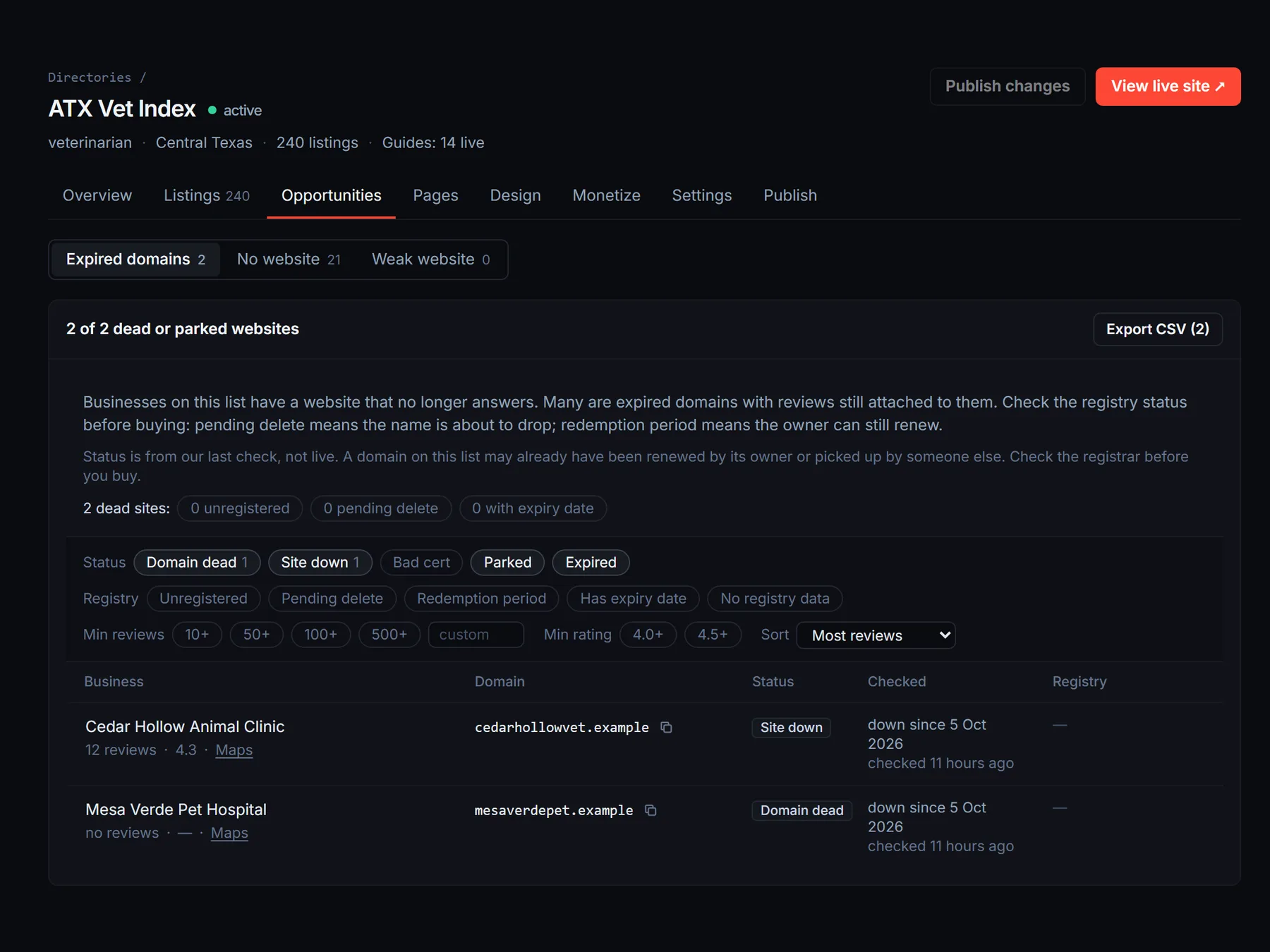
Open the directory and click the Opportunities tab. The Expired domains segment lists every business whose site failed the last check, most reviewed first. Each row shows the domain with a copy button, what went wrong, when it went down and when it was last checked, the review count and rating, and a Maps link.
Businesses without a website
The other two segments are web design leads. No website holds every listing with no link at all, or only a WhatsApp or Telegram link. Weak website holds the ones on a Facebook page or a free site builder: the business has a web presence, but not one it controls or one that ranks on its own. Both are sorted by review count, and each row shows the business and its category, the phone number and address, the current link if there is one, and the review count and rating. A chip inside each segment narrows it further, for example WhatsApp only or Free site builder.
Rows with a green edge are the ones to call first: no website at all, 20 or more reviews and a rating of 4 or higher. Those businesses have proof of demand and nothing to defend, so a new site is an easy pitch.
These segments read the listing data you already have. They need no refresh, work on every directory the moment you open the tab, and cost nothing.
What the status means
Domain dead: the name no longer points to any server, the strongest sign it has expired. Site down: the name still resolves but the site errors; hosting is gone, the name is probably still registered. Parked: a registrar or reseller sale page. Expired: the registrar’s own expiry notice. Bad cert: the site works but its security certificate lapsed; almost always a live business, so it is hidden by default.
What the registry column tells you
Where the registry supports it, each dead domain shows its expiry date and status. Unregistered means nobody holds the name and you can register it now. Pending delete means it drops within days. Redemption period means the old owner can still renew for a fee. Still registered means the owner holds it and only the site lapsed; not buyable yet. Rows with a real signal carry a green edge.
Registries covered include .com and .net, .org, .my, .sg, .au (no expiry dates, by that registry’s policy), .ca and .uk.
Filtering and sorting
Use the chips to narrow by status, registry signal, minimum reviews and minimum rating, and the sort box to order by reviews, rating, time down or expiry. The three counters under the intro are shortcuts. Your last filter is remembered per directory. Export CSV downloads exactly the rows on screen.
How current it is
Expired-domain statuses come from the last refresh, not from a live check, so a domain here may already have been renewed or picked up by someone else. Sites that failed are re-checked on every refresh; working sites are re-checked every 60 days. Run a refresh from the Publish tab when you want current data. None of this costs credits beyond the refresh itself.
A directory built before this feature shipped shows an empty Expired domains segment until its next refresh runs (scheduled, or Refresh now on the Publish tab). New directories have the data from their first build.
The No website and Weak website segments are always current. They read the listing itself, so there is nothing to wait for.
Cleaning up the listing side
On the Listings tab, the website filter shows the same dead and parked sites next to the rest of your listings. Select all matching and hide them if you would rather not send visitors to a domain that no longer works.
6Editing pages and editorial
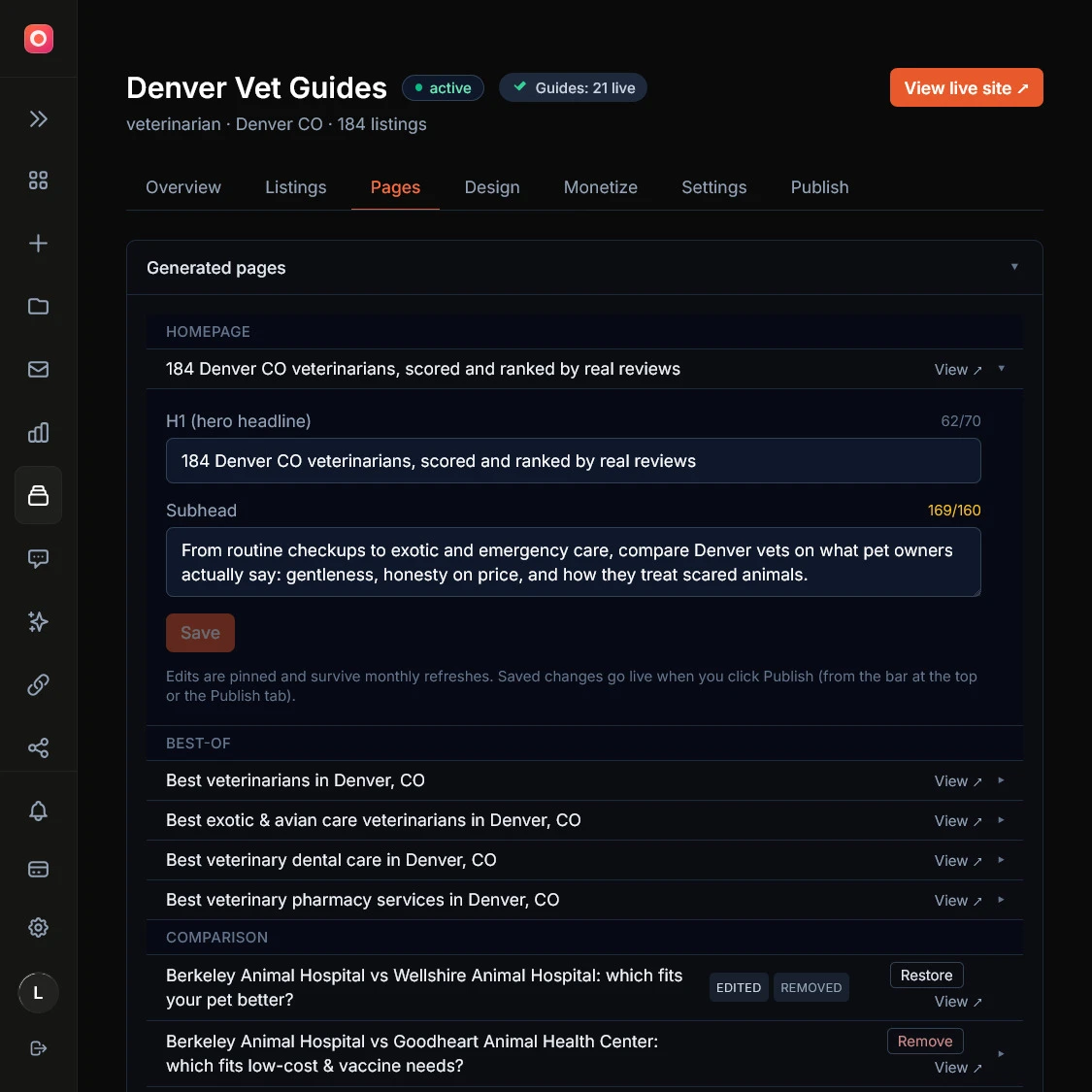
The Pages tab is where you shape the written parts of the directory: the best-of lists, the comparisons, the category and area intros, your About page, any guides or blog posts, and pages you add yourself.
It is split into four sections. Content holds everything you can edit or add: guides, blog posts, your About and legal pages, and your own custom pages, with filter chips and a search box. Generated lists the pages your site wrote from the data (homepage, best-of, comparisons, categories, locations, methodology), grouped and collapsed until you open one. Glossary and Tools each get their own section. The counters at the top tell you how many of each you have. The Add buttons sit in the header of the list they add to and open a dialog, so nothing is buried at the bottom of a long scroll any more.
Edit any generated page
Open a best-of, comparison, category intro, area intro, methodology, or the homepage copy and edit its title, meta, description, and body. Your edits are pinned, so a later refresh will not overwrite them.
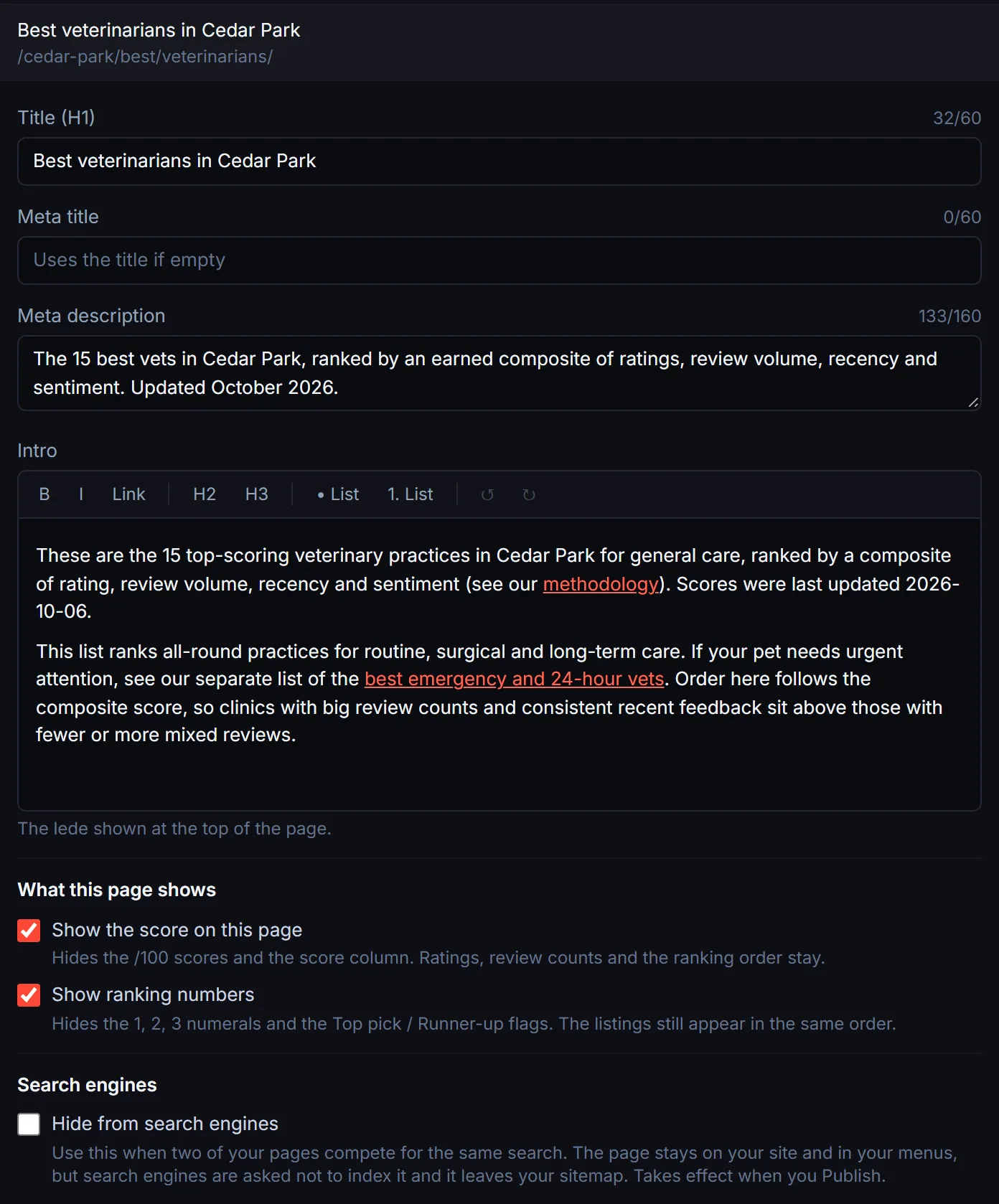
Hide a page from search engines
Sometimes two of your pages go after the same search. Your “Plumbers” category page and your “Best plumbers” list are the usual pair. When Search Console shows them swapping places for the same query, pick the one you want to rank and hide the other.
Open the page on the Pages tab, tick Hide from search engines, save and publish. The page gets a noindex tag and drops out of your sitemap. It still loads, and your menus and internal links still point to it, so visitors lose nothing. The row shows a “Hidden from search” chip. Untick it and publish again to undo. Free either way.
The homepage has no switch: hiding it is almost never what you want. If the homepage and a best-of list compete, hide the list. Pages you added yourself (your own best-of lists and comparisons) do not have the switch yet.

Curate a best-of list
Control which businesses make a best-of page and the order they appear in. Removing and reordering is free. Adding a new pick that needs its own write-up costs 1 credit, because the engine writes the entry.
Write your own review on a best-of page
Click the write-up chip beside any business on a best-of list and the card opens for editing: the label chip, what it is best for, why you picked it, what’s good about it, and what to watch out for.
The boxes come prefilled with the text your site wrote, so you are editing a draft rather than starting on a blank page. Only the boxes you actually change are kept as yours; the rest keep updating on their own at every refresh. It is free, and it goes live on your next publish.
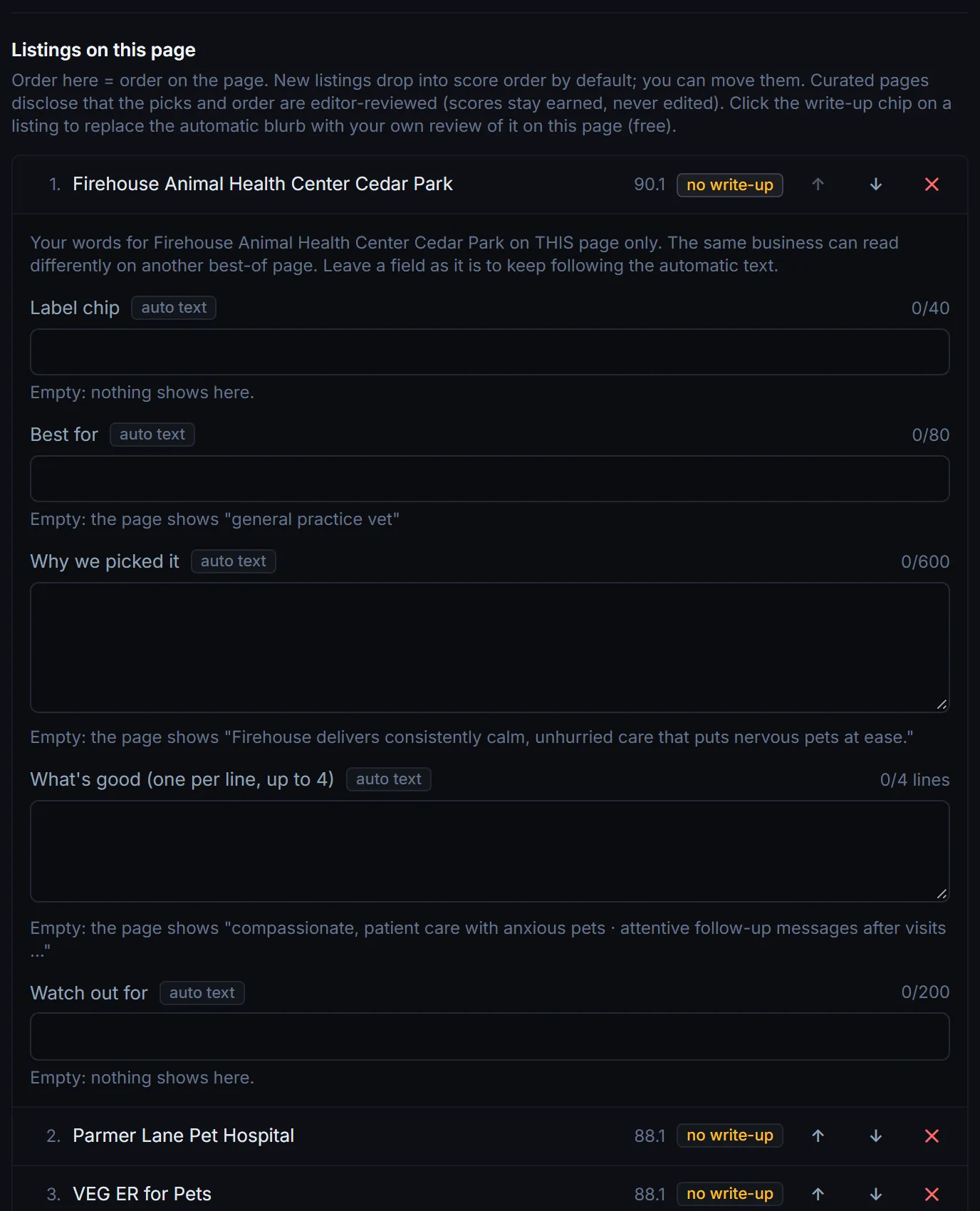
Write-ups belong to one page, not to the business
A business that appears on three of your best-of lists has three separate write-ups, one per page. Rewriting its card on your “best emergency vets” list leaves its card on the main ranking untouched. That is deliberate: the reason a business earns a place on a specialist list is rarely the reason it earns a place on the headline one.
Putting the automatic text back
Every box has a reset link. Clear it and the card goes back to what your site writes for that business, and stays in step with future refreshes. Two cases where reset gives you something shorter than what was there before: a business you added to the list by hand, and any list you created yourself.
In both, the original write-up only ever existed as a one-off, so resetting falls back to a plain line drawn from the business’s reviews rather than the fuller card. Businesses your site put on the list itself always get their full write-up back.
The label chip
Up to 40 characters of your own beside a business’s name: “Our pick for families”, “Open on Sundays”, whatever you want readers to notice first. A chip replaces the automatic Top pick or Runner-up flag on that entry, so a card never carries two labels at once. Other entries keep theirs.
Hiding scores or ranking numbers
Two checkboxes on any best-of page control what readers see. Turn off the score and the 0-100 numbers disappear from the table and the cards, while star ratings, review counts and the “How we rank” link stay.
Turn off ranking numbers and the numerals go, while the running order stays exactly as you left it. Useful when a list reads better as a shortlist than as a league table. Both settings apply to that one page.
What the page tells readers
When you write your own commentary, the line under the heading says the commentary on the list is editor-written. Scores are never editable, and the page keeps saying so: the number beside a business is the one it earned under your published method. You are adding your judgment on top of the data, not changing the data.
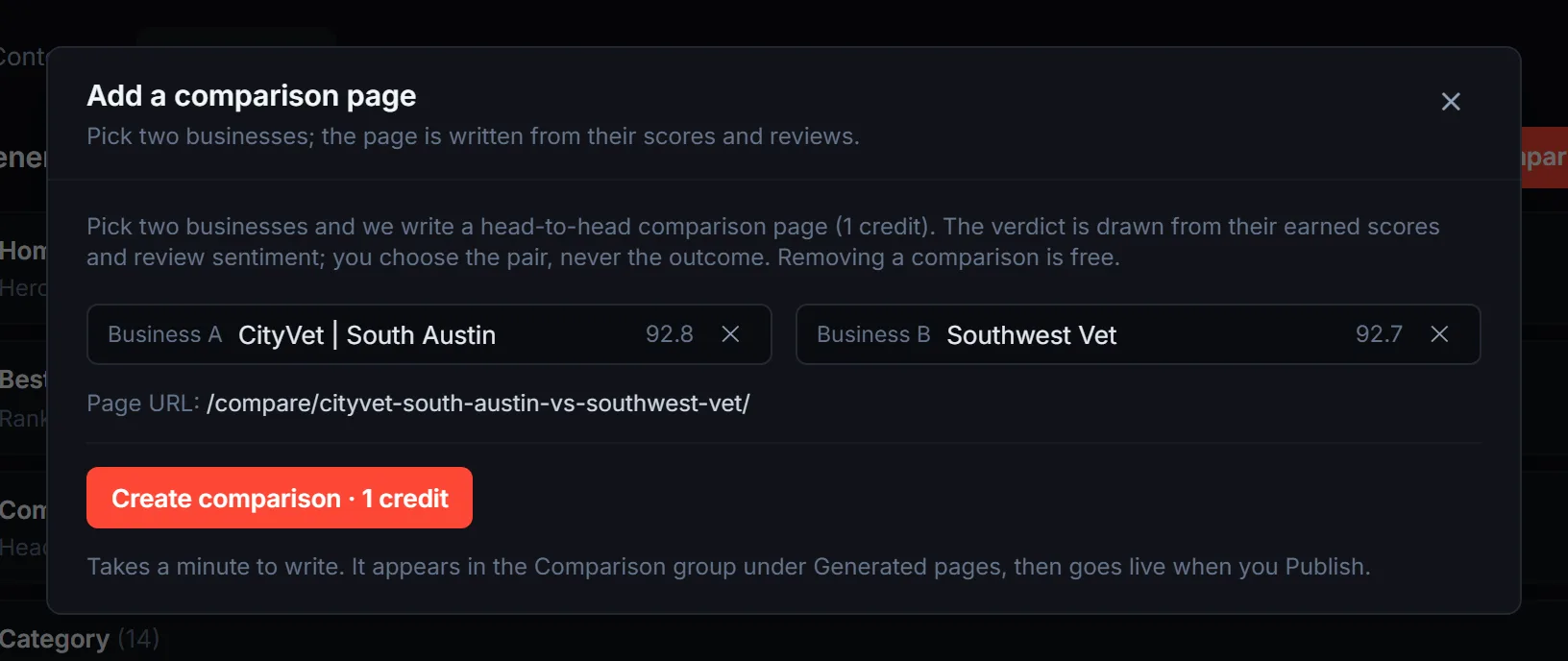
Add a comparison page
Spin up a new head-to-head comparison for 1 credit. You can delete pages you created; engine-made pages you delete stay gone through refreshes too.
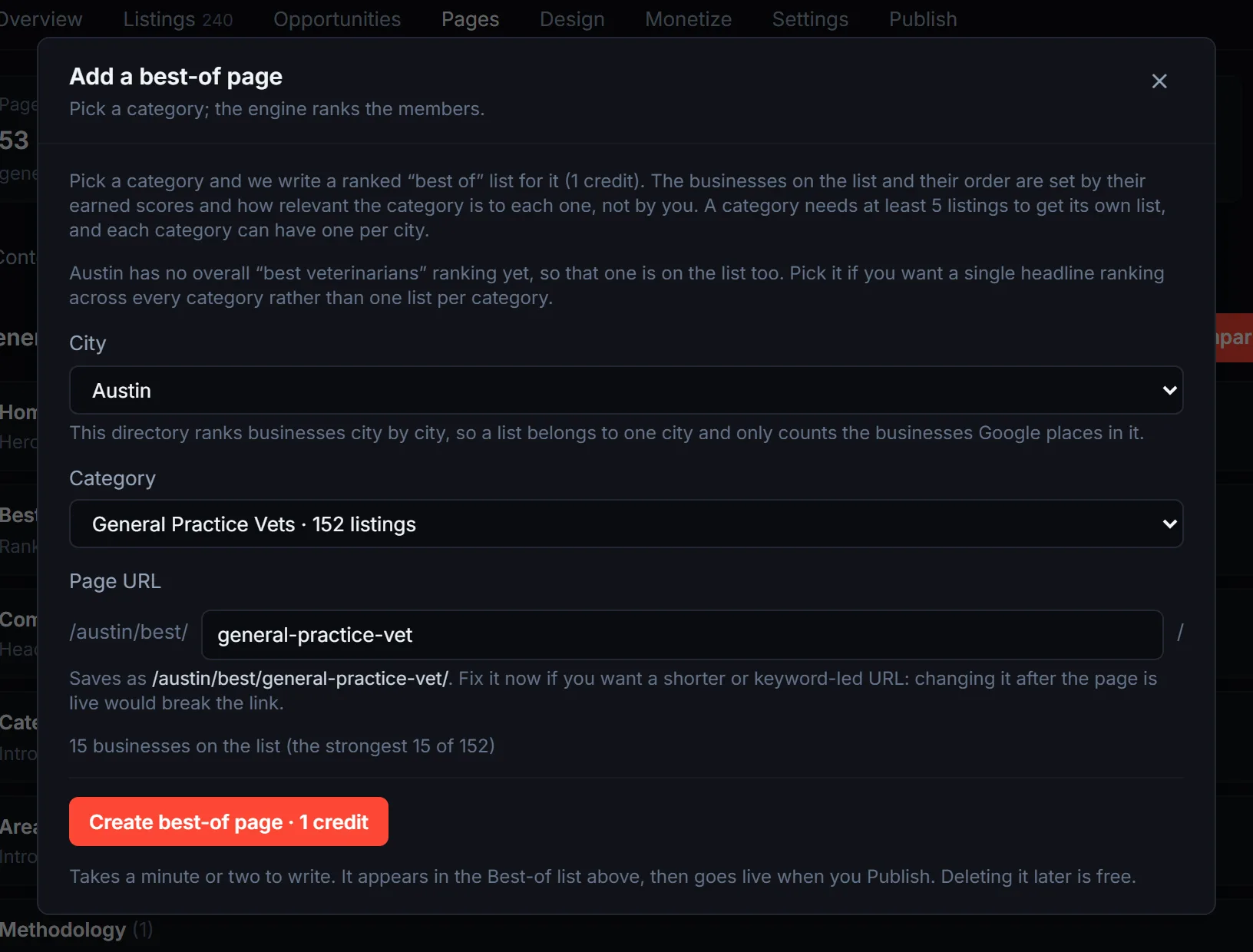
Add a best-of page
Your directory only builds a best-of list for a category that has enough businesses of its own, so a category you care about can end up without one. Add it yourself for 1 credit: pick the category and we write the list, the intro, a write-up for each business, and the FAQ.
Who makes the list, and in what order, still comes from earned scores and how relevant the category is to each business. You do not choose the line-up.
The picker greys out any category that is too thin or that already has a page and tells you which it is, so the only decision is whether the list is worth having.
The page URL is prefilled from the category name and you can edit it before you create the page, which is worth doing if you want a shorter or more search-led address. One page per category.
It takes a minute or two to write, appears in the best-of list on this tab, and goes live on your next publish. Deleting one you added is free.
Adding a list on a multi-city directory
A directory that covers several cities does not rank across the whole region: it ranks city by city, at addresses like /shah-alam/best/indoor-courts/. So the panel asks which city the list is for before anything else, and everything after that answers for that city alone.
The listing counts, the greyed-out categories and the overlap check all cover only the businesses Google places in that city. Each category can have one list per city, so the same category can run as a separate page in two cities with different businesses on each. Nothing is shared between them: editing or deleting one leaves the other alone.
The overall ranking, if yours is missing
Above the categories sits one more option: the overall list, the “best of” page that covers every category at once rather than one slice of the directory.
Your site normally writes this one itself, so most of the time you will see it greyed out as already existing, and that is the healthy state. It opens up when a city never got its own, which happens when the city was too thin at build time and has since grown.
This is the one list whose URL you cannot change: your site reserves a fixed address for its overall ranking, and keeping it there means a later rebuild that writes the page itself takes over the same link rather than publishing a near-duplicate beside it. Same 1 credit, same earned line-up.
What the overlap warning means
Sometimes the businesses in the category you picked are largely the same ones already ranked on another best-of page. The picker shows the percentage and names the page they clash with.
That overlap is the reason your directory skipped the page by itself: two lists with the same businesses on them read as duplicates, to a reader and to Google. The warning does not stop you.
Add the page when the category is a phrase people actually search for, and skip it when the only gain is another URL. You will not see it on the overall list, which contains the businesses from every other list by design.
Edit your About and guides
The About page and the buyer-guide and blog articles open in a full editor and commit to your site’s own repo. Remember that the buyer-guide library is written on the refresh cycle after launch, so a brand-new directory not showing guides yet is normal.
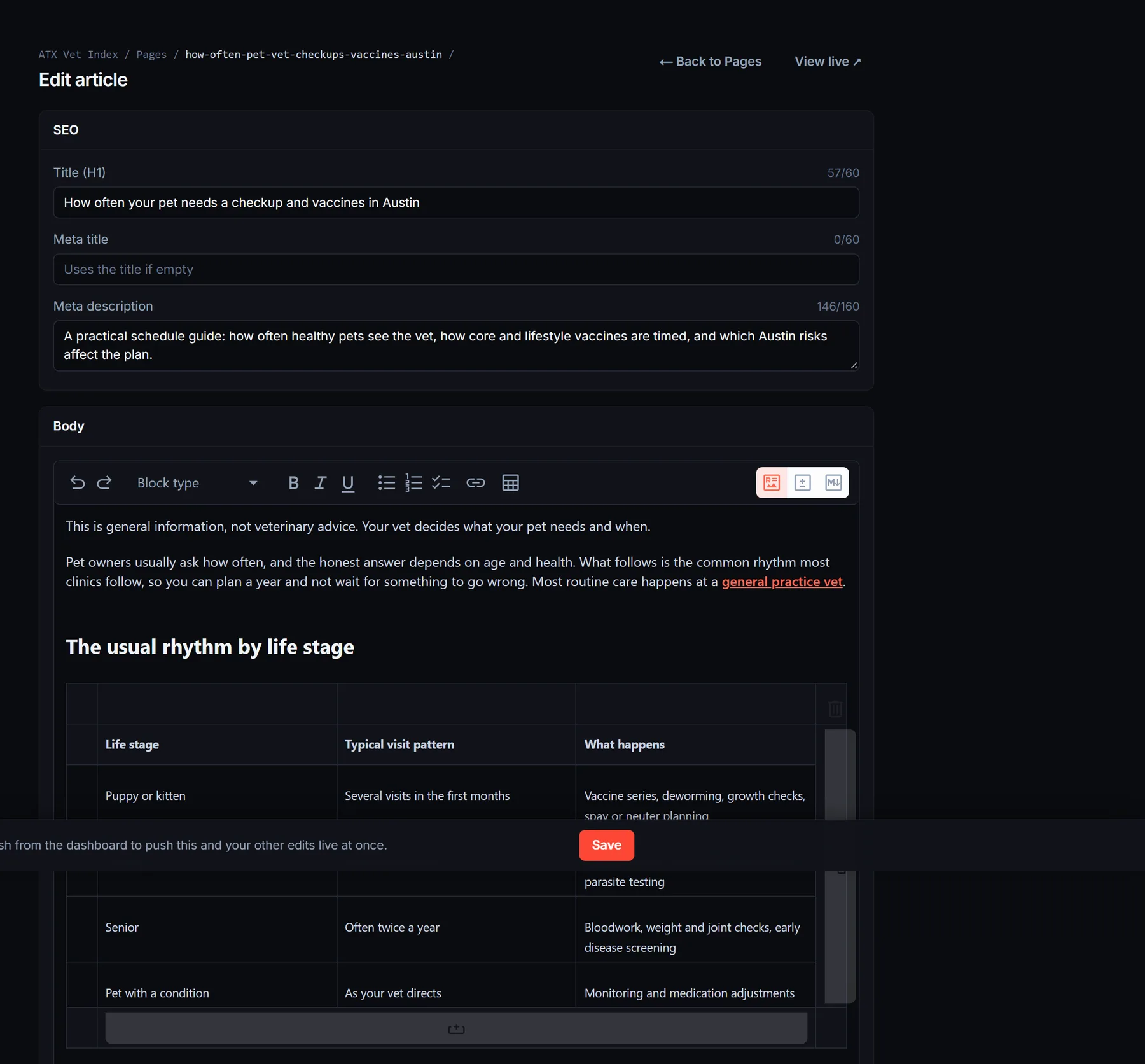
Rewrite the legal pages
Every directory ships with a privacy policy and terms page written around your publisher identity, not ours, and they read differently on every site by design. If you want your own wording (or a non-English version), open them in the editor and rewrite freely: your version is never overwritten by a refresh.
Add your own pages
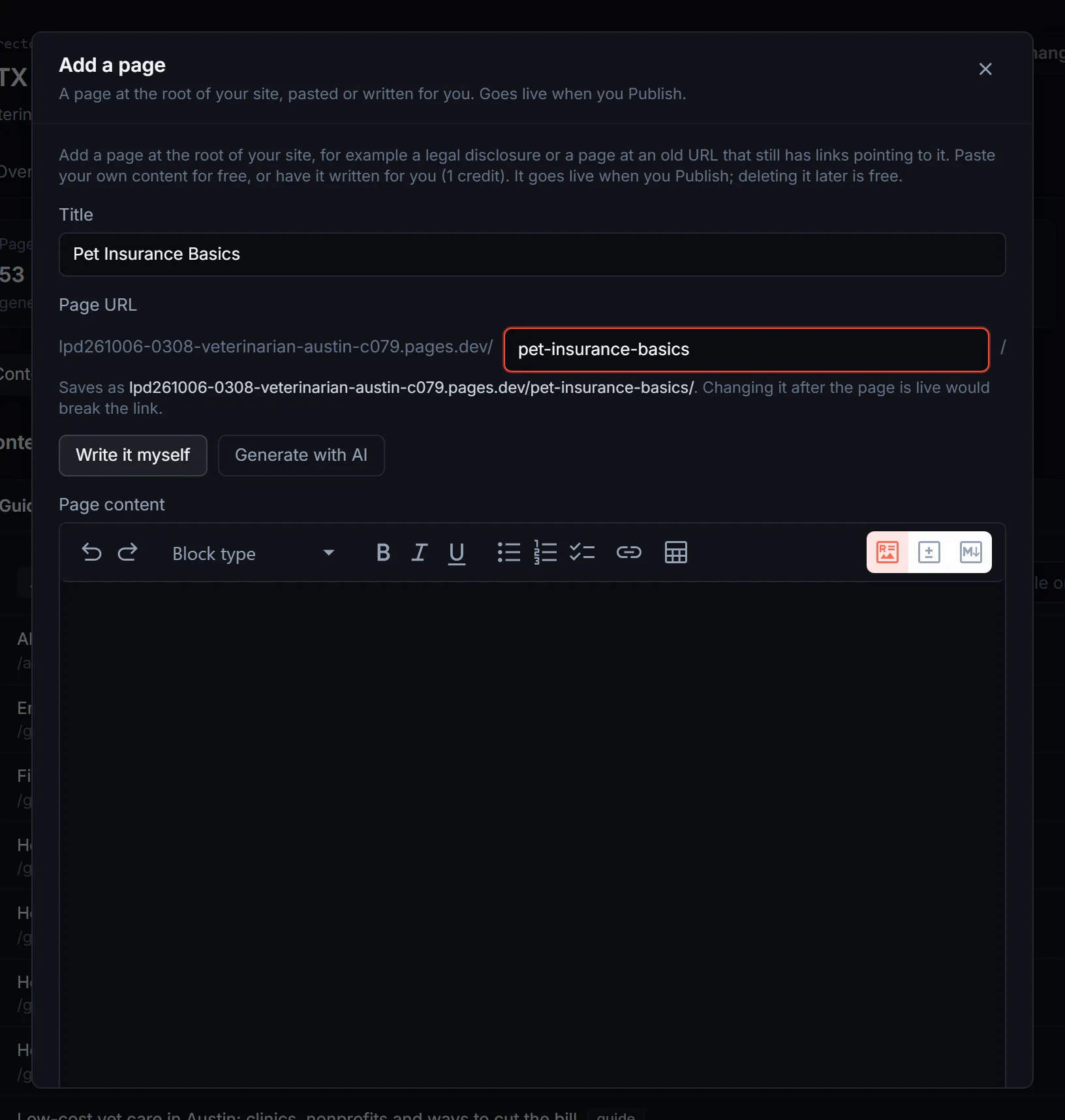
Your directory writes a lot of pages by itself, but some pages only you can decide on. Click Add page in the Content section to create a page at any address on your site, such as yourdomain.com/disclosures/.
Two ways to fill it: Write it myself gives you the same editor the guides use, with a toolbar and a source view for pasting raw markdown (a table pasted from Agility Writer or Google Docs survives intact), and it is free.
Generate with AI takes a short brief, writes the page in your site’s language and house style, and costs 1 credit.
AI pages are grounded in what you tell them: they will not invent business names, prices, laws or contact details you did not supply, so for a legal notice, paste the real text rather than asking for one.
What people use custom pages for
A few patterns come up again and again. Old URLs that still have links. If the domain used to be another site, pages like /xyz/ may still be linked from elsewhere; recreating them stops those links landing on a 404 and keeps the authority they carry.
Legal disclosures. Real-estate, finance and health directories often have to publish a disclosure or licence page and link it from every footer.
Accreditation and licensing. A page listing the licences, bodies or standards the businesses on your site are checked against. Editorial policy and the publisher. Who runs the site, how corrections work, how advertising is marked.
Partner and advertiser pages. A rate card, a sponsorship explainer, or a landing page for a campaign you are sending traffic to.
Local context. A permit guide, a seasonal checklist, or a “new to the area” page that the guides library would not write on its own.
Where a custom page shows up
Nothing links to a new page by default; you choose. Link this page in the site footer adds it to the About column of the footer on every page.
Show in the More menu adds it to the header’s More dropdown next to Guides and Tools, on desktop and in the mobile menu, with room for up to three custom pages. Tick either, both, or neither.
When you tick one, a menu label box appears: a short name of up to 40 characters that is used for the footer link and the menu item, so the page title can stay long (“Disclosures and licensing statement”) while the link reads “Disclosures”.
Leave it empty and the title is used. Hide from search engines adds a noindex tag and keeps the page out of the sitemap, which suits a disclosure or a page you only link privately; it still loads for anyone who has the address.
Images on a custom page
Two options. Link an image hosted elsewhere and it shows as is. Or insert a placeholder in the form https://placehold.co/1200x675?text=describe the image in 15 words and an image is generated from that description on your next publish, up to three placeholders per page. AI-written pages come without images; add them afterwards in the editor if you want them.
Addresses, editing and deleting
The page address is filled in from the title and you can change it before creating; after the page is live, changing it would break the link, so pick carefully.
Addresses already used by your site (a city page, the methodology page, browse, best, and so on) are refused so a page can never shadow one of them, and a city added later never takes over an address you own.
Every custom page opens in the full editor, where the footer, menu, label and search-engine settings live under Placement. Deleting a page is free and removes it on your next publish; links to it from other pages turn into plain text rather than dead links.
Like every edit, a new or changed page waits for you to Publish, and an AI page shows a Writing badge in the list until it lands, usually within a minute or two.
Tune the free tools
If your directory shipped with calculators or tools, you can edit their copy and turn individual tools on or off. The formulas themselves stay managed for you.
7Monetizing the directory
The Monetize tab is where you set up the revenue side. It works because the earned ranking underneath stays honest; you are selling visibility, never rank.
Featured placement
Set the price you charge for a featured slot. You apply the actual placement per business on the Listings tab (section 4); this is where you record what it sells for.
Directories with city pages get two price fields: directory-wide and city. Your /advertise/ page then lists them as two products, so you can charge more for the directory-wide spot and sell the cities one at a time. Leave a field blank and the page shows “Contact for pricing”.
Partner quote routing
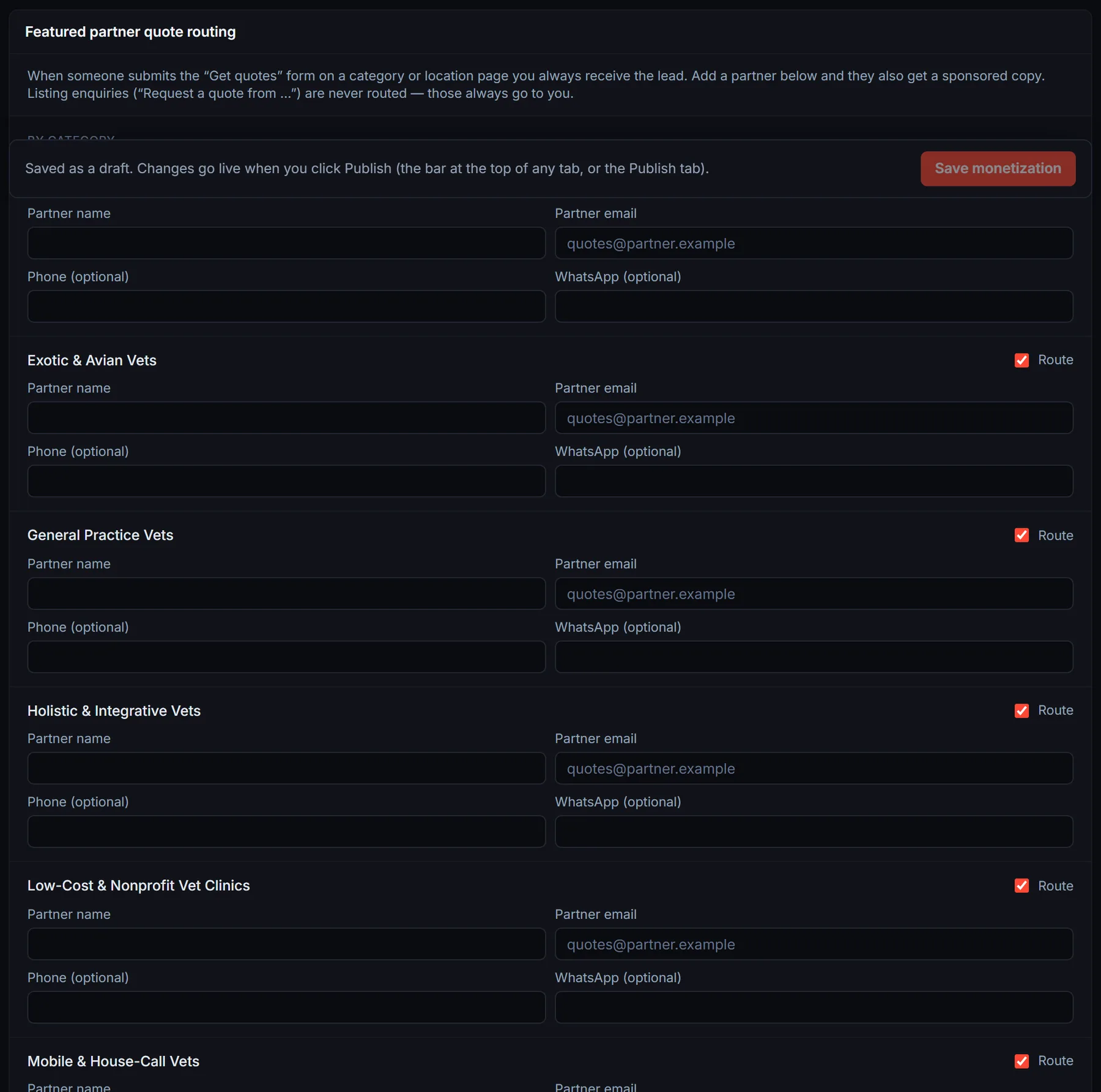
Send quote requests to a partner business that pays you for them. Set a default partner first: it gets the quote forms from every category, location, best-of, compare, tool and service page, plus your quote page. Then add a partner for a single category or area where you sell that separately, like “plumbers in the north side”. The more specific partner wins over the default.
The partner’s copy comes from your directory’s name, with a line saying it is a sponsored referral, and replies go to the visitor. Listing enquiries, the contact page and “Get featured” requests never go to a partner.
Listing enquiries to the business
Turn on “Send listing enquiries to the business” and every enquiry sent from a listing page also goes to that business’s own email. It comes from your directory’s name, the business replies straight to the visitor, and you still get every lead. You tick one box first to confirm you choose to forward them.
The email ends with a short line about featured placement and a link to your advertise page, so each enquiry doubles as a sales pitch. Keep the default line or write your own (up to 280 characters, plain text, no links). Businesses you already feature get a thank-you instead. US directories can add a postal address for the footer.
A business only gets the copy when we found an email on its own website, or it uses its own free mailbox such as Gmail. The Forwarding column on the Listings tab shows where each business’s enquiries go. Select businesses there to exclude them, to set an override email you trust more, or to reset them.
Every email has a stop link. Once a business clicks it, nothing more goes to that address and the business is marked Do not contact on your Listings tab. Bounced addresses and spam reports stop future copies the same way. If several businesses report the emails as spam, forwarding pauses for your directory and the card says why: fix the cause, then turn it back on. Daily limits per business and per directory mean a flood of fake form submissions cannot flood anyone’s inbox.
Each lead in your inbox shows whether the business got its copy, and if not, why not.
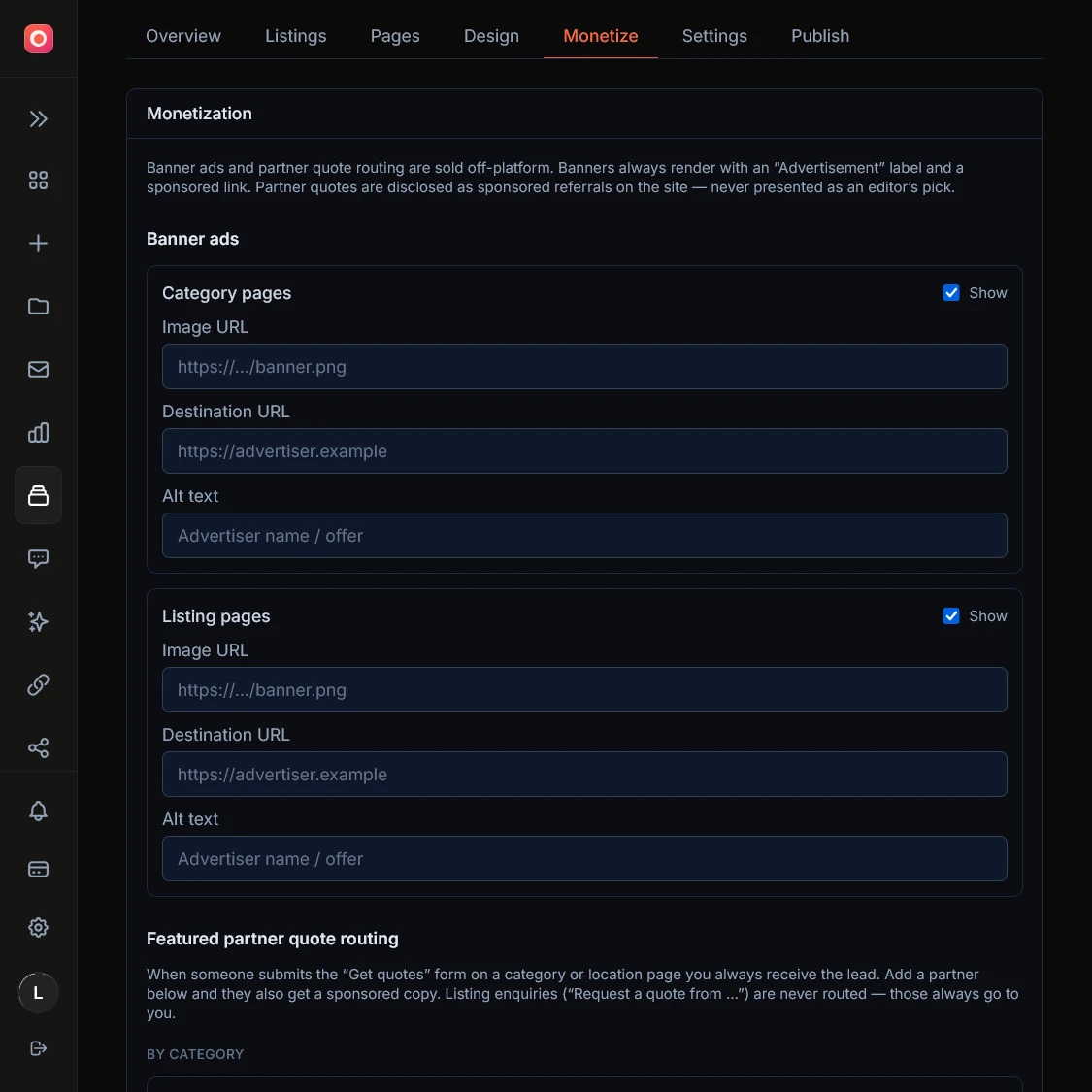
Banner ads and media kit
Enable banner slots and set the prices that appear on your site’s advertise page, so a business owner can see what a placement costs without emailing you first.
Keep it disclosed. If you sell placement, the disclosure flag on your publisher settings should be on, so the trust pages say so plainly. An honest “sponsored” label is what lets you sell placement at all without hurting the rankings people trust.
8Redesigning after launch
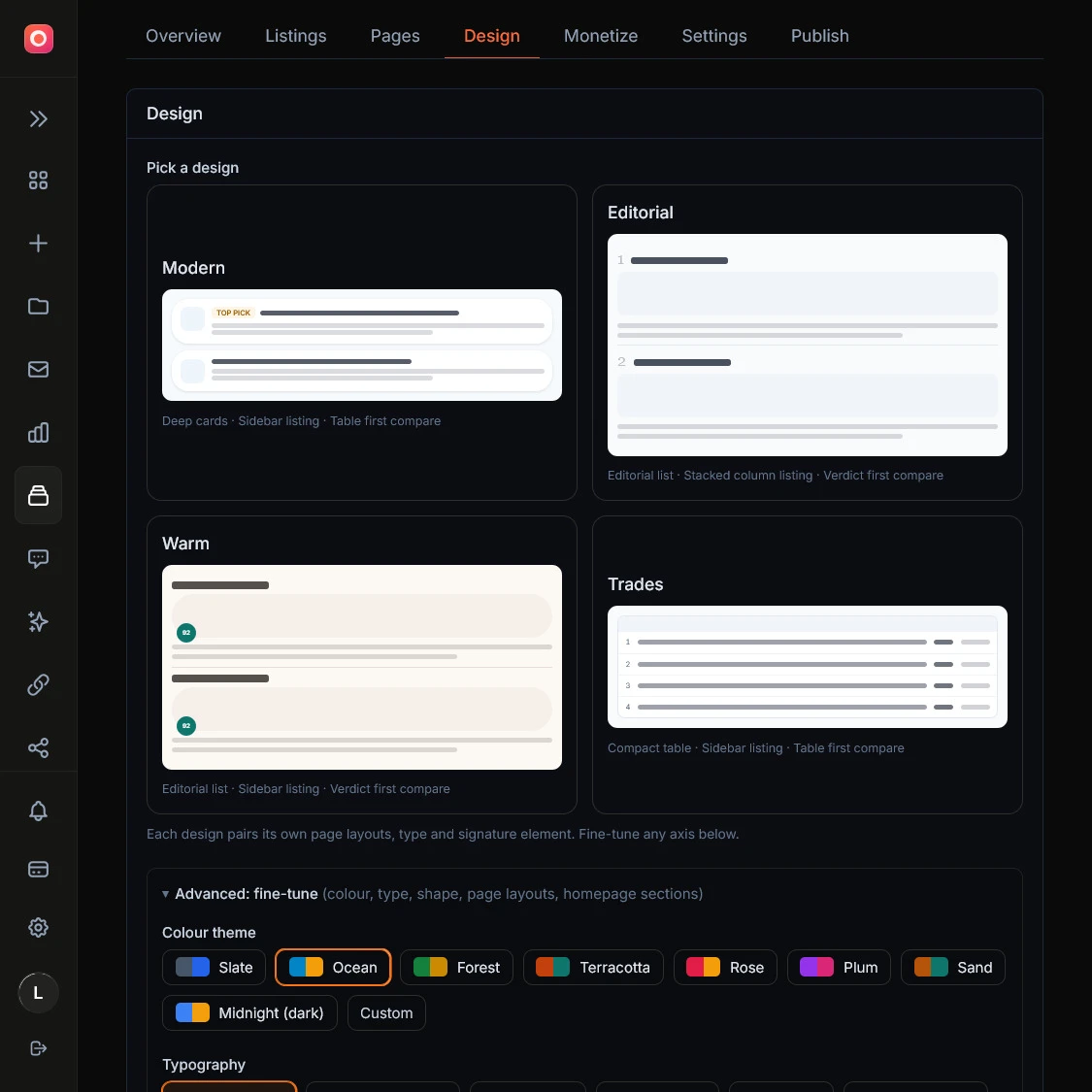
The Design tab reopens the same design studio you saw in the wizard, with every choice still editable: preset, colors, fonts, layout, and logos. Changes save as a draft and go live on your next publish, so you can try something and only ship it once it looks right. Nothing about design is locked in at build time.
9Settings and your domain
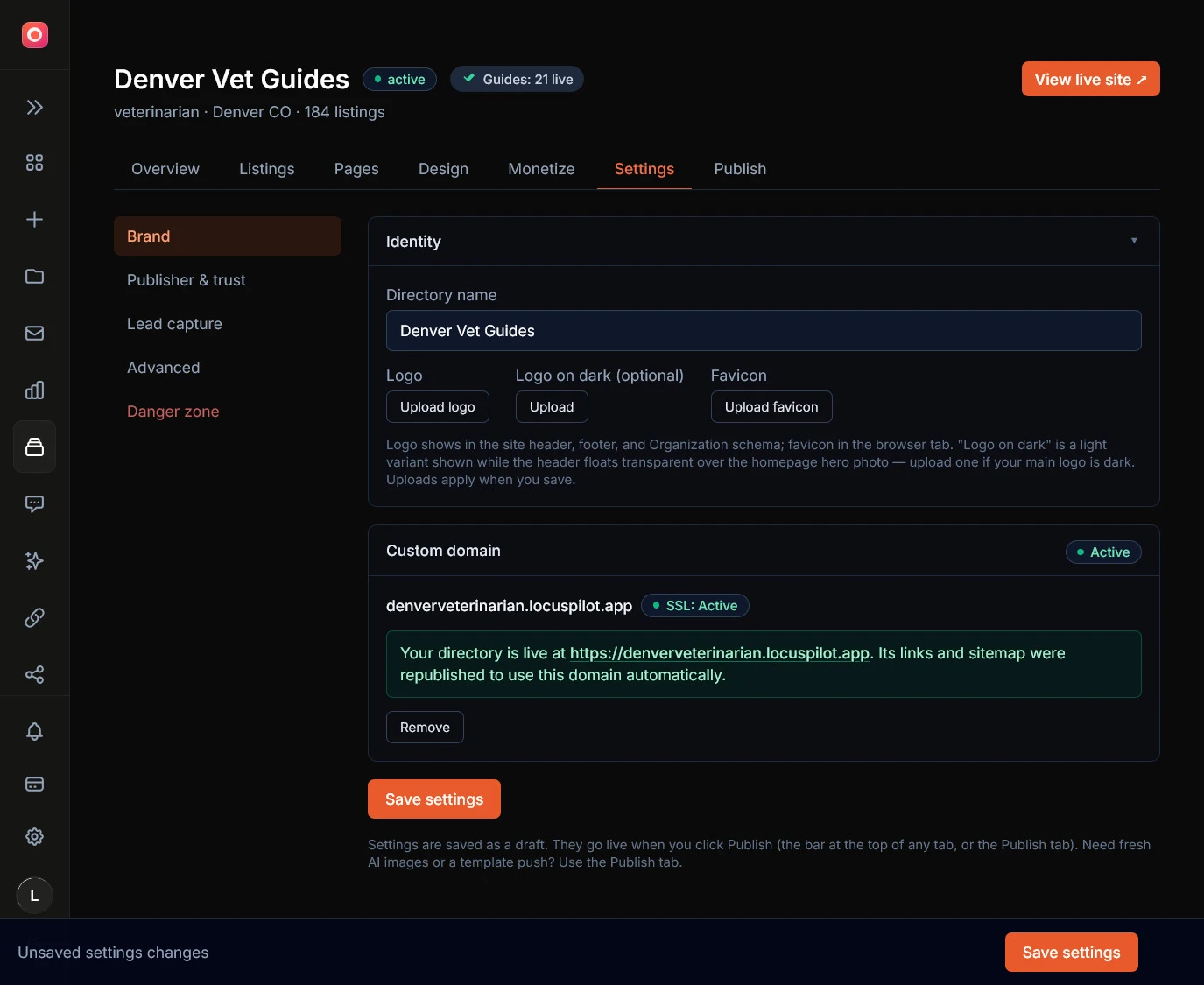
Settings holds the directory-wide fields, grouped into brand, publisher and trust, lead capture, advanced, and a danger zone.
Rename the directory
The name is editable here. It feeds your page titles, structured data, and branding, so treat a rename as a real brand change rather than a casual one, but it is no longer locked at creation.
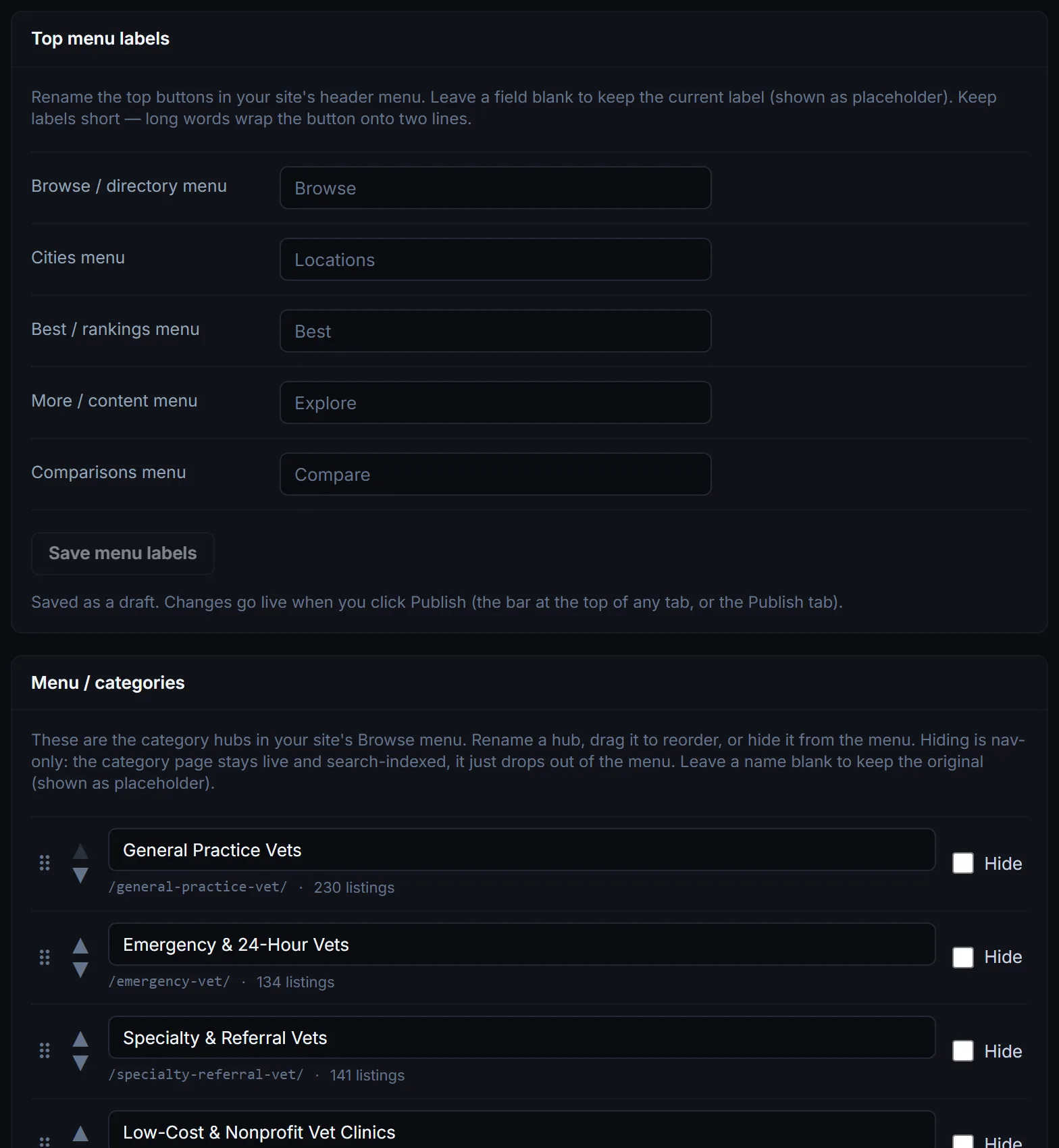
Rename and reorder your menu
Under Menu / categories you control the site’s navigation. Reword the top buttons (Browse, Cities, Best, More, Compare and the like) in your own voice, and rename, drag to reorder, or hide the category hubs inside the Browse menu.
Hiding a hub is nav-only: its page stays live and indexed, it just leaves the menu. Only the menus your site actually has appear, and both editors save as drafts that go live free on your next publish.
Brand, publisher, and trust
Swap logos and favicon, and edit the full publisher block: operator name, about, contact, editor, social links, and the sponsorship-disclosure flag. See the branding guide for what to put here.
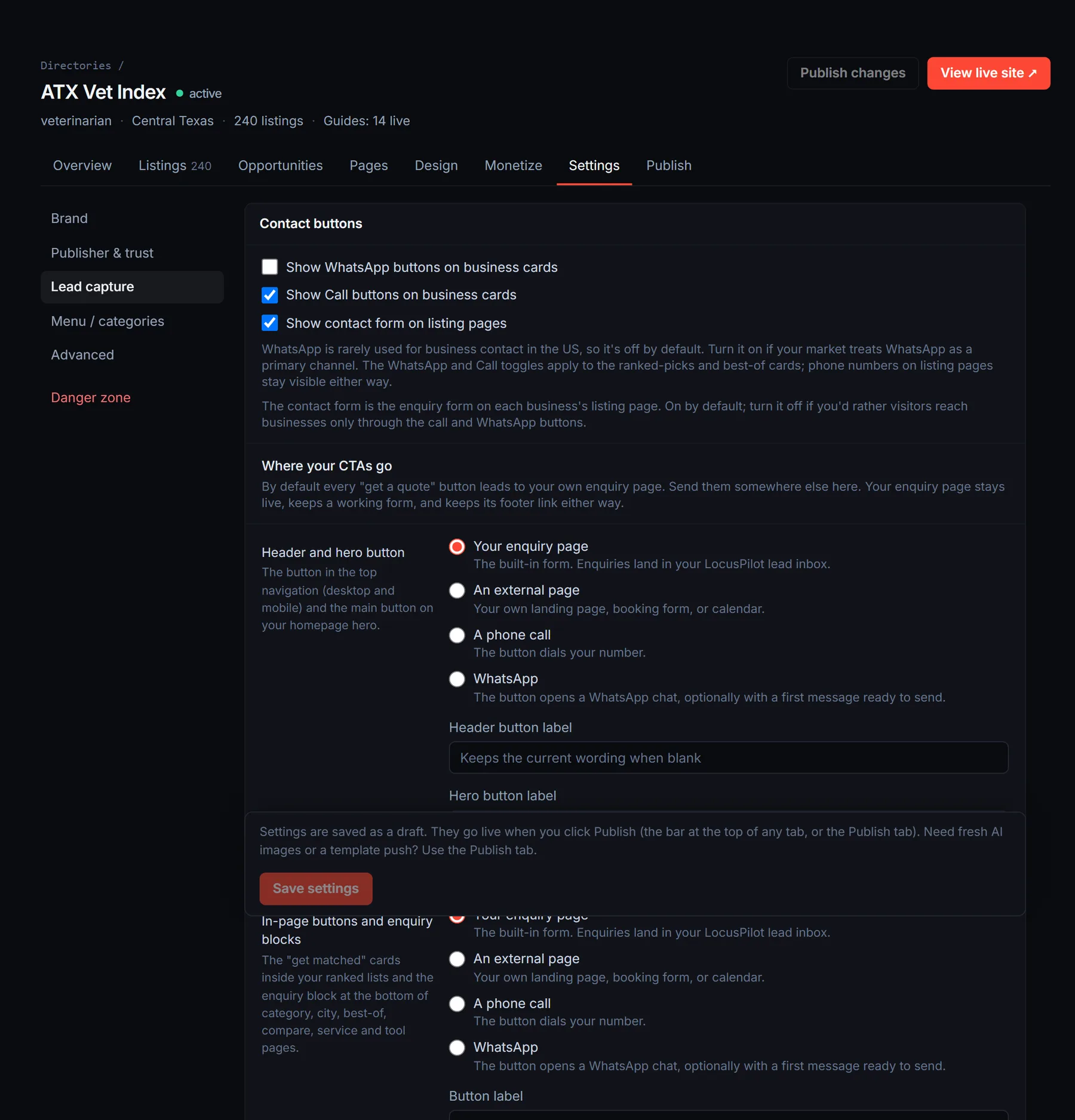
Contact channels and lead capture
Toggle the WhatsApp and call buttons, turn the listing-page enquiry form on or off, set your lead thank-you message, and adjust the labels used on listing pages.
Tune the enquiry funnel
The site-wide enquiry form writes its own wording for your niche: a trades directory asks for quotes on a job, an apartments directory asks about availability.
Here you can override any label on that form, and the funnel page URL while the site is still pre-launch (once it is live and indexable, the URL locks so a published link never breaks). Not happy with the AI’s vocabulary? Regenerate lead funnel re-rolls it and rebuilds, free.
Analytics and spam protection
Add your GTM container, GA4 ID, and custom head or body scripts, and switch on Cloudflare Turnstile to keep spam off your forms.
Connect your domain
The custom domain panel is here. Add your domain, set the DNS records at your registrar, and verify. Enter it with or without www and we connect both versions, so the panel hands you two CNAME records: add both and the site answers on either address.
Until a real domain is connected, the site stays on its pages.dev address and is hidden from search engines on purpose.
The DNS steps are the same as any LocusPilot site; the custom domain guide has per-registrar instructions.
The danger zone
Deleting a directory removes the live site and its whole lead and click history for good, and the site slot goes into a short cooldown. There is no undo, so it is gated behind a confirm.
10Content policy: names, negative remarks and contact details
Your directory writes honest editorial from public reviews: summaries of what reviewers say, watch-out lists drawn from complaints, and specifics that sometimes name an owner or a technician. In most markets that honesty is the product. Sometimes you need to dial part of it back: a business asks for its staff names to be taken down, privacy rules in your country make naming people risky, or you plan to sell placements to the businesses themselves and a public complaints list makes that a harder conversation. The content policy switches are that dial.
Where it lives
Settings → Advanced → Content policy, and the same controls appear in the create wizard. The hide switches are off by default. Negative remarks default to Soften for directories created from now on; directories built before this shipped stay on Show as written until you change them. Nothing else changes until you opt in.
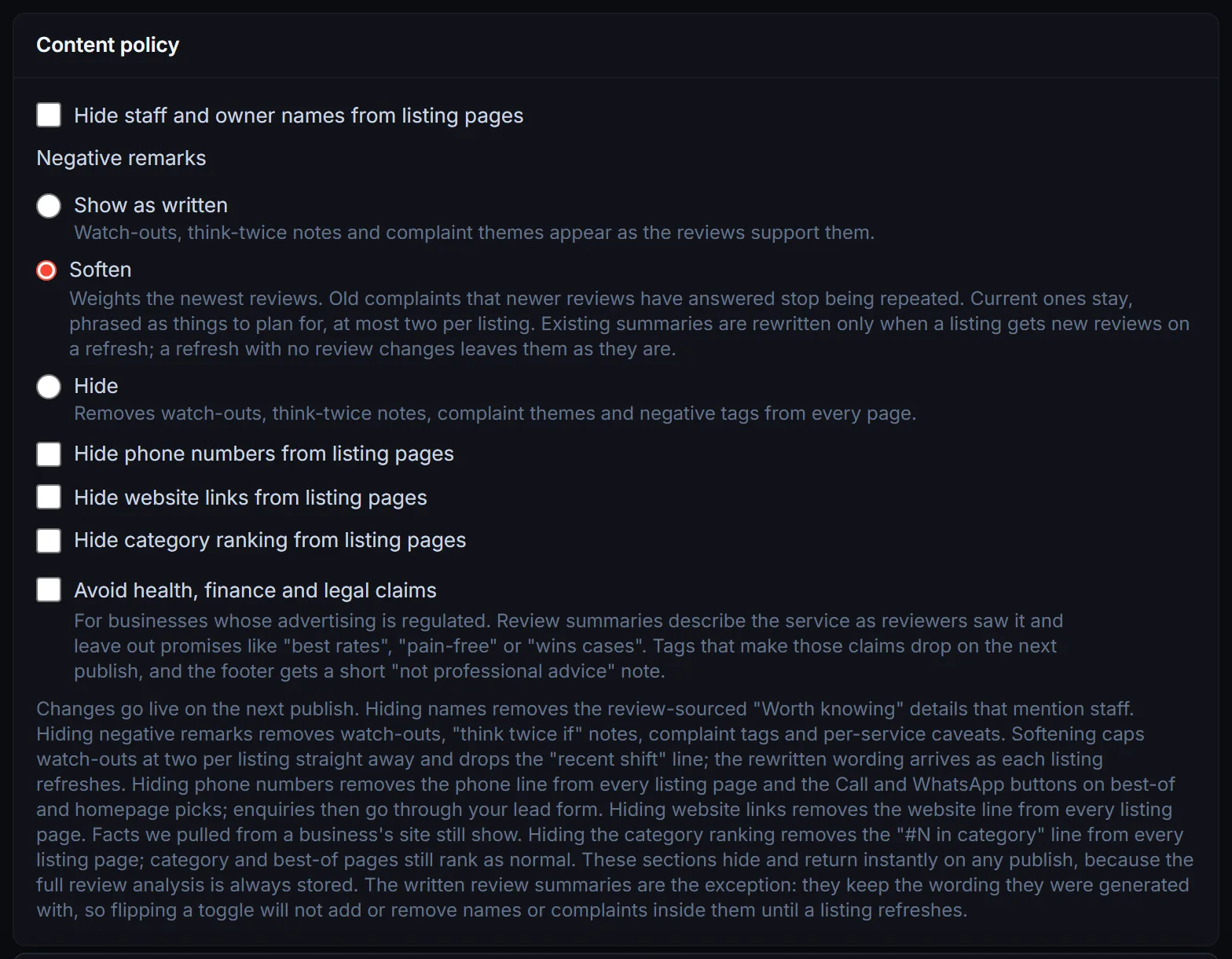
Hide staff and owner names
Removes the review-sourced “Worth knowing” details that mention staff from every listing page on the next publish. Review summaries written after you turn it on refer to “the team” instead of naming people.
Grant permission per business
With names hidden site-wide, every row on the Listings tab gains a “Show staff names (permission received)” checkbox. When a business agrees to be named, tick it and publish: their staff details return on their page while every other listing stays anonymous. Untick to hide them again. Nothing is regenerated, so it costs nothing.
Negative remarks: show, soften or hide
Three options. Show as written leaves everything in: watch-outs, “think twice if” notes and complaint themes appear as the reviews support them. Hide removes the watch-out lists, think-twice notes, complaint tags, and per-service caveats from every listing. Scores and rankings are untouched either way; this changes what the site says, not how it ranks.
Soften: the middle setting
Soften is the default for new directories, and the setting to pick when listed businesses complain that an old problem keeps being brought up. Your site then weights the newest reviews when it writes a listing: a complaint that only shows in older reviews, and that newer reviews have answered, is treated as resolved and left out. A complaint reviewers are still making stays in, worded as something to plan for rather than a verdict, with at most two watch-outs per listing. Comparison pages stay live. It is honest, just with a shorter memory.
Two things happen on different clocks. On the next publish, every listing is capped at two watch-outs and loses its “Recent shift” line. The written summary keeps its wording until a refresh finds new reviews for that listing, because the summary is only rewritten when there is something new to read. A refresh where nothing moved on Google does not rewrite it, so on an existing directory the old wording can outlast several cycles. For one listing that cannot wait, rewrite its summary from the Listings tab (section 4).
Comparison pages are your call
A head-to-head comparison picks a winner, so its verdict is critical of one side by nature. Hiding negative remarks removes those pages too by default. If you would rather keep them, untick “Also hide head-to-head comparison pages” and they stay live with their verdicts as written. This checkbox only appears under Hide; Soften never removes comparison pages.
Hide phone numbers
Removes the phone line from every listing page. The Call and WhatsApp buttons on best-of pages and homepage picks are built from the same number, so they go too: with this on, every enquiry comes through your own lead form. Your directory's own contact number in the header is not affected.
Hide website links
Removes the website line from every listing page, so visitors stay on your site instead of clicking through. The “From their website” facts still show; only the link is gone.
Hide category ranking
Removes the “#N in category” ranking line from the details box on every listing page. Category pages, best-of pages and the score badge still show; only the line on the business’s own page is gone.
Avoid health, finance and legal claims
For directories of mortgage brokers, dentists, lawyers and other businesses whose advertising is regulated. Reviews often say things a regulated business is not allowed to say about itself: “got us the best rate”, “approved in two days”, “pain-free”, “won my case”. Tick the box and pick the sector, and review summaries stick to what reviewers say about the service (clear explanations, returned calls, how people were treated) instead of outcomes or promises. The footer also gets a one-line note that reviews are not professional advice, worded differently for each directory.
Short tags and highlights that make a claim drop on the next publish. Summaries already written before you turned it on are rewritten automatically at the next refresh, at no extra cost. If you want them fixed today, Settings shows how many summaries still make a claim and a Rewrite now button: it costs 0.05 credits per summary it rewrites (the refresh rate), and anything it could not rewrite is refunded. Publish afterwards to put the new wording live. A summary you edited yourself on the Listings tab is never touched.
Free and reversible
All of these are publish-time filters. The full review analysis and every listing's contact details are always captured and stored, so flipping a switch either way needs only a free publish, and nothing is ever deleted. Soften is the one exception in part: its cap applies at publish, but its shorter memory only reaches a summary when that listing is rewritten on a refresh.
The one lag to know about: written review summaries keep the wording they were generated with. Flip a switch and the sections above change on the next publish, but the wording inside each summary only updates when that listing regenerates on a data refresh. If one listing cannot wait, rewrite its summary yourself from the Listings tab (section 4).
11Ranking weights: choosing what counts most
Every listing gets a score out of 100, and that score sets the order of your category pages, best-of lists and homepage picks. The score mixes five signals: review sentiment, Google rating, review volume, review recency and profile completeness. Ranking weights decide how much each one counts. Most owners never touch them. Change them when your market cares about something the default does not, for example putting review count first so an established business ranks above a newcomer with six perfect reviews.
Where it lives
Settings → Advanced → Ranking weights. The create wizard has the same control, collapsed under Brand & design, so you can set weights before the first build. Leave it on Default and nothing changes.
Default is your niche's own mix
Default is not one setting shared by every directory. Your directory's niche got its own weights when it was created. Review sentiment leads, and the split between recency and completeness depends on the niche: clinics and restaurants lean on recent reviews, trades lean on complete profiles. Reset to default puts you back on that mix at any time.
Presets and sliders
Three presets fill the sliders for you: Most reviewed puts review volume at 40%, Top rated puts Google rating at 40%, and Most recent puts recency at 30%. Or move the sliders yourself, within these limits: sentiment 15 to 50%, rating 10 to 50%, volume 5 to 50%, recency 0 to 30%, completeness 0 to 20%. Sentiment never drops below 15%, so the review analysis always counts. The total has to read 100% before Save weights switches on.
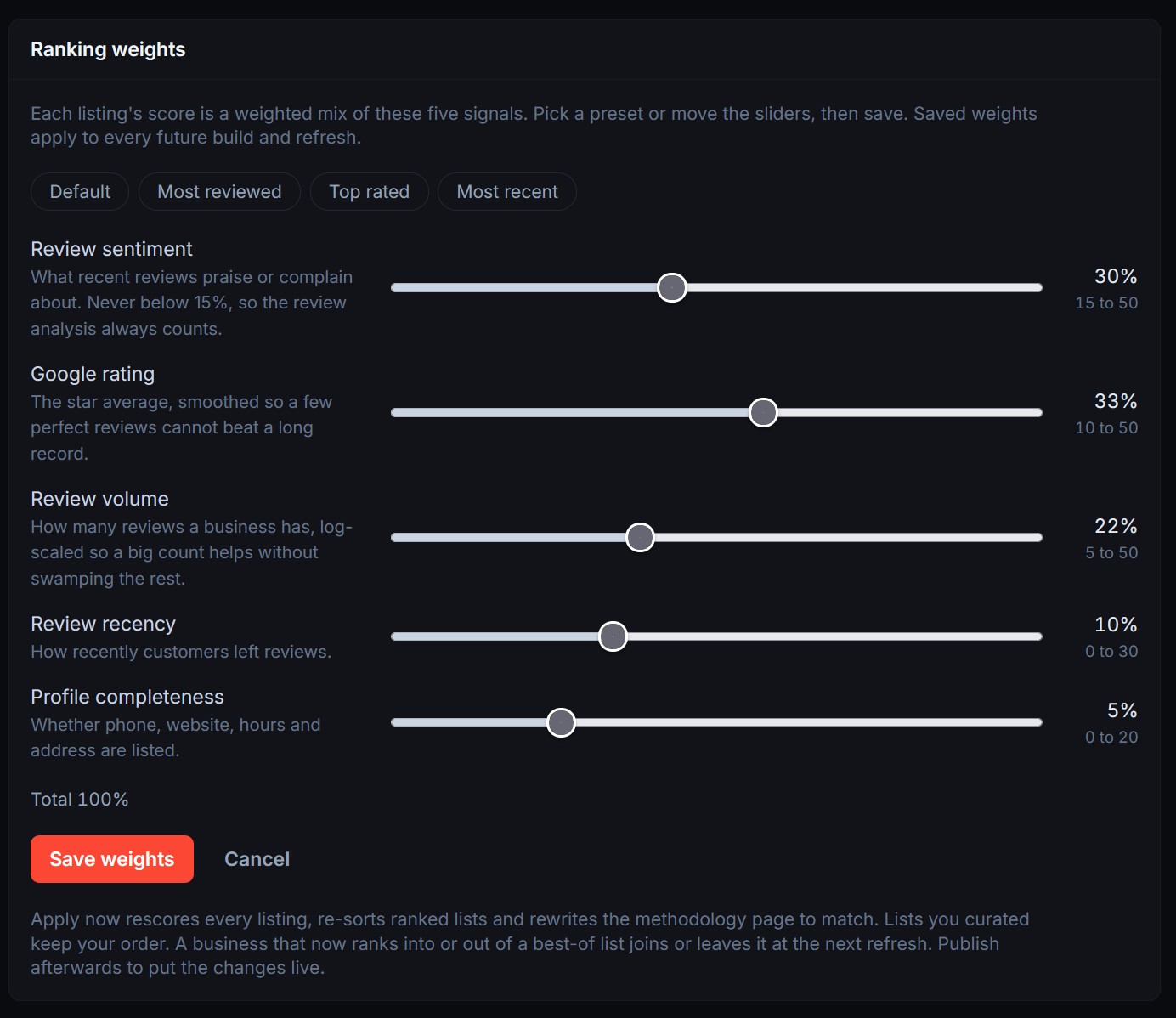
Apply now, free
Saved weights apply to every future build and refresh on their own. To use them today, click Apply now under Live scores. It rescores every listing from the data already collected, with no new review scan and no credits, re-sorts your ranked pages, and rewrites the methodology page so its percentages match. It takes a minute or two, and you can leave the page while it runs.
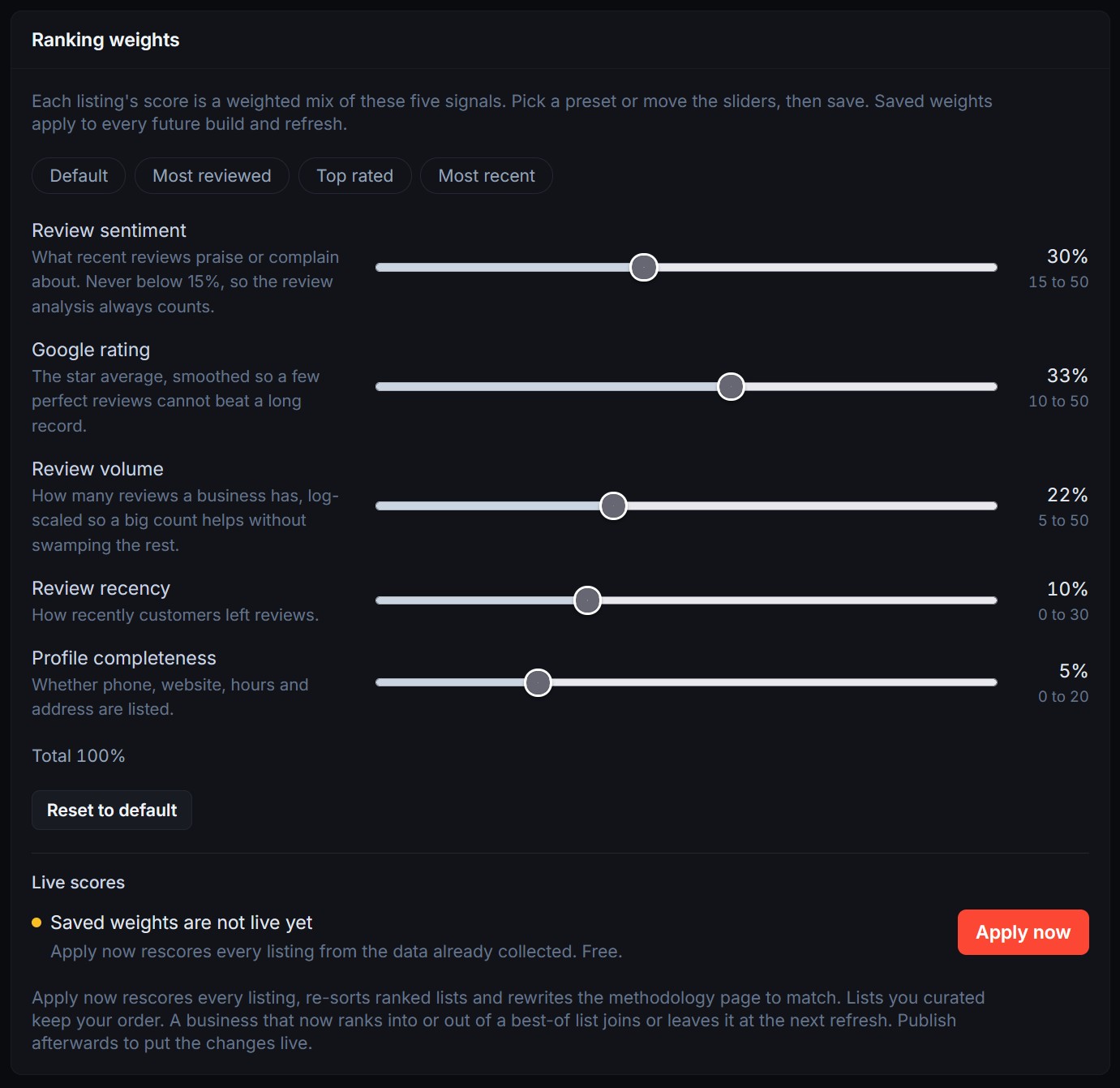
Publish to go live
When it finishes, the panel says Scores updated and how many ranked pages were re-sorted. Nothing reaches your site until you publish from the bar at the top, same as any other edit.
What changes, and when
On that publish, scores, category pages and the order inside each best-of list all follow the new weights. Lists you curated by hand keep your order, and so do best-of pages you created yourself. If a business's new score earns it a place on a best-of list, or drops it off one, it joins or leaves that list at the next refresh. A new member means a new write-up, and the refresh handles that for free.
The methodology page shows the live numbers
Your methodology page has a table of the current weights, so visitors always see the percentages your scores really use. Apply now also rewrites the page's text. If that rewrite ever fails, the table is still right and the text catches up on a later update.
Limits
One update at a time, up to 10 per directory per day. The count resets at midnight UTC.
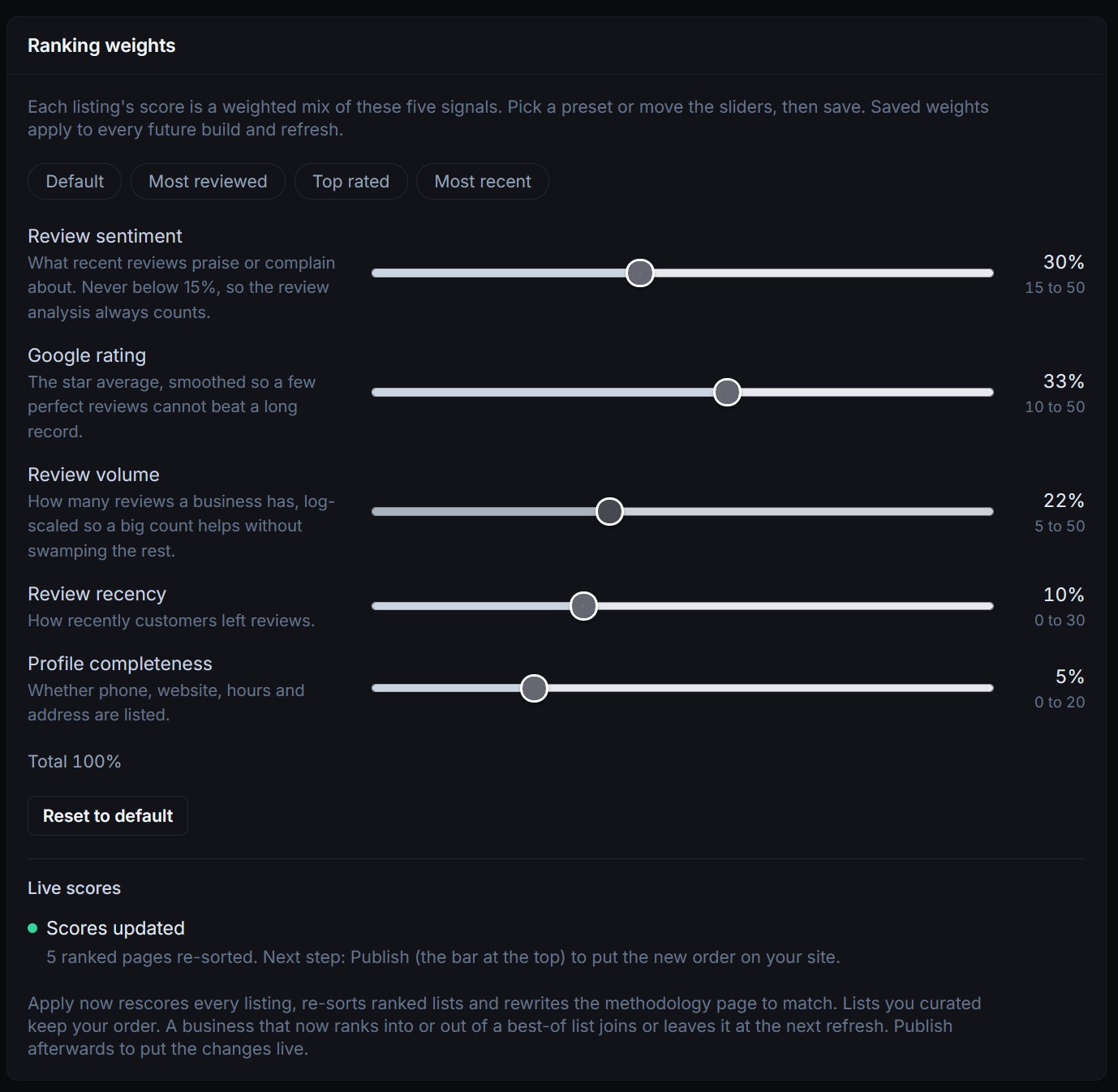
The one lag to know about: weights do not rewrite copy that already names top businesses, such as a city intro that mentions the current top three. That copy follows the new order as those pieces regenerate on later refreshes.
12Reading your leads
Every enquiry form and quote request on the directory feeds a leads panel on the Overview tab, alongside a summary of clicks: phone taps, WhatsApp, email, and outbound clicks, plus how often the enquiry forms were seen. It shows counts for the last 7 and 30 days and all time. There is nothing to wire up; the directory captures leads out of the box, and they also flow into your main LocusPilot leads inbox tagged with the page they came from.
Where the email notification goes
When a lead comes in, the alert email goes to the publisher contact email you entered on the wizard’s publisher step. If you left that blank, it falls back to your LocusPilot account email. This is set once when the directory is built, which is a good reason to put a real inbox in the publisher step.
The contact page feeds the same inbox
Every directory now has its own /contact/ page with a form for the site itself: businesses asking to be listed, correction requests, advertising enquiries.
Those come into the same leads inbox tagged as contact-page messages, so you can tell a consumer quote request from a business owner wanting to talk to you. The footer links there instead of printing your email address into every page, which keeps it away from scrapers.
Change who gets notified
The recipient lives under Portfolio → Sites, not the directory’s own Settings. Your directory appears in that list on its own; open its lead settings and edit the notification email (you can add more than one). Changing the publisher contact email on the directory does not move the notifications, so this is the screen to use.
Already in your portfolio, at no cost to your plan
Every directory is added to Portfolio → Sites automatically when it builds, so lead capture and click tracking work from day one. It does not count against your plan’s managed-site limit; directories have their own separate allowance.
From Portfolio → Sites and the portfolio dashboard you can read a directory’s leads and click activity exactly like any single business site you enrolled.
The lead capture guide covers the Sites screen in full.
13Where your CTA buttons go
By default every “get a quote” button on the directory leads to the site’s own enquiry page. Under Settings → Contact buttons → Where your CTAs go you can send them somewhere else instead: a page you own, a phone call, or a WhatsApp chat. It takes effect on your next publish, with no rebuild and no credits.
Two groups, set separately
The header and hero button is one group; the “get matched” cards and the enquiry blocks at the bottom of category, city, best-of, compare, service and tool pages are the other. A common setup is a call button in the header with the enquiry form still capturing everyone who reads down a page. Each group also takes its own button label.
What you give up by moving them
An enquiry that goes to your own page, your phone or WhatsApp never reaches your LocusPilot lead inbox. You still see the clicks in your click tracking, but there is no lead record, no notification email and no SMS for those. That is the trade, and it is why the two groups are separate.
Your enquiry page stays live either way
Whatever you choose, the enquiry page keeps a working form, keeps its link in the footer, and stays in your sitemap. It carries on ranking and converting the visitors who arrive from search, so switching back later is just another publish.
Running more directories than your plan includes
Every plan includes a number of directories: 2 on Operator, 6 on Growth, 20 on Agency, 50 on Authority. You can add more for $2 a month each from the Directory slots panel on your directories dashboard or your billing page: up to 3 extra on Operator, up to 500 extra on Growth and above. If you need more than that on Operator, Growth includes 6 directories and takes as many slots as you need.
Slots ride your existing subscription as a second line on the same invoice, so there is no separate checkout and no second card charge. An invoice reads like this:
| Growth plan | $97.00 |
| Directory slot × 14 | $28.00 |
Changing the number is a stepper and a confirmation box. The box shows what changes before anything is sent: how many slots, what your monthly cost becomes, and what your new directory limit is. Nothing reaches your card until you confirm.
Adding slots does not charge you on the spot
The slots work immediately, but the money appears on your next invoice, not today. That invoice carries the new monthly amount plus a part-month adjustment for the days left in the current period. Add 10 slots with 11 days to go in a 31-day cycle and the adjustment is about $7. Remove slots and it works the same way in reverse: you get credit for the unused time against your next invoice rather than money back on your card.
What costs credits after launch
| Action | Cost |
|---|---|
| Publish your edits | Free |
| Regenerate AI images on a publish | 4 credits |
| Refresh the data | 0.05 credits per listing, per cycle |
| Retry a failed deploy | Free (one per build) |
| Add a listing by hand | 0.1 credits each |
| Bulk add listings | 0.1 credits per listing that passes the check |
| New best-of pick that needs a write-up | 1 credit |
| Writing your own best-of write-up or label chip | Free |
| New best-of page (a category, or the overall list) | 1 credit |
| New comparison page | 1 credit |
| New custom page you write or paste yourself | Free |
| New custom page written by AI | 1 credit |
| Editing or deleting a custom page | Free |
| Regenerate the lead funnel wording | Free |
| Apply new ranking weights | Free (up to 10 a day) |
Frequently asked questions
I edited a page but the live site still shows the old version. Why?
Edits save as drafts and only appear once you publish. Go to the Publish tab and hit Publish now, or use the unpublished-changes bar that shows across the tabs. Publishing your own edits is free.
What is the difference between publish and refresh?
Publish pushes the edits you have made and is free. Refresh goes back to Google for new data, re-scores, and then publishes, so it costs 0.05 credits per listing each cycle. Publish for your own changes; let the schedule handle refreshes.
Will a refresh wipe out my edits?
No. Anything you pinned or rewrote (listing details, review summaries, edited pages, SEO overrides, hidden listings) carries through. The refresh updates the raw data around your edits.
Can I rename the directory after launch?
Yes, in Settings. The name is no longer fixed at creation. It still feeds your titles, structured data, and branding, so treat a rename as a deliberate brand change rather than a small tweak.
Can I add a lot of listings at once?
Yes. Bulk add on the Listings tab takes up to 50 Google Maps links in one go. The check step is free and shows you exactly what each link is before you pay; only listings that pass are charged, and the site republishes automatically when the batch completes.
How do I remove a business that should not be listed?
On the Listings tab, expand the row and untick “Show on site”. On the next publish it drops off every page, count, and the sitemap, and its own page starts returning a 404.
If I forward listing enquiries, what does the business see?
An email from your directory’s name with the visitor’s message and contact details, a link to its own listing, your line about featured placement and a stop link. It links only to your site, never to us, and a reply goes straight to the visitor. Turn it on in the Listing enquiries card on the Monetize tab.
Does featuring a business change its ranking?
Never. Featured is a labelled, paid placement that sits above the results and on the homepage. The earned ranking underneath is untouched, which is the whole point: a ranking that is for sale is worth nothing.
Can I rank businesses by number of reviews instead?
Yes. Pick the Most reviewed preset under Settings → Advanced → Ranking weights, or push the review volume slider up to 50%. Save, click Apply now, then publish. Section 11 walks through it.
I rewrote a business’s card on a best-of page. Will a refresh undo it?
No. What you wrote is pinned and survives every refresh, on that page only. The boxes you left alone are not pinned, so they keep taking the fresh wording your site writes.
That split is worth knowing about in the other direction too: a card you rewrote a year ago will still say what you said a year ago, even after the business changes. Reset the box when you want the automatic text back in charge.
Can I hide the scores on one best-of page but keep them elsewhere?
Yes, both checkboxes are per page. Hiding the score removes the 0-100 numbers from that page and leaves the star ratings, the review counts and the link to your ranking method. The order of the list does not change, and neither does the ranking behind it. Hiding the ranking numbers works the same way: the numerals go, the order stays.
One of my categories has no best-of page. Can I add one?
Yes. On the Pages tab, open “Add a best-of page” and choose the category. It costs 1 credit and is written in a minute or two. The category needs enough listings to fill a real list, and the picker shows the minimum and greys out anything short of it. Each category can have one page.
If the picker warns you that the businesses overlap a list you already have, that is exactly why the directory did not build the page itself, and the call is yours. The line-up and the order stay earned either way.
My directory covers several cities. Which city does a best-of page belong to?
Whichever one you pick. A multi-city directory ranks per city rather than across the region, so the panel asks for the city first and then scopes everything to it: the listing counts, which categories qualify, and the overlap check all cover only the businesses Google places in that city.
The page lands at /your-city/best/your-list/. You can run the same category as its own list in two cities, and the two are independent, so editing or removing one does not touch the other.
One of my cities has no overall “best of” ranking at all. Can I add that?
Yes, and it sits at the top of the same picker as its own option, above the categories. Your site normally writes that page itself, so usually it shows as already existing.
Where it is genuinely missing (a city that was too thin when the site was built and has grown since), you can add it for 1 credit.
It is the one page whose URL you cannot edit: your site keeps a fixed address for its overall ranking, so if a later rebuild writes that page itself it takes over the same link instead of leaving you with two near-identical pages.
The domain used to be another site and old links point at pages that no longer exist. Can I bring them back?
Yes, for single-segment addresses like /pricing/ or /our-story/. Add a custom page with that exact address, paste or write the content, and publish. The old links land on a real page again. Addresses with more than one segment (/blog/old-post/) are not supported yet.
Can I put my own page in the header?
In the More dropdown, yes: tick “Show in the More menu” on the page and it appears there on desktop and mobile, up to three pages. A top-level header button is not available; the header is built from your site’s own sections so it stays consistent across every page.
Can I upload an image to a custom page?
Not directly yet. Link an image hosted elsewhere, or drop a placehold.co placeholder with a description in it and the image is generated for you on the next publish, up to three per page.
I created a custom page but it is not on the live site.
Two things to check. Custom pages wait for a Publish like every other edit, so hit Publish now. And an AI-written page shows a Writing badge in the Content list until it has been written; if you published before it finished, publish once more after the badge clears.
A business asked me to remove staff names or negative comments. What do I do?
Go to Settings, open Advanced, and turn on the content policy switches you need: hide staff and owner names, soften or hide negative remarks, hide phone numbers, hide website links, or hide the category ranking. Publish (free) and the details disappear from every listing. Soften is the middle ground when a business objects to old complaints that newer reviews have answered: current issues still show, resolved ones stop being repeated.
If the complaint is about one sentence in one listing’s review summary, you do not need a site-wide switch. Expand that listing, open Review summary, and rewrite the paragraph or the “Think twice if” note. Your wording survives refreshes, and Reset to generated brings the automatic text back whenever you want it.
If one business later gives permission to be named, tick “Show staff names (permission received)” on its row in the Listings tab. Written review summaries reword themselves gradually as listings refresh; everything else changes on the next publish.
My refresh stopped running. What happened?
Most likely your credit balance ran low and the schedule paused into a grace period rather than failing. A banner on the dashboard tells you. Top up or resubscribe and it resumes on the next cycle.
If I add 10 slots now, am I charged $20 straight away?
No. Nothing is taken from your card at the moment you add them. The 10 slots are usable immediately and the cost lands on your next invoice: $20 for the month ahead, plus a part-month amount for the days left in the current period. On a 31-day cycle with 11 days to go that part-month amount is about $7, so the invoice comes to roughly $27 for slots on top of your plan.
I added 10 slots, then went to 20 three days later. Do I pay for both?
No, and you are not charged twice. Each change credits back the unused time on the old number and re-charges the new one, so the arithmetic settles to exactly what you had, for exactly as long as you had it: 10 slots for those 3 days, then 20 for the rest of the cycle.
All of it appears as separate lines on the next invoice. Change the number as often as you like; the total always matches actual usage.
Can I reduce my slots, and do I get a refund?
You can reduce or remove them at any time, with no notice period. You will not get money back on your card. Instead you get credit for the unused time, which comes off your next invoice automatically. Drop to zero and the slot line disappears from the invoice entirely.
What if I reduce slots while every directory is in use?
You can still do it, and the confirmation box tells you the consequence before you commit. Any directory over your new limit moves to a temporary maintenance page, newest first, so your oldest and most established sites keep serving.
Nothing is deleted: listings, content, domains, leads and rankings are all kept, and one click brings a directory back as soon as a slot frees. The maintenance page returns a “temporarily unavailable” signal, which tells search engines to hold your rankings rather than drop the site.
Is there a maximum number of slots?
On Operator it is 3 extra directories. On Growth, Agency and Authority it is 500 extra per account, the same on all three. That one exists to catch a mistyped number rather than to push you up a tier. If you genuinely need more than that, contact us and we will raise it.
What happens to my slots if I change plan?
Changing tier means cancelling and resubscribing, and your slots were billed on the subscription you cancelled, so they do not carry across. We will not silently re-add them and bill you again.
If your new plan includes fewer directories than you are running, you get 7 days to re-add the slots you need, with a banner on the dashboard and an email telling you how many. Nothing moves to maintenance during that window.
Moving down to Operator, you can re-add up to 3 slots. If you are over by more than that, the email says how many directories need Growth. Unless you move to Growth, those move to maintenance, newest first, when the 7 days end.
Do slots change how much a refresh costs?
No. Slots decide how many directories you can run; credits decide how often each one refreshes. A slot is a flat $2 a month whatever the directory does, and refreshes stay at 0.05 credits per listing per cycle. The two are independent.
A domain on the Opportunities tab says unregistered but the registrar shows it taken. Why?
The status is from the last refresh. Expired names get picked up quickly, sometimes within hours of dropping. Treat the tab as a shortlist and confirm at the registrar before you buy. Run a refresh to bring the list up to date.
Why does a business show as No website when it has a Facebook page?
A social page is not a website the business controls or that ranks on its own. Facebook and similar pages sit in the Weak website segment; No website means there is no link at all, or only a WhatsApp or Telegram link. If a listing with a Facebook link appears under No website, the link was not on its Google profile at the last refresh.
Run it from one dashboard
Edit anything, hit Publish, and let the refresh keep the data current. Almost every choice you made at build time is editable here.
Not built one yet? Start with the create guide, then come back here to run it.
Open your directories