How to Connect Your Custom Domain
This guide will walk you through connecting your own domain (like yourbusiness.com) to your LocusPilot-generated website.
1Add Your Domain in the Dashboard
After your website generation is complete:
- Go to your project status page
- Open "Connect your domain" under Finish setup
- Enter your domain (e.g.,
example.comorwww.example.com) - Click "Add Domain"

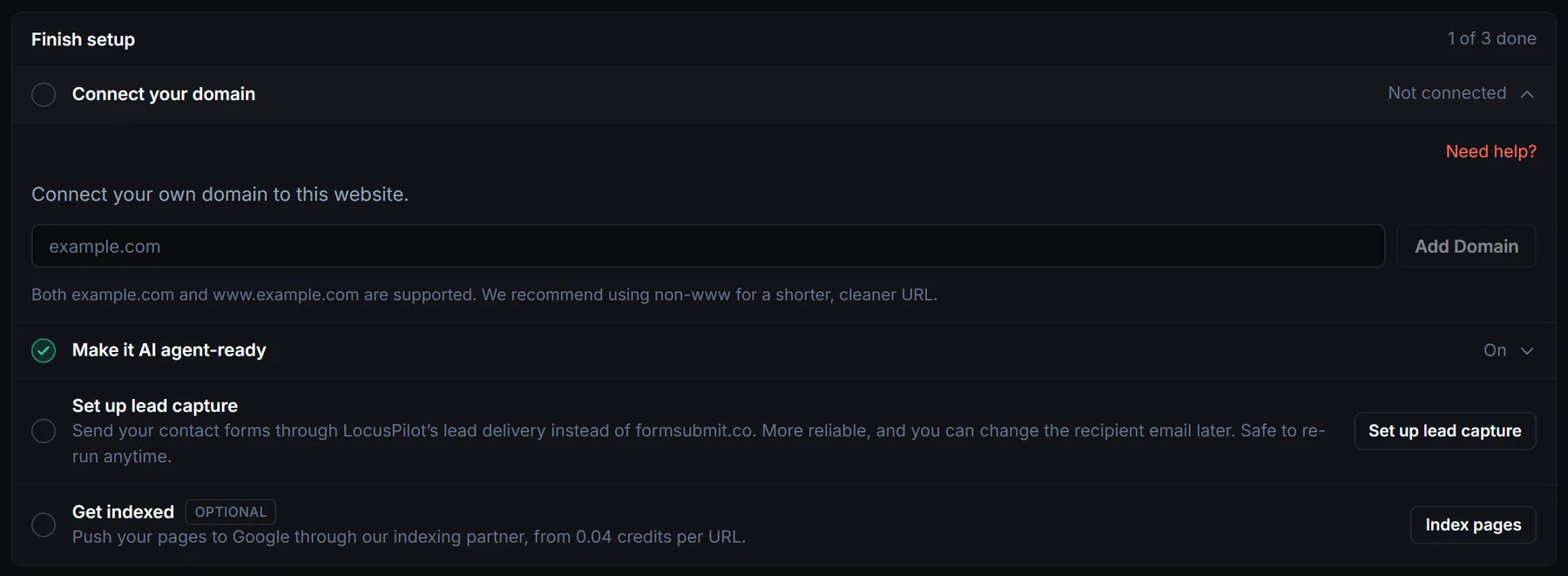
example.com) for a shorter, cleaner URL. Both www and non-www domains are fully supported.2Add CNAME Record at Your DNS Provider
After adding your domain, you'll see the DNS record you need to add. Go to your domain registrar or DNS provider and add the following record:
For root domain (example.com) - Recommended:
| Type | Name / Host | Value / Target |
|---|---|---|
| CNAME | @ (or leave empty) | your-project.pages.dev |
For www subdomain (www.example.com):
| Type | Name / Host | Value / Target |
|---|---|---|
| CNAME | www | your-project.pages.dev |
Replace your-project.pages.dev with the value shown in your dashboard.
3DNS Provider-Specific Instructions
GoDaddy
- Go to My Products > DNS
- Click Add under Records
- Select CNAME as the Type
- Enter
@for root domain, orwwwfor subdomain - Paste your pages.dev URL as the Points to value
- Click Save
Namecheap
- Go to Domain List > Manage
- Click Advanced DNS tab
- Click Add New Record
- Select CNAME as Type
- Enter
@for root domain, orwwwfor subdomain - Paste your pages.dev URL as Target
- Click Save All Changes
Cloudflare DNS (Important!)
- Go to your domain's DNS settings
- Click Add record
- Select CNAME as Type
- Enter
@for root domain, orwwwfor subdomain - Paste your pages.dev URL as Target
- Set Proxy status to "DNS only" (gray cloud icon)Do NOT use "Proxied" (orange cloud) - it will cause SSL/routing issues
- Click Save
Note: Cloudflare supports CNAME flattening for root domains automatically.
Other DNS Providers
The general steps are similar for most providers:
- Find the DNS management section
- Add a new CNAME record
- Set the host/name to
@for root domain, orwwwfor subdomain - Set the value/target to your pages.dev URL
- Save the changes
4Wait for DNS Propagation
DNS changes can take 1-24 hours to propagate worldwide. During this time, the domain status in your dashboard will show "Pending".
Click the "Check Status" button in your dashboard to verify when the domain is active.
Root Domain vs www Subdomain
We recommend using your root domain (example.com) for a shorter, cleaner URL. Most modern DNS providers handle this seamlessly:
- Cloudflare: Supports "CNAME flattening" automatically
- Namecheap: Supports ALIAS records for root domains
- GoDaddy: Supports CNAME flattening for root domains
- Most providers: Support ALIAS/ANAME records as alternatives
If your DNS provider doesn't support root domain CNAME, you can usewww.example.com instead.
On a directory site you don't have to choose: connect either one and we connect the other for you, so both addresses serve once you have added both DNS records.
Troubleshooting
Domain still shows "Pending"
- DNS propagation can take up to 24 hours
- Verify the CNAME record is correct in your DNS settings
- Clear your browser cache and try again
Using Cloudflare? Check proxy setting
- The proxy status MUST be "DNS only" (gray cloud)
- "Proxied" (orange cloud) will cause SSL/routing issues
SSL Certificate issues
- SSL is automatically provisioned by Cloudflare
- It may take a few minutes after domain verification
- If issues persist, try removing and re-adding the domain
"Domain already connected" error
- This domain may already be connected to another project
- Remove it from the other project first, or use a different domain