Portfolio Dashboard - Every Site at a Glance
The Portfolio is the operator view across every site you have enrolled under Portfolio › Sites. Leads, CTA clicks, traffic sources, and a visitor map for each site. Built for running ten or a hundred sites, not just one.
Every number on the page shows the change versus the prior period (last 30 days vs. the 30 before, by default). The Portfolio is where you spot the site that started losing leads last week, before the customer calls to complain.
Subscription required. The Portfolio aggregates leads and CTA clicks from enrolled sites. PAYG / Free projects (set up via Set up lead capture) send form submissions by email only - they do not appear here, and no clicks are tracked for them. Enrol the site to bring it into the Portfolio.
If you cancel, the Portfolio goes dark at the end of the billing period (sites are auto-archived, form submissions still send emails, no new data is captured). Historical rows are still exportable from the Leads Inbox for 30 days. Re-subscribe and pick which sites to re-enrol - see the cancellation FAQ for the full flow.
1The Operator View
Open Portfolio from the sidebar. It has two tabs: Overview, covered here, and Sites, where you enrol sites and set who gets their leads. Overview runs top to bottom: the KPI strip, the range and filter bar, a Needs attention panel, the per-site table, and three panels (Top Pages, Top Cities, Top Sources).
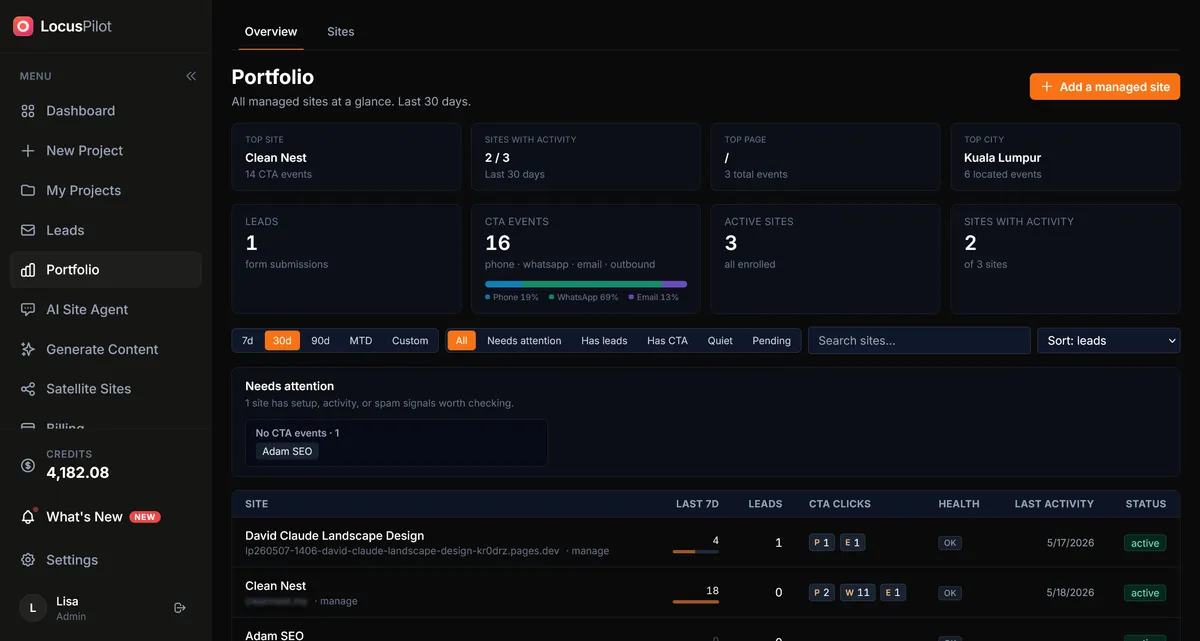
Everything on the page respects the date range chip you pick. Change it once, the whole page updates. No per-widget filters to keep in sync. The one exception is the Last 7d column in the table, which always covers the last 7 days.
2The KPI Strip
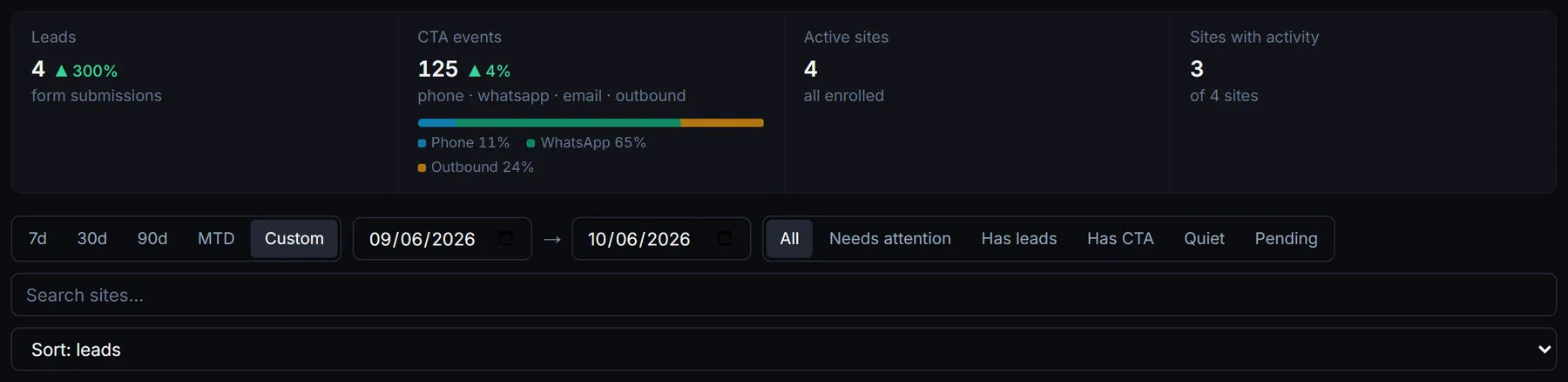
Four numbers across the top. Leads and CTA events carry an arrow showing the change vs. the prior period of equal length; Active sites shows the change as a plain number.
- 1Leads - form submissions across every enrolled site. Spam is excluded.
- 2CTA events - phone taps, WhatsApp clicks, email clicks and outbound link clicks combined. A small bar under the number splits them by type.
- 3Active sites - enrolled sites that are live and capturing. Pending and archived sites do not count, and the line under the number says how many are enrolled in total.
- 4Sites with activity - how many sites recorded at least one lead or CTA event in the range. A low number next to Active sites is your first hint that something is quiet.
About the arrows: a green up-arrow means more than the prior period of the same length. If you pick the last 30 days, the comparison is the 30 days before that. The arrow is not vs. last year or vs. a moving average.
3Date Ranges
Five chips sit under the KPI strip: 7 days, 30 days (the default), 90 days, MTD (month to date) and Custom. Pick one and every number on the page (KPI strip, per-site table, and all three panels) re-runs for that window.
Custom range lets you pick any pair of dates. Useful for matching a campaign window, a Google Ads burst, or a specific month.
Next to the range chips sit the site filters: All, Needs attention, Has leads, Has CTA, Quiet and Pending. Below them, a search box matches site names and hostnames, and the sort menu orders the table by leads, CTA events or most recent activity.
4The Per-Site Table
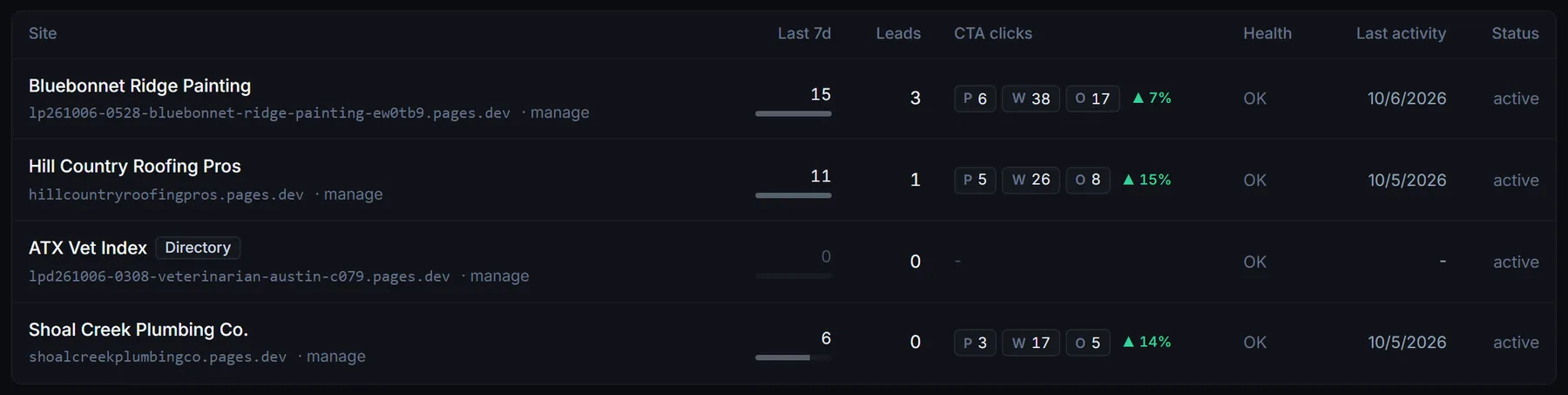
One row per enrolled site. Columns are kept tight on purpose so a 30-site portfolio still fits on a laptop screen.
Columns
- •Site - the site name opens its detail page (section 6). The hostname under it opens the live site in a new tab, and manage takes you to the project, or to the directory dashboard for a directory. Directories carry a Directory badge.
- •Last 7d - tracked events in the last 7 days, whatever range you picked. Zero means the tracker is not firing or the site has gone quiet.
- •Leads - count in the selected range, with the change vs. the prior period.
- •CTA clicks - split by type in small chips (P phone, W WhatsApp, E email, O outbound), with the change vs. the prior period.
- •Health - OK when nothing needs you. Otherwise one flag: Stale (enrolled more than 14 days and never recorded an event, so the tracker probably failed), Quiet 7d (had activity before, nothing in the last 7 days), Spam attack (more than a quarter of submissions flagged as spam, at least 3), or Spike (events more than doubled vs. the prior period).
- •Last activity - the date of the latest event or edit on the site.
- •Status - active, pending (enrolment still running) or archived.
Above the table, the Needs attention panel groups the sites worth a look: tracker likely stale, spam spike, quiet for 7 days, pending setup, and no CTA events. Click a site name there to open its detail page.
5Three Side Panels
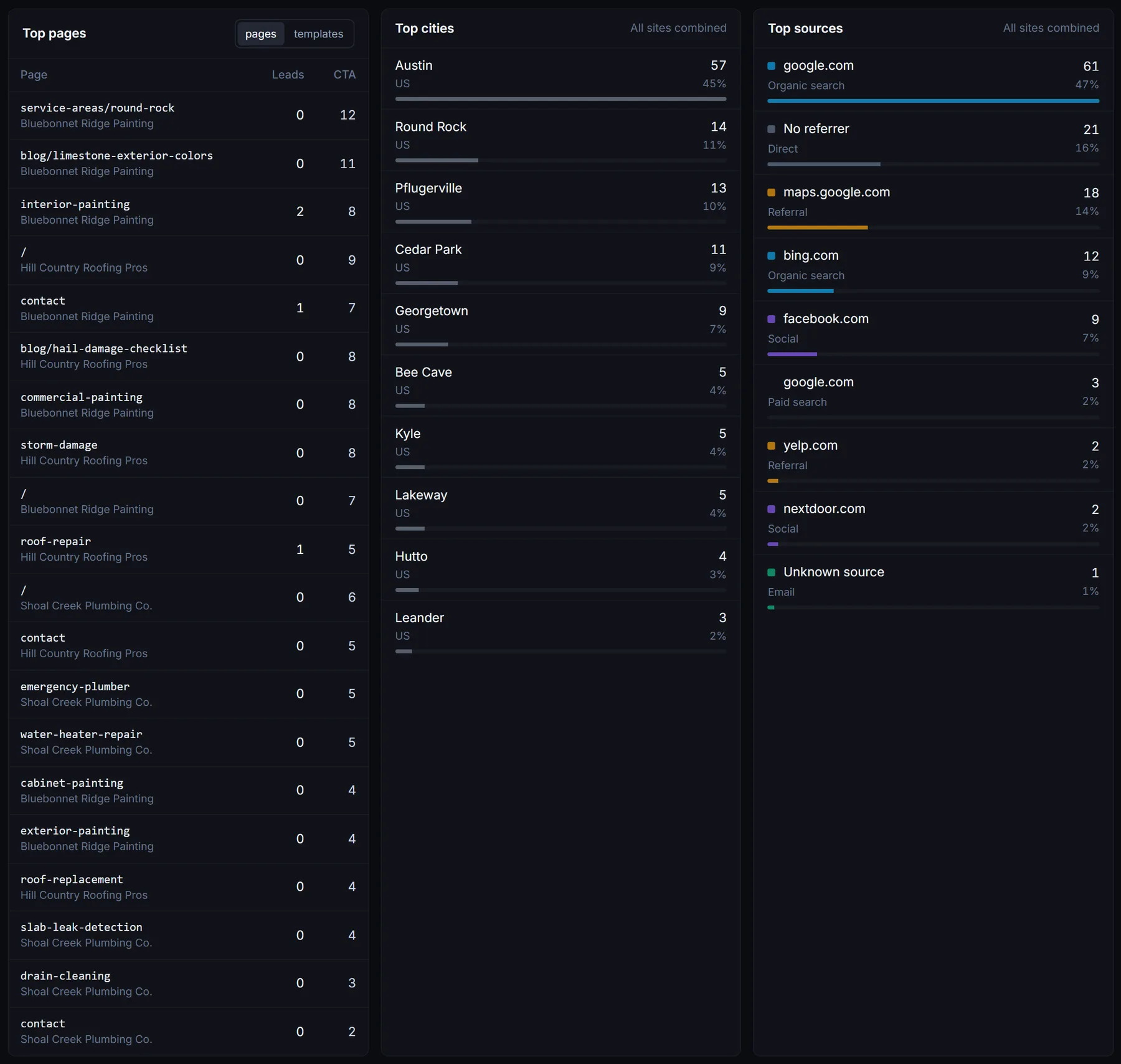
Below the table, three panels rolled up across the whole portfolio:
Top Pages
The 25 page slugs with the most leads-plus-clicks across every enrolled site. Switch to templates to roll the same slug up across sites and see which page types convert.
Top Cities
The 10 cities sending the most events to your portfolio. Useful for spotting unexpected geo-expansion or off-target traffic.
Top Sources
The 10 channel-and-referrer combinations driving the most volume. Organic Google, paid Google, Facebook ads, and direct typing each show as separate rows.
6Drill Into One Site
Click a site name in the table to open its detail view. It has its own range chips (the same five) and, from top to bottom:
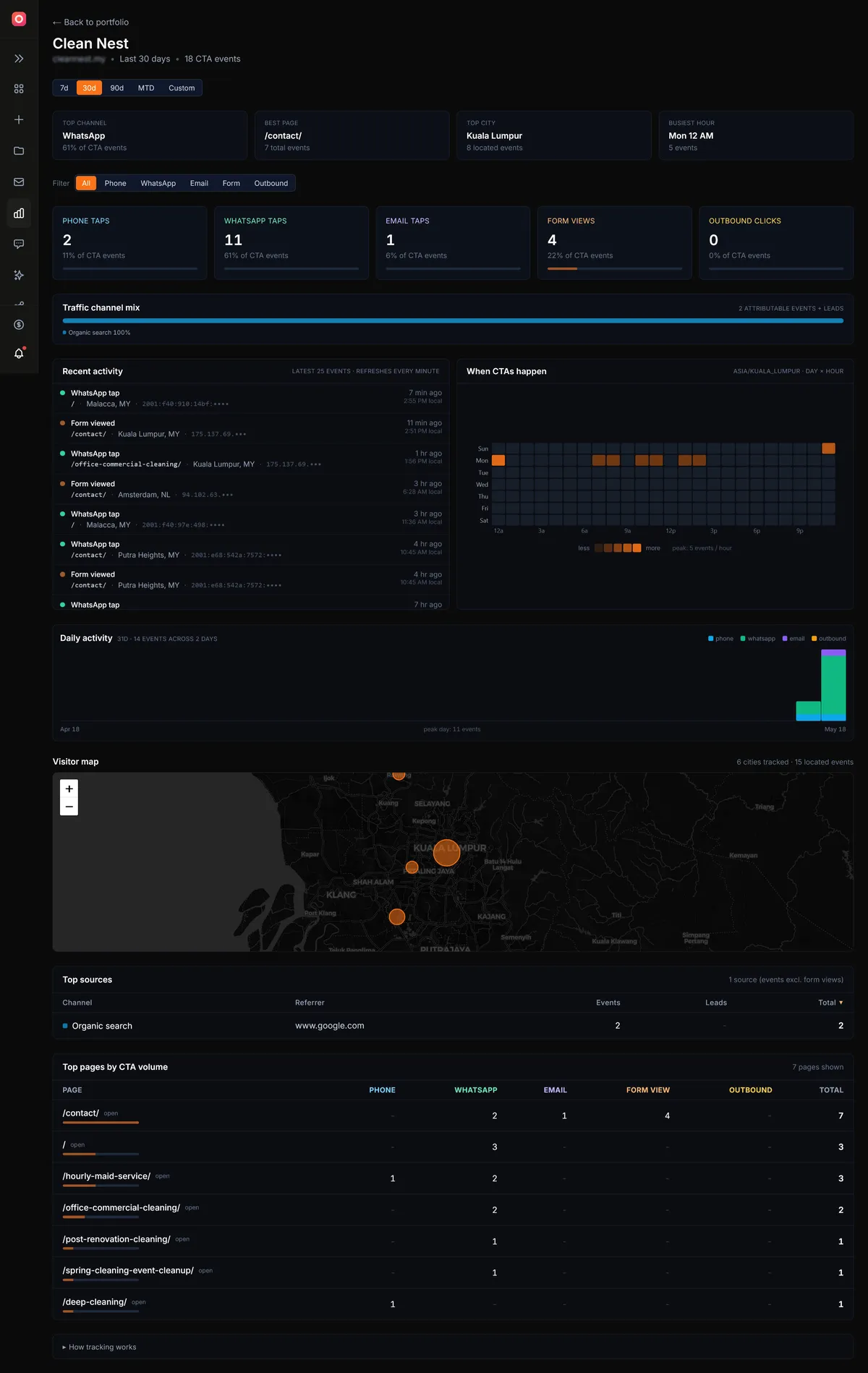
Insight strip
Four quick reads: top channel, best page, top city and busiest hour.
Filter and CTA cards
Filter the page by event type (phone, WhatsApp, email, form, outbound). One card per type shows its count and its share of all CTA events.
Traffic channel mix
A stacked bar across organic search, direct, referral, social, paid search and email, for events and leads together.
Recent activity
The latest 25 events with page, city and local time, refreshed every minute. Visitor IP addresses are cut short.
When CTAs happen
A day-by-hour heatmap in the site's time zone, so you know when the phone actually rings.
Daily activity
One bar per day, split by event type.
Visitor map
A Leaflet map with one circle per city of origin. Circle size scales with event count.
Top pages and Top sources
The pages that drew the most CTA events, and a sortable list of every channel and referrer pair that sent events in the range.
7What the Portfolio Is Not
Quick set-expectation list so you can decide where the Portfolio fits in your stack:
- ✕Not a Google Analytics replacement. No page-view counts, no bounce rate, no session duration, no funnel builder. The Portfolio measures lead-shaped events, not browsing behaviour.
- ✕No event-level CSV export today. You see aggregates and the Leads Inbox. Raw event export is on the roadmap.
- ✕No GSC or GA pull-through. Search Console and Analytics integrations ship in Release 2.
- ✕Not multi-user yet. Today only the project owner sees the Portfolio. Team access is on the roadmap behind Agency tier.
The Portfolio is sized for at-a-glance health checks across many sites at once. If you want deep behavioural analytics on one site, keep GA4 installed. The two are complementary.
Related Guides
Open Your Portfolio
Subscribe to Operator or above and the Portfolio unlocks for every site you have enrolled.
Open Portfolio