Generate Content - Add New Pages Without Regenerating
Your site is already live. Now you want to add a new service, a new town, a buyer’s guide, or a blog post - without re-running the full generation. Generate Content is the unified flow for that. Pick a page type, fill in a short form, queue the job, and it lands in your live site in 10-15 minutes.
1What You Can Generate
Four page types, each tuned for a different SEO purpose. All four use the same wizard, queue, and deploy pipeline - the difference is the schema and the prompt.
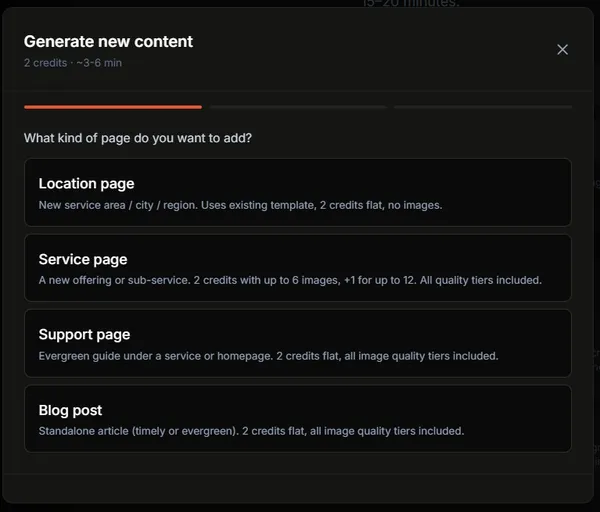
Location page
2 creditsA new city, town, or service area. Auto-generates from your existing location template - no images, just structured local content.
Service page
2-3 creditsA new offering or service line. Pick “Up to 5 images” (2 credits) or “Up to 10 images” (3 credits). Premium image quality included.
Support guide
2 creditsLong-form pillar/cluster content that links into your hub pages. Includes 2-3 inline images, Flesch-Kincaid grade 6-7 readability.
Blog post
2 creditsNews, listicles, how-tos, comparisons, and case studies. Pick a category and a style; AI suggests titles tuned to your existing content.
2How to Access
Three entry points, all open the same wizard:
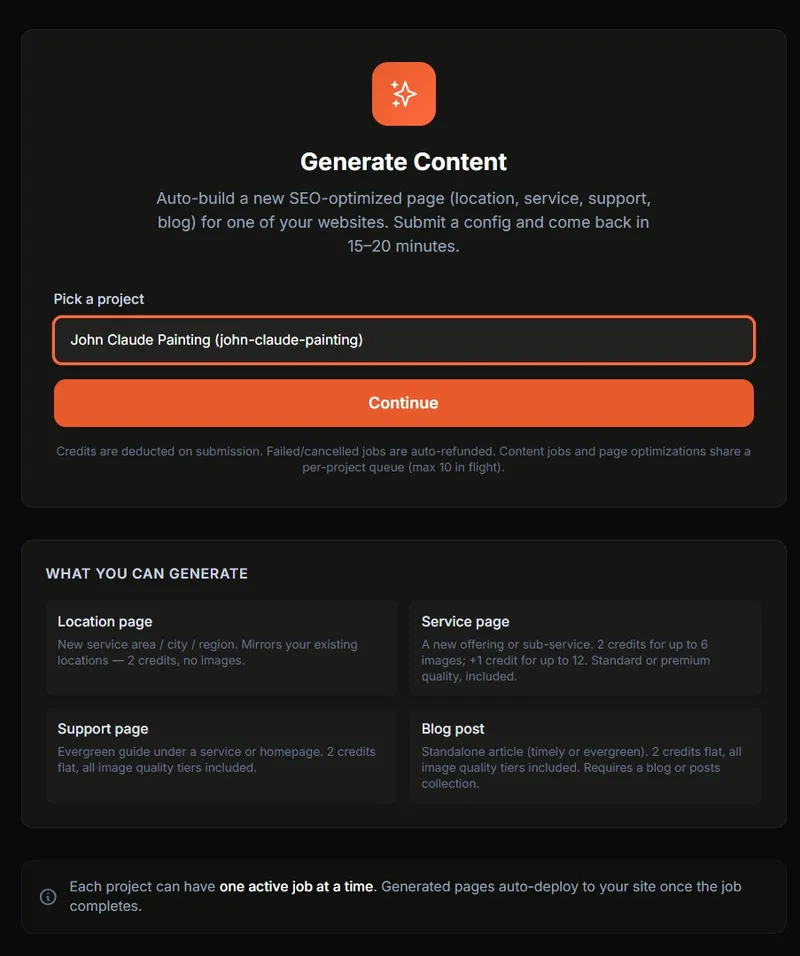
- Dashboard sidebar -
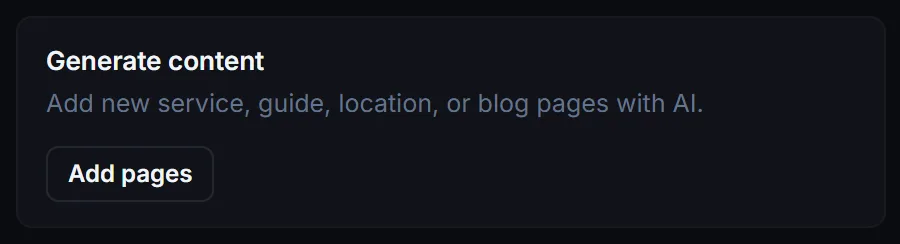
Generate Content. Best when you want to pick which project to add to from a list. - Project status page - the “Add pages” button on the Generate content card under Grow this site. Drops you straight into the project’s queue screen.
- Editor sidebar -
Content queuefrom inside the editor.
3Pick a Page Type
Each tile shows the credit cost up front. Tiles auto-disable if your project doesn’t support that type - see the limitations section below for why.
| Type | Output collection | Images | Credits |
|---|---|---|---|
| Location | src/config/locations.json | 0 (template-driven) | 2 |
| Service | src/content/services/ | 5 or 10 | 2-3 |
| Support | src/content/guides/ | 2-3 | 2 |
| Blog | src/content/blog/ or posts/ | 2-3 | 2 |
4Walkthrough: Location Page
Adds a new entry to locations.json using your project’s existing location template. Best for expanding into a new town or city you already serve.
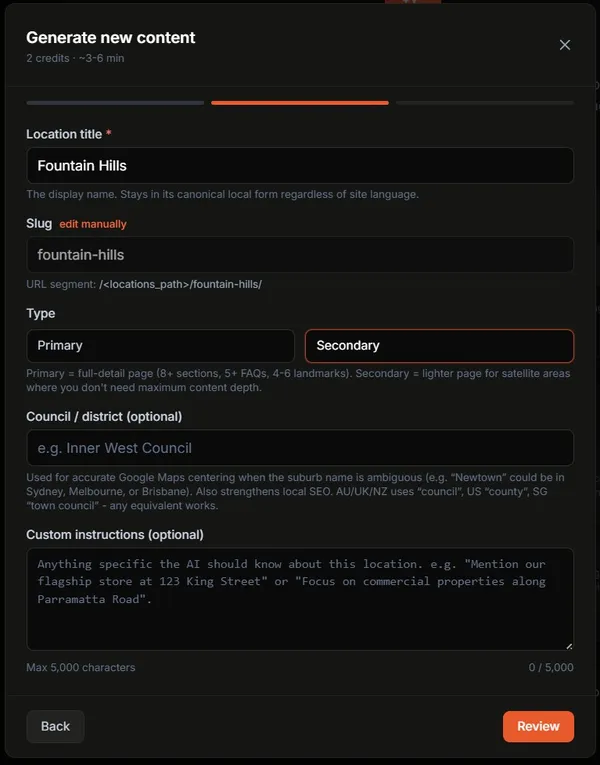
Fields you fill in:
- 1City & state - the new location. Slug is derived automatically (e.g. “Coral Springs, FL” ->
coral-springs-fl). - 2Primary keyword - the phrase the page should rank for, e.g. “emergency plumber coral springs”.
- 3Custom instructions (optional) - anything specific to this location: parking notes, after-hours coverage, partner businesses.
Review screen shows the resolved slug, credit cost, and estimated time. Click Submit to queue.
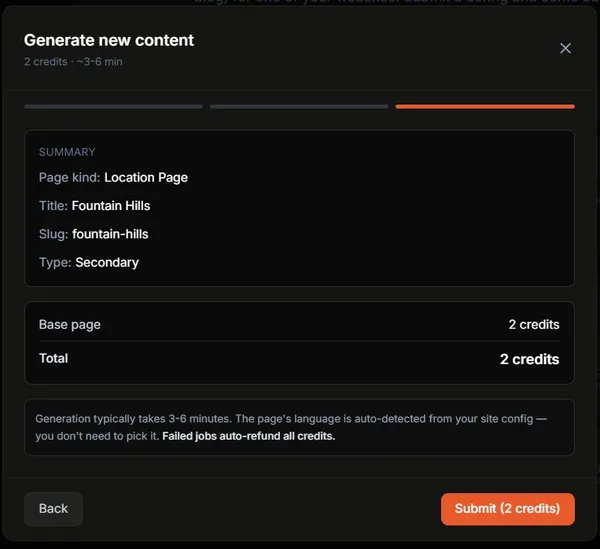
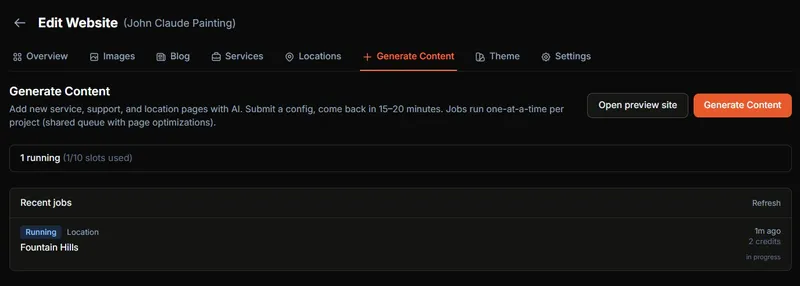
After submission, the queue panel shows the running job:
5Walkthrough: Service Page
Adds a new MDX file under src/content/services/. Includes hero, services list, FAQs, schema markup, and inline images.
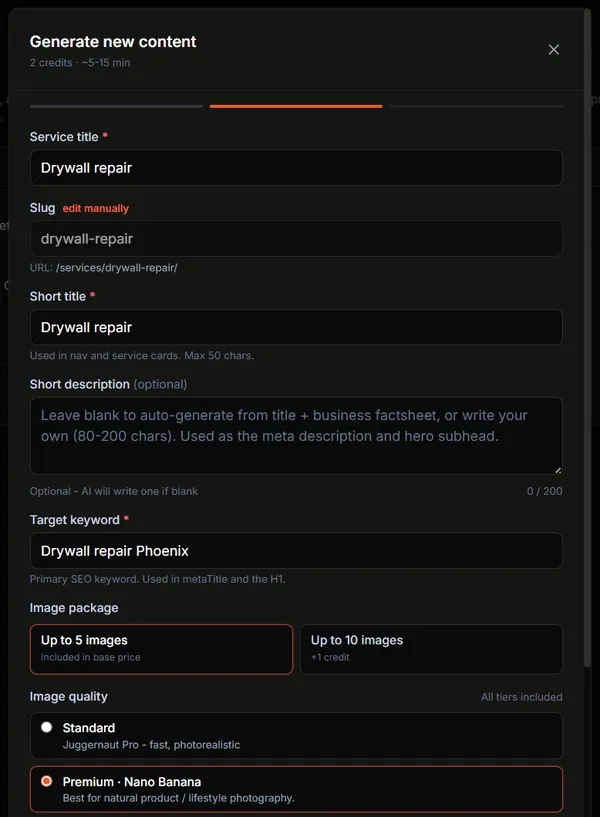
Fields you fill in:
- 1Image package - Up to 5 images (2 credits) for shorter pages, or Up to 10 images (3 credits) for full visual storytelling.
- 2Title - your service name. e.g. “Emergency Plumbing”.
- 3Target keyword - the search term this page should rank for.
- 4Short description (optional) - leave empty and the AI will derive it from your factsheet + existing services.
- 5Custom instructions (optional) - guide the prompt directly. Things like “emphasise 24/7 response” or “mention our apprenticeship program”.
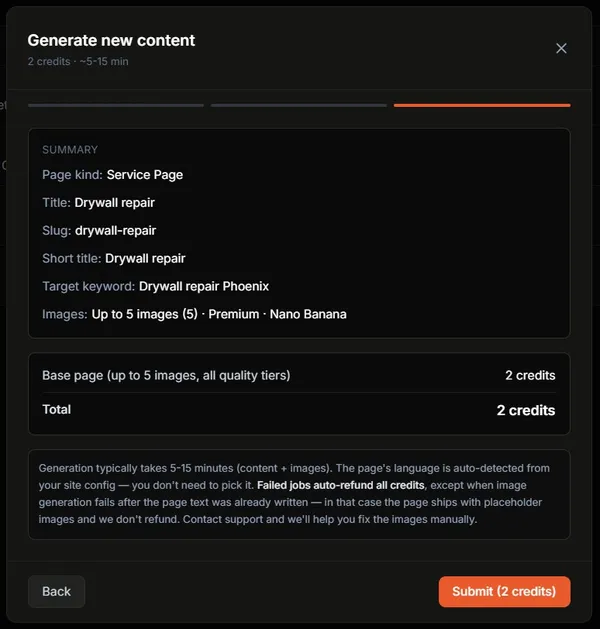
Tip: Premium image quality is included in both packages at no extra cost. The only difference is image count.
6Walkthrough: Support Guide
Long-form pillar/cluster content that links into one of your existing service pages (or the homepage). Output lands in src/content/guides/. Body is targeted at Flesch-Kincaid grade 6-7 - easy to read, easy to cite.
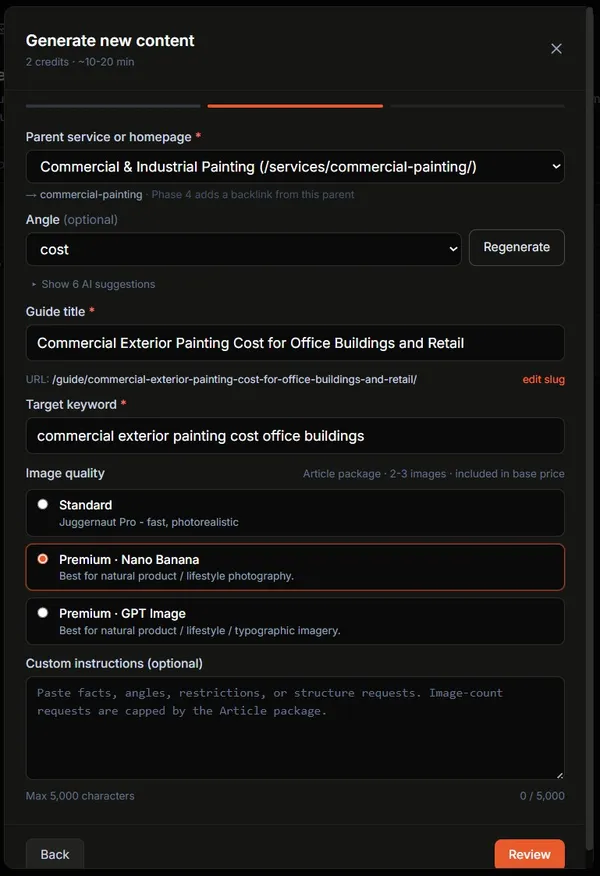
Fields you fill in:
- 1Parent - the homepage or a specific service page this guide should link back into. Phrases like “Related: Emergency Plumbing” appear in the rendered article.
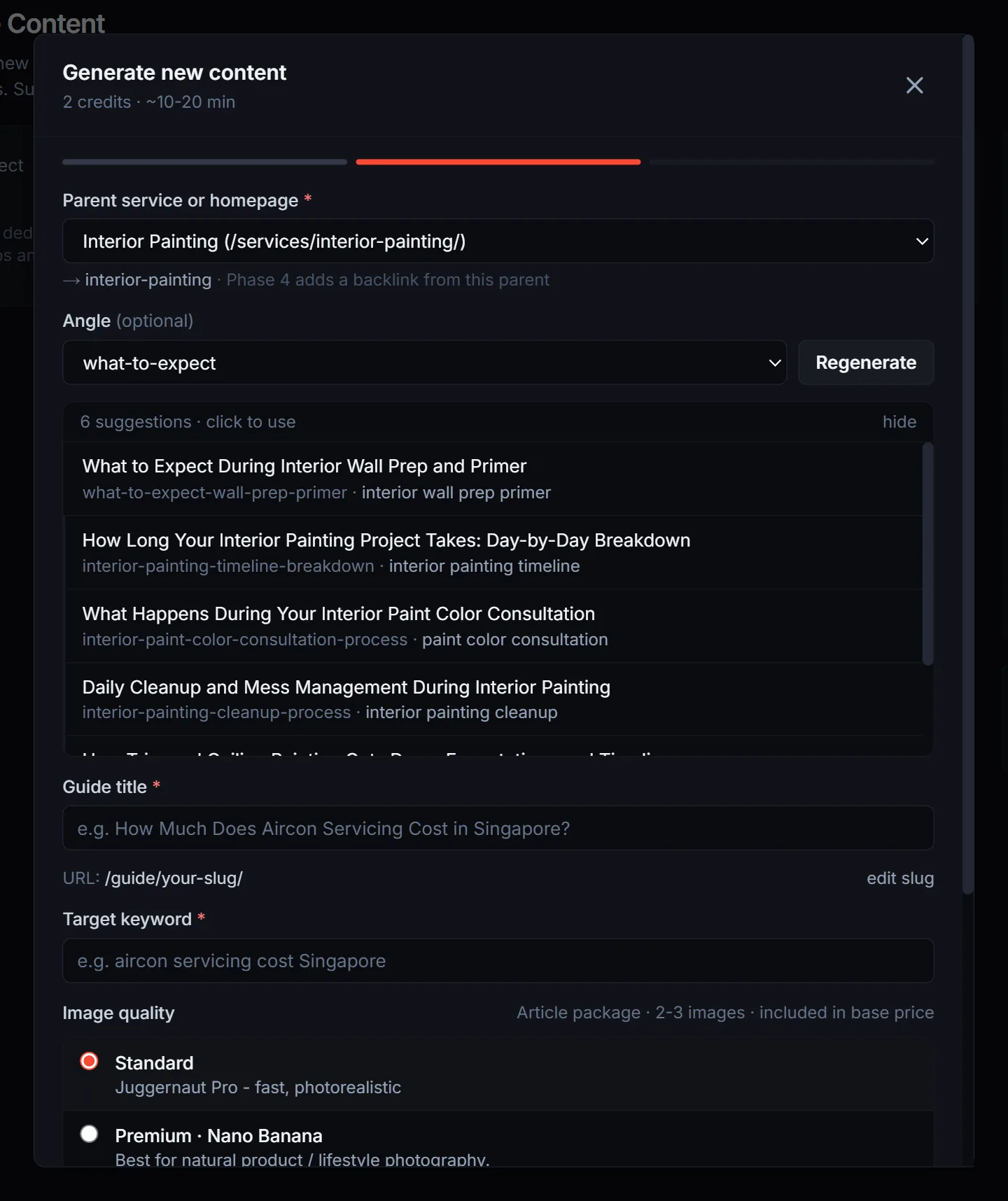
- 2Angle (optional) - the lens for the article: definition, qualifier, concern, process, frequency, scenario, comparison, cost, what-to-expect, decision-stage, or FAQ. Each angle produces a structurally different article.
- 3Suggest titles - AI writes 6 title options based on parent + angle, in your site’s language. Free, rate-limited, doesn’t cost credits. Click one to fill the title and target keyword fields.
- 4Title & target keyword - either typed in or filled from a suggestion.
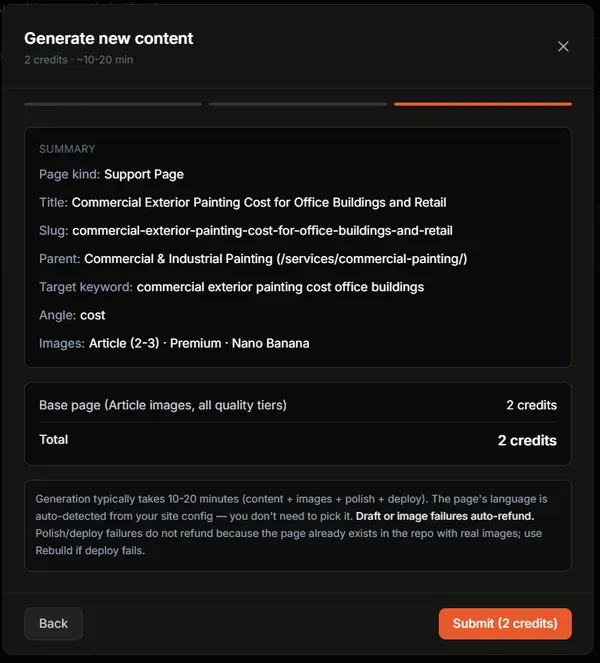
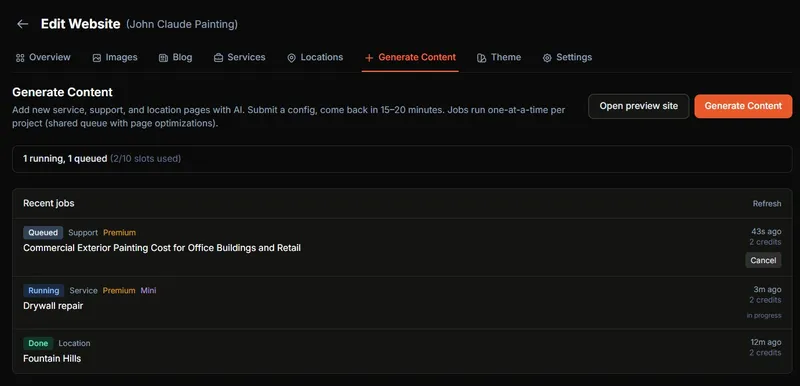
After submission, the support job appears in the queue alongside any other in-flight jobs:
7Walkthrough: Blog Post
For news, listicles, how-tos, and case studies. Output lands in src/content/blog/ (or posts/, depending on your schema). Tags and reading-time are auto-filled.
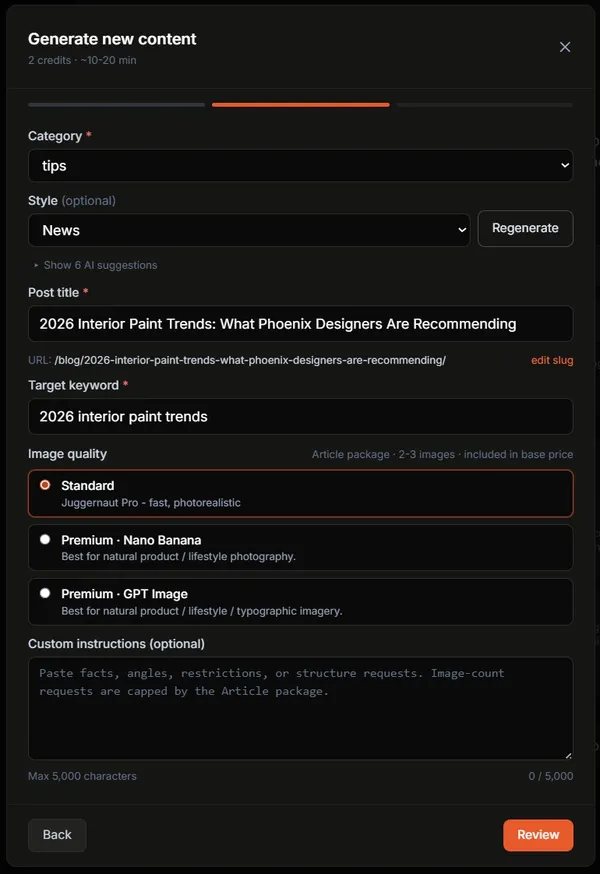
Fields you fill in:
- 1Category - pick from your existing categories (auto-detected from prior posts) or add a new one.
- 2Style - how-to, listicle, news, case-study, or comparison. Each style uses a different body structure (numbered steps vs. ranked list vs. timely lead vs. before/after).
- 3Suggest titles - AI uses category + style as the seed and avoids titles already on your blog. Same locale rules as Support.
- 4Title & target keyword - typed or filled from a suggestion.
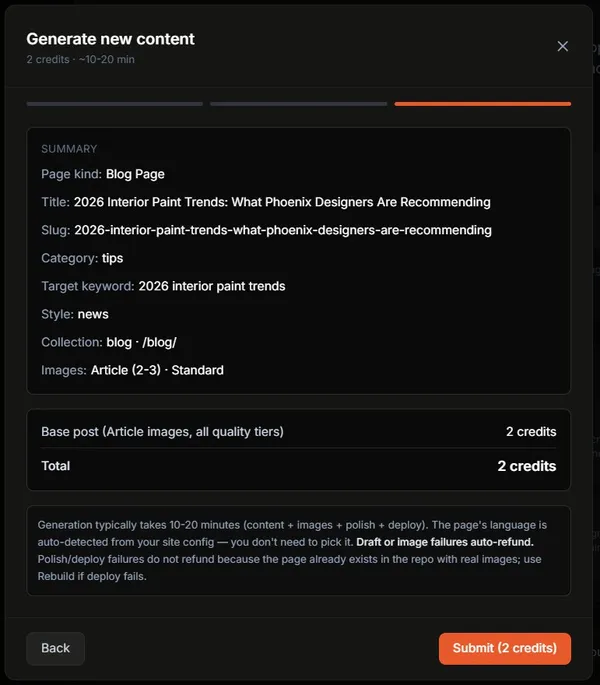
When to pick Blog vs. Support: blog posts are timestamped and live in a feed; support guides are evergreen and link into a hub. News and listicles ⇒ blog. Buyer’s-guides and FAQs ⇒ support.
8Pricing
Refunds: if the AI draft fails or images don’t generate, credits are auto-refunded. If the polish step or deploy fails after the page is already in your repo, the page exists - we don’t refund. You can rebuild manually from the project status page.
9When to Use Generate Content
Best for
- ✓Net-new pages (a town, service, guide, or post that doesn’t exist yet)
- ✓Batch-adding 5-20 articles after launch
- ✓Evergreen pillar/cluster content that links into existing services
- ✓Non-English sites (Malay, German, Spanish, French, Polish, Portuguese, Chinese)
Not the right tool
- —Surgical edits to existing pages ⇒ use AI Site Agent
- —Full-site re-generation ⇒ create a fresh project or use rebrand/clone
- —Competitive SEO uplift on existing pages ⇒ use Deep Optimize
- —Bulk CSV imports of titles ⇒ on the roadmap, not yet shipped
10Limitations & Older Sites
Some page types require specific content collections or config files in your project. If they’re missing, the wizard disables that page type with a clear reason. This is intentional - we don’t auto-create collections because that would change your site’s schema, which is baked in at generation time.
No guides collection (older sites): some sites generated before guides became default only have a blog collection. The Support tile shows a banner suggesting you use the Blog tile instead.
Workaround: pick Blog post with a how-to or comparison style, or contact support to add a guides collection retroactively.
No blog collection: if your site was created without a blog (skip-blog at generation), the Blog tile is unavailable. We don’t auto-create a blog collection because the schema, RSS feed, and routing all need to be wired in.
Workaround: use Support guide if you have a guides collection, or contact support to add a blog collection.
No locations.json: single-location sites don’t have src/config/locations.json. The Location tile is disabled with “Location pages not enabled on this site”.
Workaround: this requires re-generating the site as multi-location, or working with support to retrofit a locations config.
Why not auto-create the missing collection?
Each collection (blog, guides, locations) needs a schema definition, route handlers, RSS or sitemap entries, and navigation links. Adding one safely without breaking the existing build is a non-trivial migration. We surface the limitation clearly instead of doing it silently and risking a broken deploy.
11Queue, Concurrency & Cancellation
- Per-project soft cap: 10 in-flight jobs per project. Submit an 11th and you’ll get an “Queue full” error - wait for one to finish or cancel it.
- Per-project serialization: only one workflow runs per repo at a time. A second job for the same repo waits in the queue and starts as soon as the first finishes - no manual coordination needed.
- Cross-project parallelism: jobs from different projects run in parallel. Submitting to Repo A doesn’t block Repo B.
- Cancellation: while a job is in
queuedstate, click Cancel to refund the credits. Once it flips torunning, you can still cancel - mid-job cancellation refunds if Step A or B failed; if Step C/D failed the page is already in main and credits stay charged.
Frequently Asked Questions
Can I add multiple pages at once?
Yes - up to 10 in-flight jobs per project. Submit 10 in a row and the worker processes them one at a time on that repo. They run in the order you submit them.
What language will the new page be in?
Auto-detected from your site’s locale setting. Title suggestions, slugs, and body content all match the detected language. Supported: English, Malay, German, Spanish, French, Dutch, Polish, Portuguese, Simplified Chinese, Traditional Chinese.
Will Deep Optimize work on these new pages later?
Yes. Once deployed, new service and location pages are eligible for Deep Optimize alongside your original pages. Blog posts and support guides aren’t in Deep Optimize’s scope today (different optimization strategy).
What if the build fails after generation?
Auto-refund kicks in for Step A (AI draft) and Step B (image generation) failures. If the polish or deploy step fails after the page is already in your repo, we don’t auto-refund - the page exists, you can manually trigger a Rebuild from the project status page.
Can I edit the page after generation?
Yes. Use the AI Site Agent for chat-driven edits, or download your source code and edit it locally with Cursor / Claude Code, then reimport.
Do AI title suggestions cost credits?
No. Title suggestions are free, rate-limited per user, and use a smaller model. They’re only available for Support and Blog flows (Service and Location use your own input).
Can I cancel a job after submitting?
Yes - click Cancel on the queue row. If the job is still queued, full refund. If it’s running, refund depends on which step failed (see Refunds note in section 8).
Can I bulk-import a CSV of articles?
Not yet - it’s on the roadmap. For now, submit one at a time (the queue accepts up to 10 in-flight per project) or contact support if you need a bigger batch.
Ready to add your first page?
Open Generate Content, pick a project, choose a page type, and submit. Your new page is live in 10-15 minutes.
Go to Generate Content