Deep Optimize - Competitive SEO for Every Page
Your generated website already follows SEO best practices out of the box. Deep Optimize goes further - it analyzes your live Google SERP competitors and applies targeted improvements to close the gap.
1What Deep Optimize Does
Every page runs through 4 optimization passes, each targeting a different SEO layer:
Headings & Structure
Optimizes meta title, meta description, H1, and all H2 headings for your target keyword. Rewrites to match search intent while preserving your brand voice.
Entity Gaps
Scrapes Google SERP competitors and identifies entities, topics, and questions they rank for that your page is missing. Injects them naturally into your content.
Trust & Proof Signals
Adds local trust indicators: visible NAP block, embedded Google Map, geo-enriched image alt text, and credentials pulled from your business factsheet.
AI Search Visibility
Sharpens identity clarity, removes hedging language, improves FAQ quality for LLM citation, and strengthens entity disambiguation - so AI assistants cite your business.
2How to Access Deep Optimize
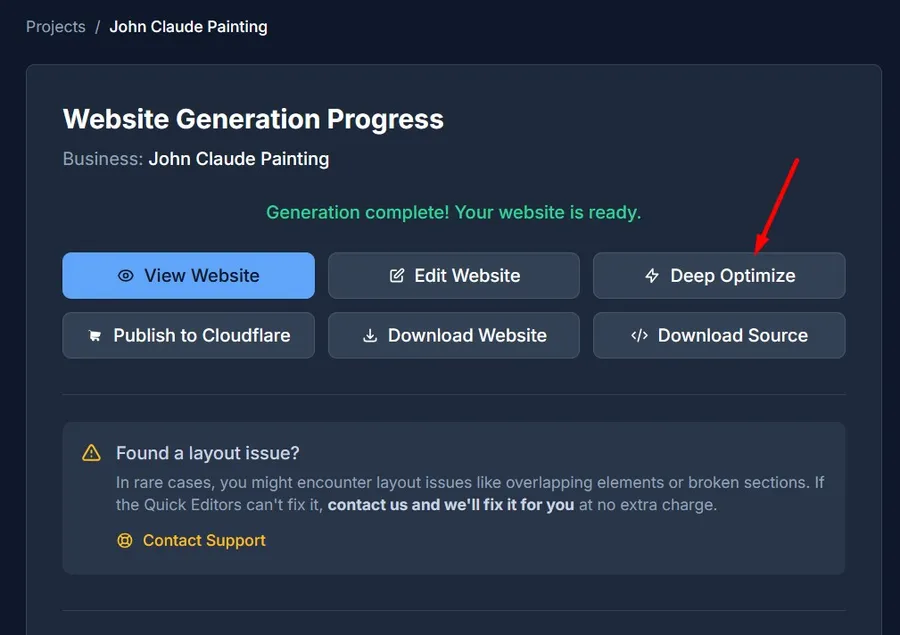
After your website generation is complete, go to your project status page and click "Optimize pages" on the Deep Optimize card under Grow this site.
Important: Deep Optimize modifies your source code directly. Only use this if you have not downloaded and customized your site externally. If you've made custom code changes outside this dashboard, use an AI coding tool (Cursor, Claude Code, etc.) with the optimization prompts instead.
3Single Page Mode
Best for optimizing your most important pages one at a time with a carefully chosen keyword.
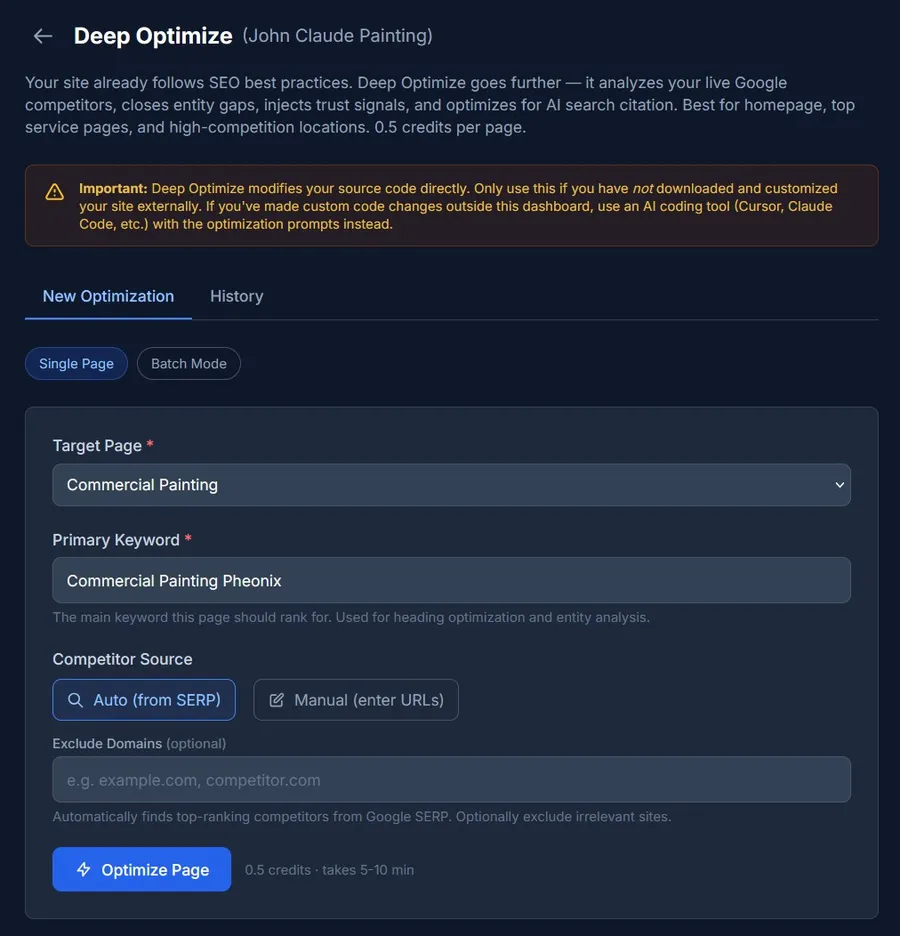
How to optimize a single page:
- 1Select a target page from the dropdown. All your homepage, service pages, and location pages are listed.
- 2Enter your primary keyword - the main search term you want this page to rank for (e.g. "locksmith yishun", "emergency plumber miami").
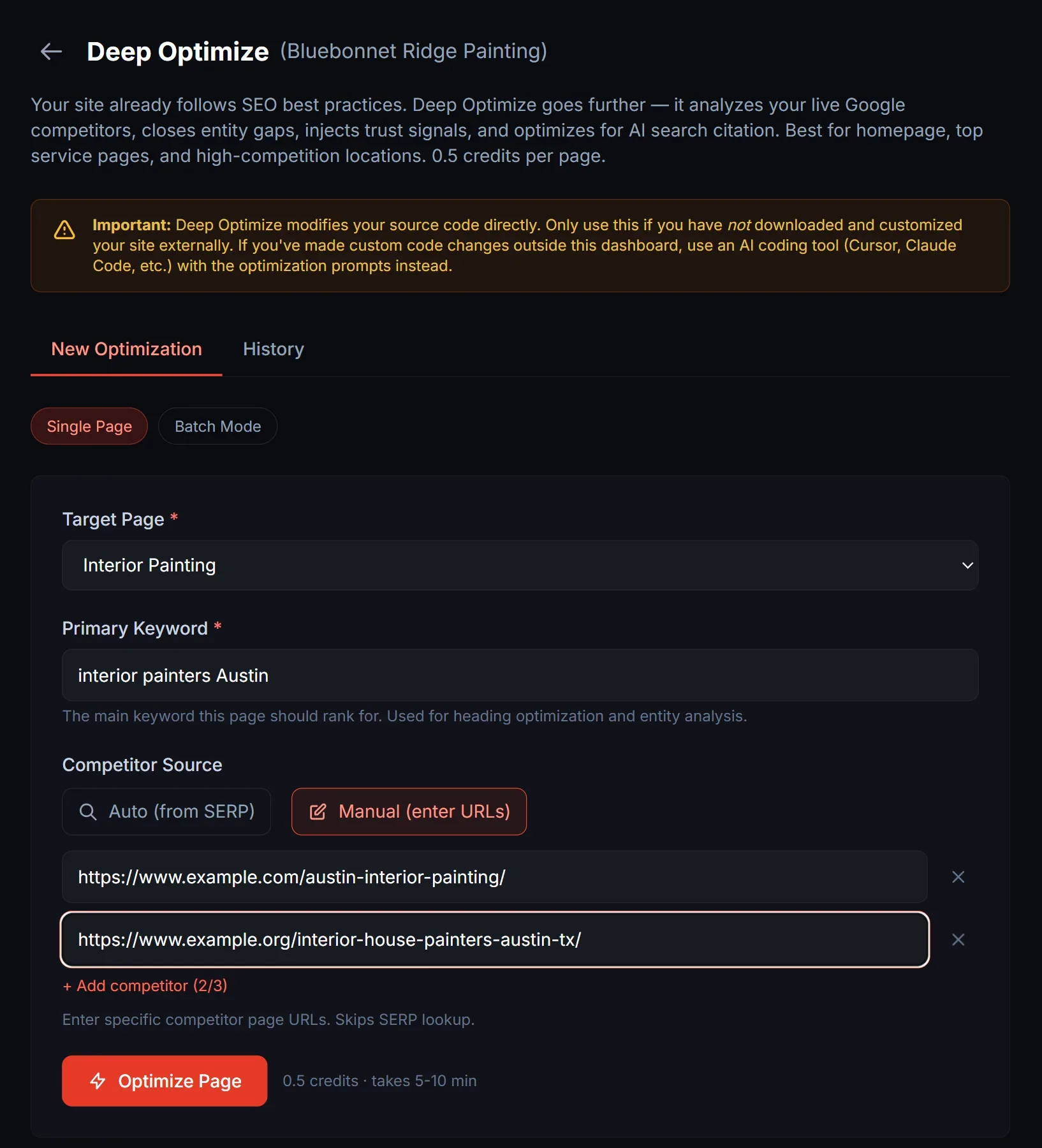
- 3Choose competitor source:
4Batch Mode
Select multiple pages and optimize them all in one go. Each page uses its default keyword (auto-detected from the page content), or you can override individual keywords.
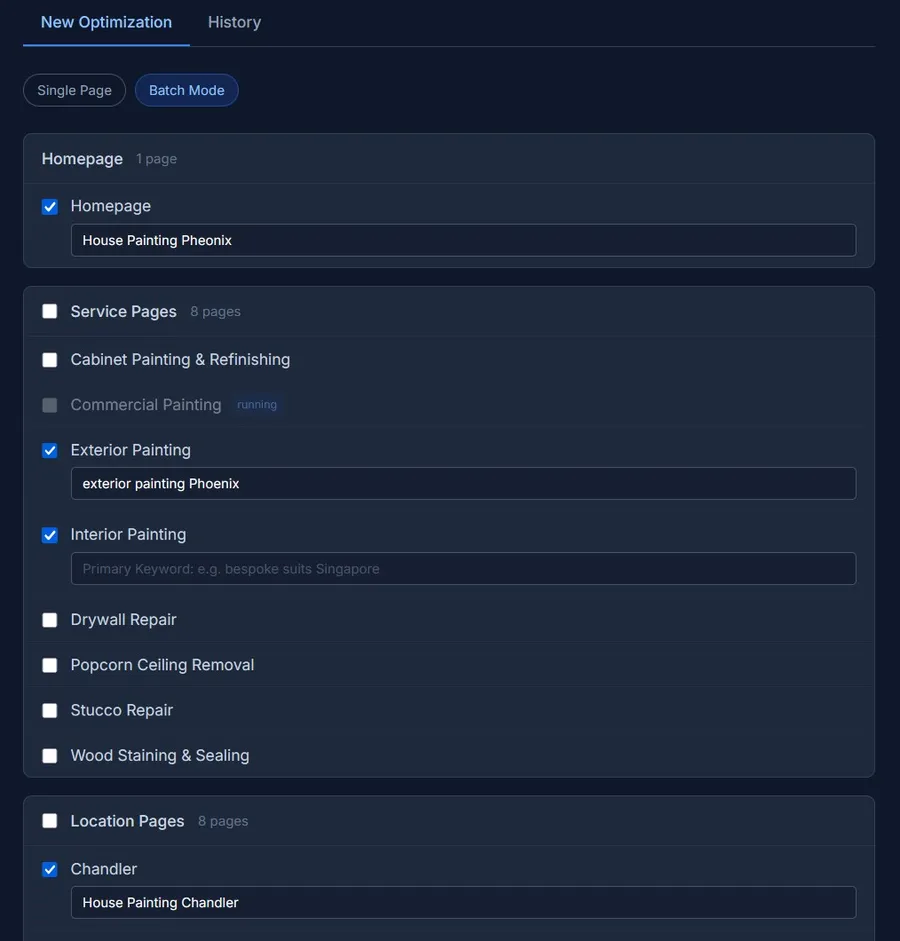
How batch mode works:
- 1Switch to the "Batch Mode" tab.
- 2Pages are grouped by type: Homepage, Service Pages, and Location Pages. Check the group header to select all pages in that group, or pick individual pages.
- 3Each page auto-fills with its default keyword. Pages already optimized show a green "optimized" badge (you can still re-optimize them).
- 4Click "Optimize Selected". Pages are queued and processed one by one. Total cost = 0.5 credits x number of pages.
Tip: Start with your homepage and top 2-3 service pages. These are your highest-impact pages. Location pages benefit too, especially for competitive areas.
5History & Results
The History tab shows every optimization you've run, with status filters (All, Running, Completed, Failed) and detailed change reports.
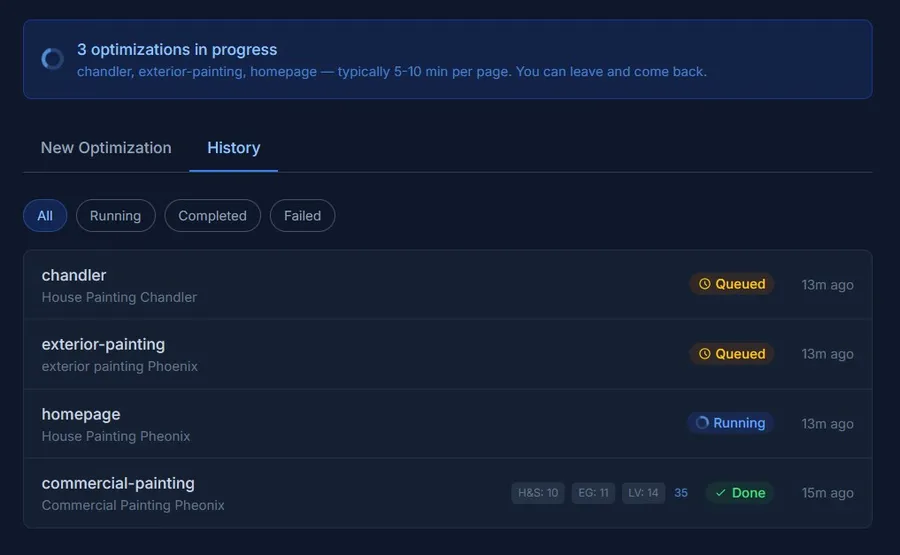
Click any row to see the full report:
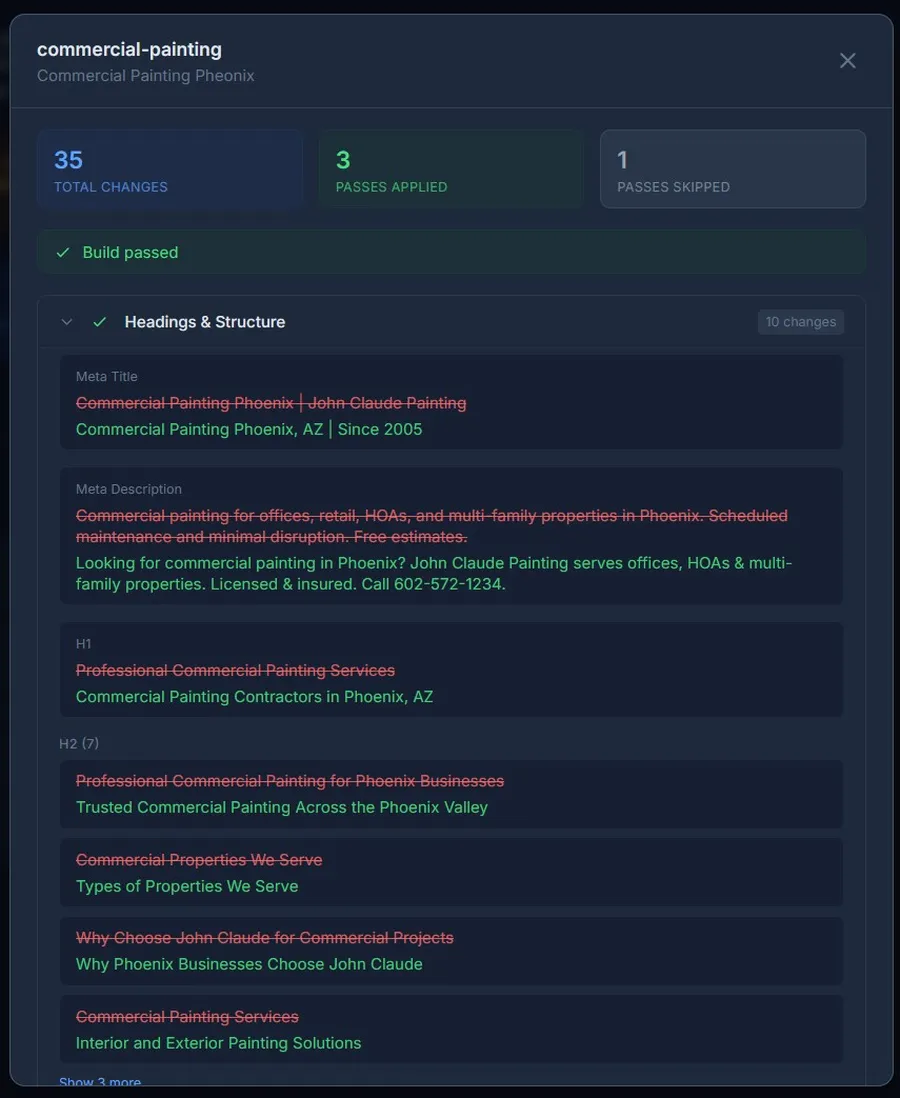
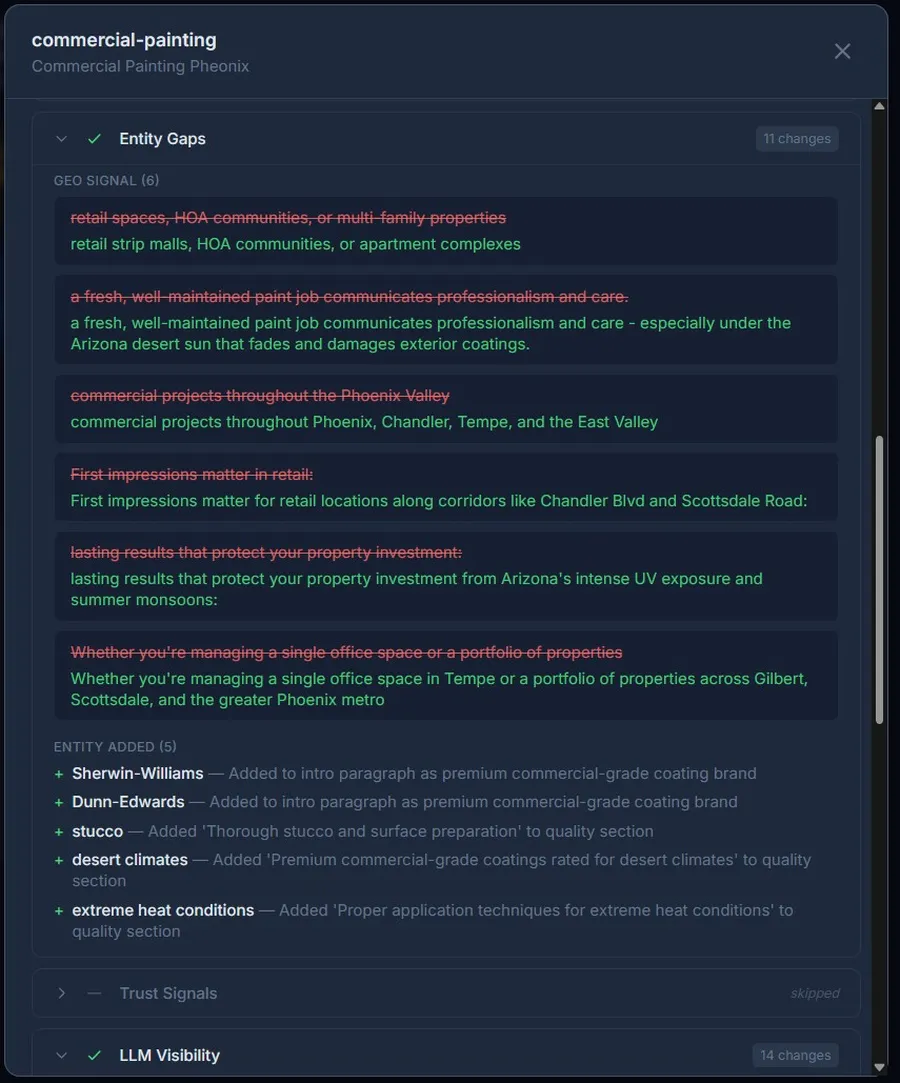
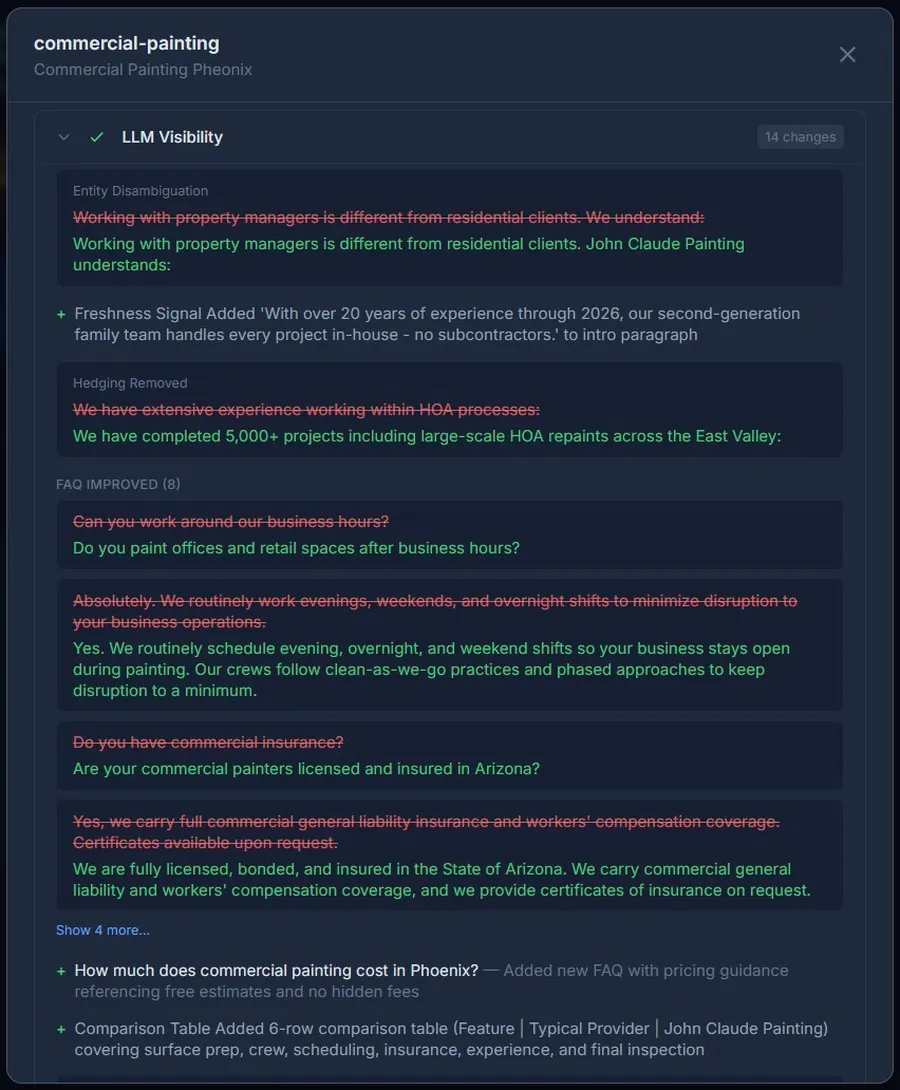
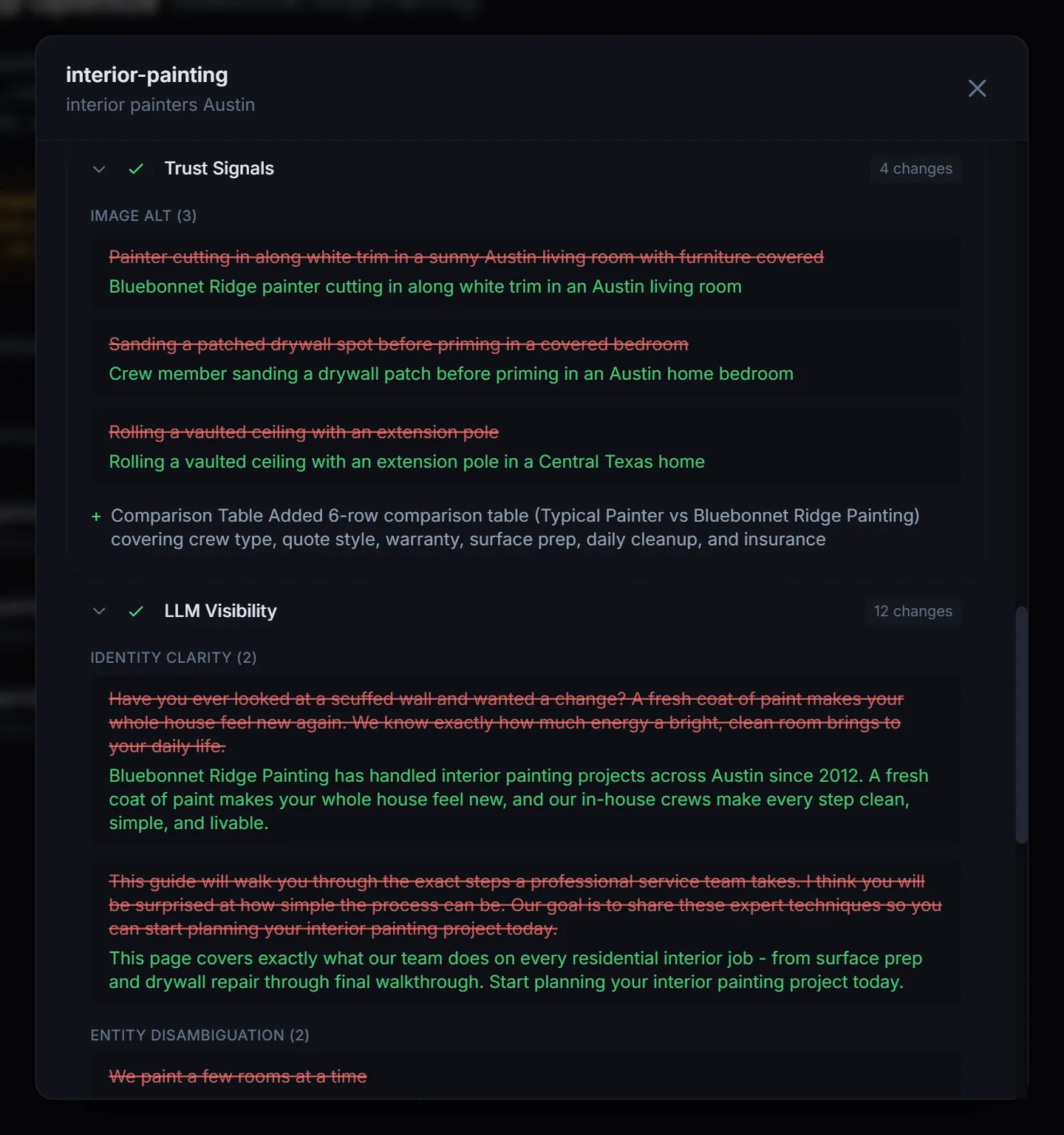
What the report shows:
The total change count (shown as a number badge) tells you how many modifications were made across all 4 passes. A "Build passed" status confirms the site still builds correctly after optimization.
6When to Use Deep Optimize
Best for
- ✓Homepage (your most important page)
- ✓Top revenue-generating service pages
- ✓High-competition location pages
- ✓Pages you want AI assistants to cite
Not needed for
- —Blog posts (different optimization strategy)
- —About / Contact pages (minimal SEO benefit)
- —Low-competition location pages (already well-optimized by generation)
Pro Tip: Prioritize by competition
Search your target keyword on Google. If the top 5 results are from well-established businesses with optimized content, Deep Optimize helps you close that gap. If you're already the only game in town, your generated site is likely sufficient.
7Pricing
Frequently Asked Questions
Can I run Deep Optimize multiple times on the same page?
Yes. Each run costs 0.5 credits. This is useful if you change your target keyword or want to re-optimize after updating your content. Pages that have been optimized before show an "optimized" badge.
What happens if the build fails after optimization?
The optimization report will show "Build failed" instead of "Build passed." This is rare but can happen. The changes are still committed to your code - contact support if you need help resolving a build issue.
Does it work with all page types?
Deep Optimize works on homepage, service pages, and location pages. Blog posts are excluded because they need a different optimization strategy (extractability-focused rather than conversion-focused).
Do I need to republish after optimizing?
Deep Optimize automatically triggers a rebuild. Your changes go live on the preview site within a few minutes after the optimization completes. If you have a custom domain, the changes propagate automatically.
I already downloaded and customized my code. Can I still use Deep Optimize?
No - Deep Optimize modifies the source code in our system. If you've made external changes, those would be overwritten. Instead, download the optimization prompts and run them with an AI coding tool like Cursor or Claude Code on your local copy.
Ready to Optimize?
Go to your project dashboard and click "Deep Optimize" to get started.
Go to Dashboard