AI Site Agent - Edit Your Website by Chatting
The AI Site Agent lets you make changes to your generated website by describing what you want in plain English. No software to install, no code to write - everything happens in your browser with a live preview.
Vibe coding made it stupid easy to ship app prototypes. We brought the same workflow to SEO sites. The AI Site Agent is the V in Vibe SEO. Chat to your already-deployed website, see edits live, no terminal needed.
1What is the AI Site Agent?
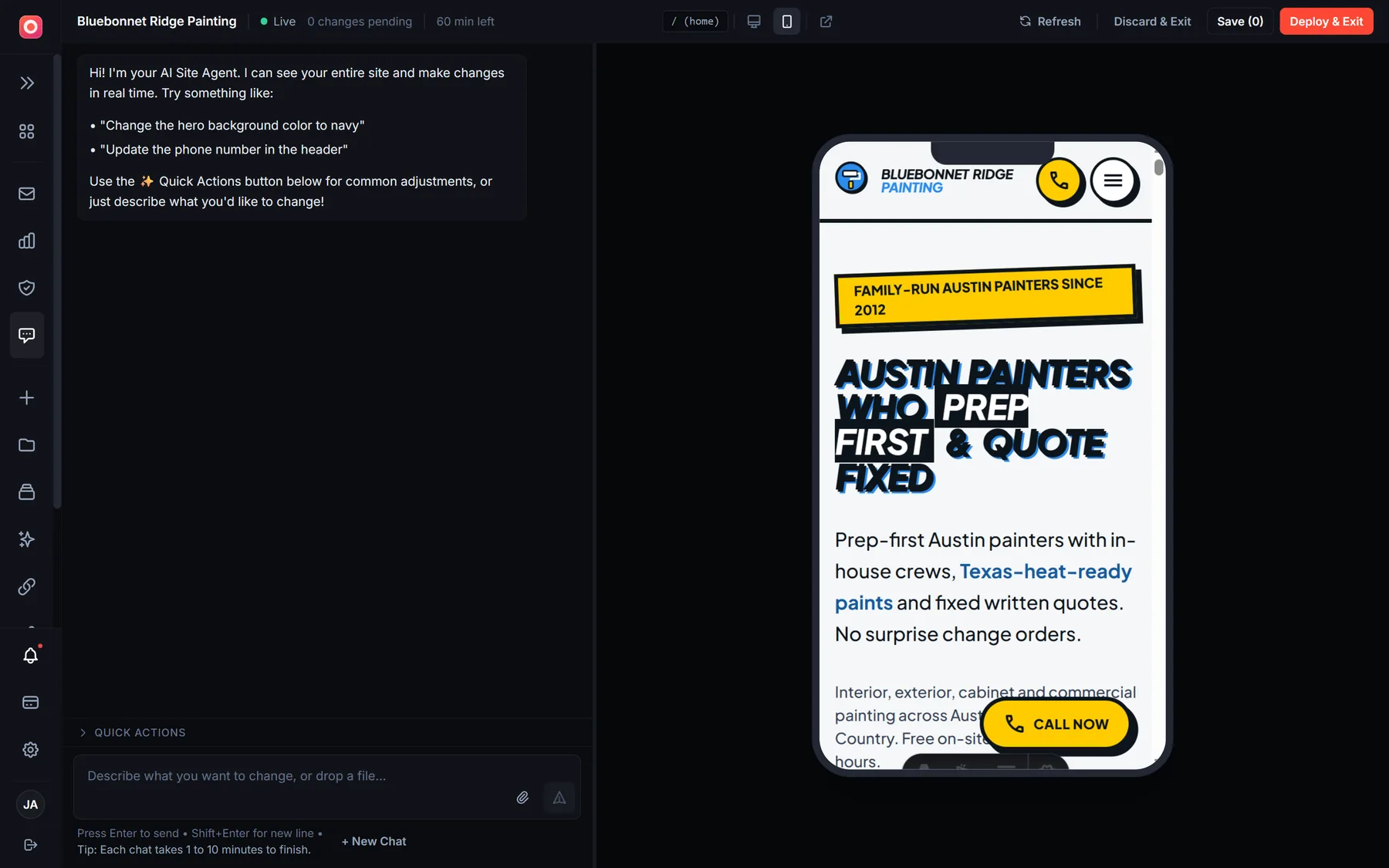
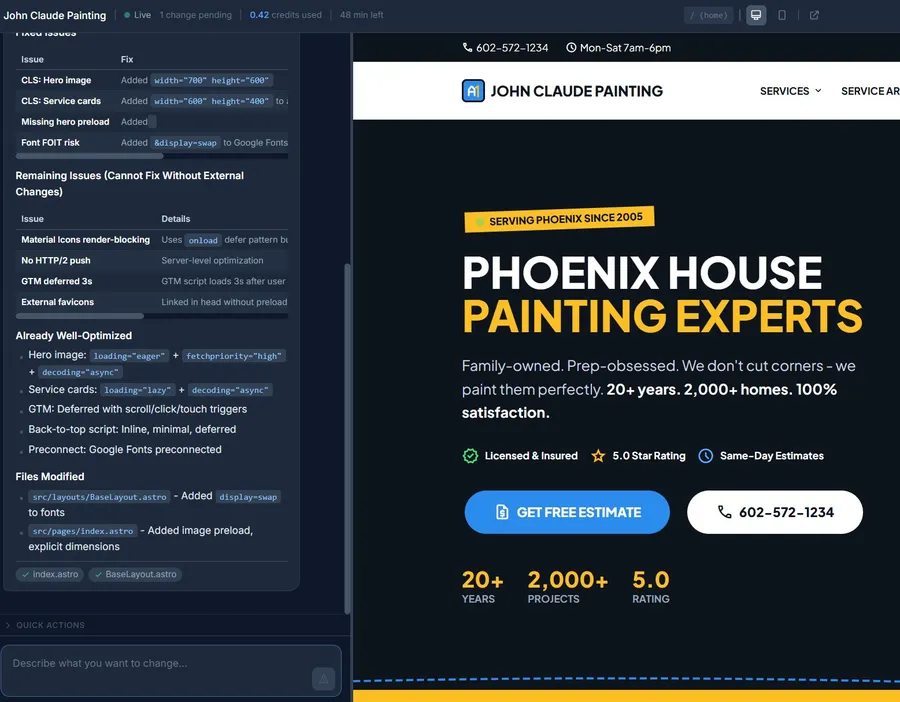
The AI Site Agent is a browser-based coding assistant that runs in a cloud sandbox. You chat on the left, and a live preview of your website updates on the right. The AI can edit text, change colors, update images, restructure pages, and more.
Chat in Plain English
Describe what you want changed - no coding knowledge needed. The AI understands your intent and edits the right files.
Live Preview
See changes in real time in a split-pane view. Toggle between desktop and mobile to check responsiveness.
One-Click Deploy
Save your changes to GitHub or deploy directly to your live site with a single click.
How it compares
| Tool | Optimised for | Install required | Output |
|---|---|---|---|
| Lovable | First prototype | No (browser) | App skeleton |
| Cursor / Claude Code | Engineers with a repo | Yes (local) | Source code edits |
| LocusPilot AI Site Agent | Already-deployed SEO sites | No (browser) | Live ranked pages |
2Getting Started
You can access the AI Site Agent from two places:
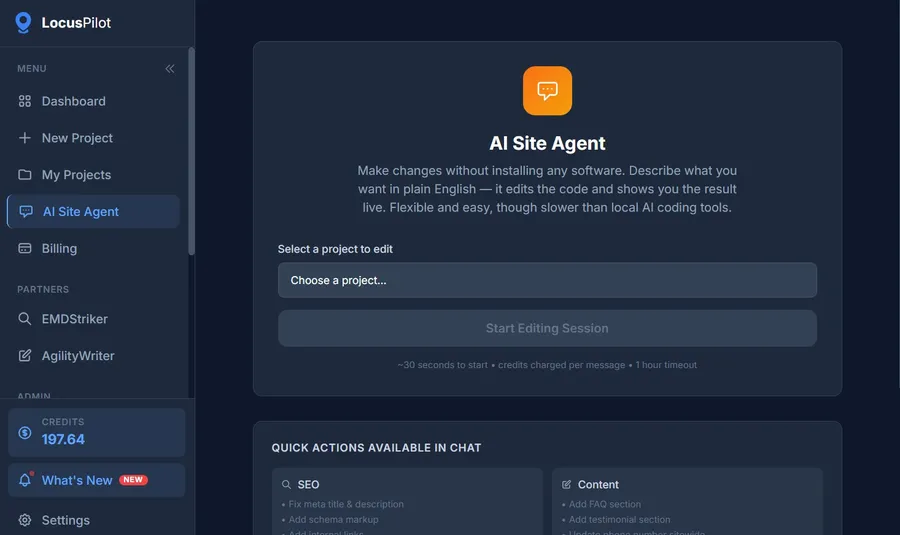
Option A: From the sidebar
Click "AI Site Agent" in the left sidebar, then select a completed project from the dropdown.
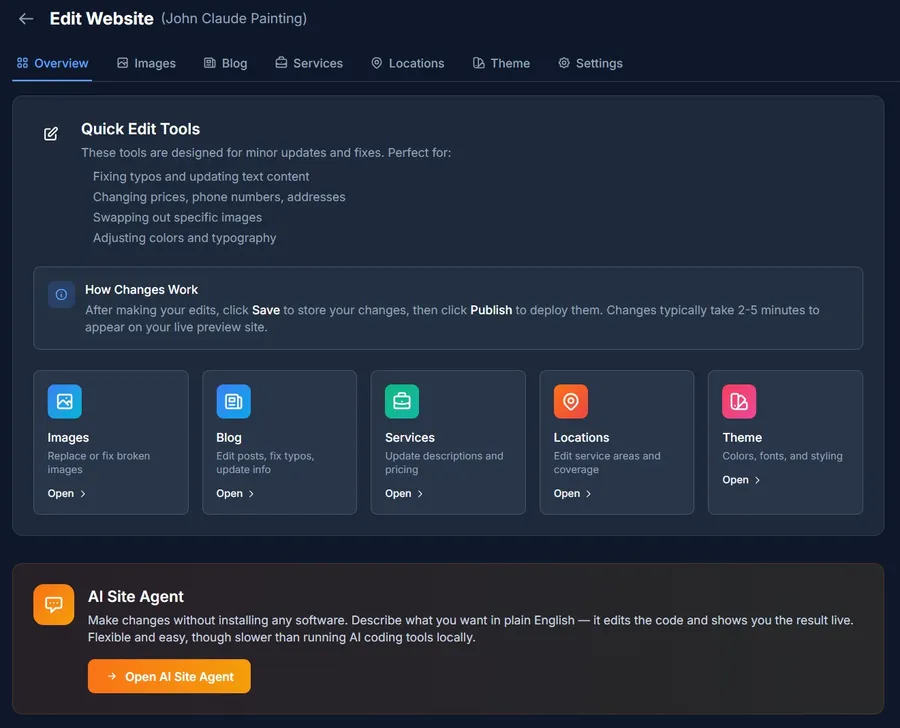
Option B: From the Editor Overview
Go to your project's Editor, and click "Open AI Site Agent" on the AI Site Agent card.
Requirement: You need at least 3 credits to start a session. Your project must also be fully generated (all phases completed) before you can use the AI Site Agent.
3The Interface
The AI Site Agent uses a split-pane layout: chat on the left, live preview on the right. You can drag the divider to resize each panel.

Chat Panel (Left)
- •Type your request in the text box at the bottom
- •AI responses show what was changed and which files were modified
- •Credit cost is shown per message
Preview Panel (Right)
- •Live preview updates automatically after each change
- •Toggle between desktop and mobile views
- •Navigate your site in the preview - the AI knows which page you're viewing
4Quick Actions
Not sure what to type? Quick Actions are pre-built prompt shortcuts organized by category. Click the ✨ Quick Actions button above the text input to browse them.
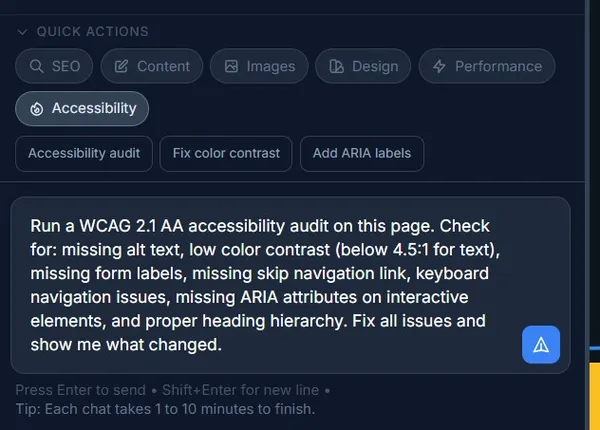
Available categories:
Clicking a Quick Action fills the text input with a pre-written prompt. You can send it as-is or edit it before sending.
5Attachments — Upload Images, Docs, and Data
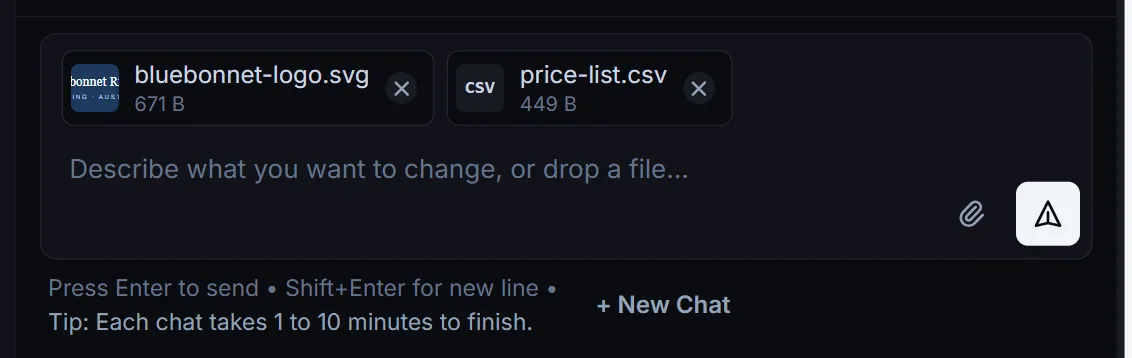
Drop files directly into the chat to give the AI something concrete to work with: a logo to swap in, a CSV of services to populate a table, a PDF to turn into a blog post. Attachments are tied to the message you send them with — just like Cursor or Claude.
Paperclip
Click the paperclip button next to the send button to pick files from your computer.
Drag & drop
Drag files from your desktop or Finder/Explorer onto the chat panel. A drop overlay appears while you're dragging.
Paste from clipboard
Take a screenshot, copy an image, or copy a file, then paste with Cmd+V / Ctrl+V right inside the chat input.
Allowed file types
Images
PNG, JPG, WEBP, SVG, GIF
Plain text & data
CSV, MD, HTML, TXT, JSON
Office & PDF
PDF, DOCX, XLSX, PPTX
How the AI reads them
Text files (.md, .csv, .html, .txt, .json) are read directly. For Office and PDF uploads, the file is converted to text on the server before the AI sees it — PDFs to plain text, DOCX to markdown, XLSX to CSV, PPTX to per-slide text. The AI always reads the converted version, so it can actually quote and reason about the contents.
If a document is unusually long, only the first ~500 KB of extracted text is used and the upload is flagged as truncated in the chat. The AI will tell you that only part of the file was used and ask if you want to focus on a specific section.
Lifecycle
- •Pending uploads appear as chips in the input area while you're composing your message.
- •When you send, the chips move into your chat bubble — so it's always clear which files were tied to which request.
- •Files are staged inside your session sandbox under a hidden
.uploads/folder. They are never committed to GitHub. - •If you want an attached image to live on your site, just tell the AI — e.g. "copy it to
public/images/logo.png" — and that copy gets committed when you Save. - •When the session ends, the staging folder is wiped along with the sandbox.
Try it out
"Replace the header logo with the image I just attached."
"Use the data in this CSV to populate the pricing table on /pricing."
"Read the attached PDF and turn it into a blog post."
6Example Requests
Here are some examples of what you can ask the AI Site Agent to do:
Content changes
"Change the phone number in the header to (555) 123-4567"
"Rewrite the About page intro to sound more professional"
"Add a new FAQ: What are your business hours?"
Design changes
"Change the hero background color to dark navy"
"Make all buttons rounded with a subtle shadow"
"Increase the font size of section headings"
Structural changes
"Add a testimonials section to the homepage after the services section"
"Remove the blog section from the footer"
"Move the CTA button above the fold on the homepage"
SEO & technical
"Update the meta description for the homepage to include our main service"
"Add alt text to all images on the About page"
"Check for broken links across the site"
Using attachments
"Replace the header logo with the image I just attached"
"Use the data in this CSV to populate the pricing table on /pricing"
"Read the attached PDF and turn it into a blog post"
7Saving & Deploying
Changes you make are held in the sandbox until you decide what to do with them. You have three options:
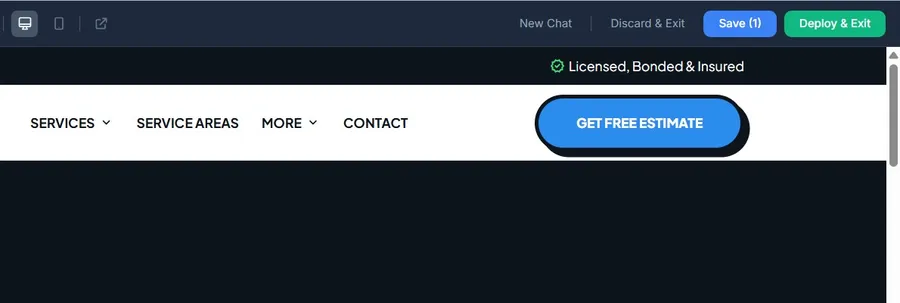
Save
Commits your changes to GitHub. The session stays open so you can keep editing. Use this as a checkpoint - you can save multiple times during a session.
Deploy & Exit
Commits your changes, pushes to GitHub, triggers a Cloudflare Pages rebuild, and closes the session. Your changes go live within a few minutes.
Discard & Exit
Closes the session without saving. All changes made during this session are lost. Use this if you're not happy with the results.
Auto-save reminder: After every 5 changes, the AI Site Agent will remind you to save your work. You can also save at any time by clicking the Save button.
8Session Management
Each AI Site Agent session lasts up to 1 hour. The timer starts when you open the session and counts down even if you close your browser.
Session timer
A countdown timer is shown at the top. When less than 5 minutes remain, a warning banner appears with a "Save & Reconnect" button.
Browser closed? Timer keeps running
If you close the browser without exiting, the session stays active in the background. When you come back, the AI Site Agent reconnects to your session with your changes intact. But the timer keeps counting down. For example, if you leave at 40 minutes and return 30 minutes later, you'll only have 10 minutes left.
Exit properly for a fresh session
When you're done editing, always click "Deploy & Exit" or "Discard & Exit". This ends the current session. The next time you open the AI Site Agent, you get a fresh 1-hour session.
New Chat
Click "New Chat" to clear the conversation history while keeping your file changes. Useful when you want a fresh start on a different topic without losing your edits.
Idle timeout
If you're idle for 15 minutes, a warning appears. After 20 minutes of inactivity, changes are auto-saved and the session closes.
Tip: Don't just close the browser tab when you're done. Always exit the session using "Deploy & Exit" or "Discard & Exit" first. Otherwise, the timer keeps running in the background and your next visit will have less time remaining.
9Credits & Pricing
Per-message billing
You're only charged for messages you send. Credit cost depends on the complexity and effort the AI spends on each request. Simple changes (like updating text) cost less than complex tasks (like restructuring a page).
Minimum 3 credits to start
You need at least 3 credits in your balance to start a new session. If your balance drops to 0 during a session, you'll need to save and purchase more credits to continue.
Balance visible in chat
Your remaining credit balance is shown after each message, so you always know how much you've used.
10Tips for Best Results
Be specific
Instead of "make it look better," try "change the hero section background to dark blue and make the heading text white." Specific requests get more accurate results.
One change at a time
For best results, make one change per message. This makes it easier to review each change and undo if needed. You can always send follow-up messages for additional changes.
Navigate the preview first
Click through to the page you want to edit in the preview panel before sending your message. The AI automatically knows which page you're looking at and applies changes in context.
Save frequently
Click Save after every few changes to create checkpoints. This way, if something goes wrong later, your earlier changes are already safely committed.
Use Quick Actions for common tasks
Quick Actions are pre-written prompts optimized for common edits. They save you time and ensure the AI gets the right context for each type of change.
Frequently Asked Questions
What can the AI Site Agent change?
It can edit content (text, images, links), design (colors, fonts, spacing), structure (add/remove/reorder sections), SEO (meta tags, alt text, schema markup), and configuration files. It follows rules to protect core components like the header/footer layout and base UI components.
What happens if the session expires?
When less than 5 minutes remain, a warning banner appears with a "Save & Reconnect" button. If the session expires without saving, unsaved changes are lost. You can start a new session anytime.
Can I undo a change the AI made?
Yes - just tell the AI to undo the last change, or describe what you want reverted. You can also use "New Chat" to clear the conversation and start fresh (your file changes are preserved until you save or discard).
Is this the same as the content editor?
The content editor (Images, Blog, Services, Theme tabs) is designed for simple, targeted edits like fixing typos or replacing images. The AI Site Agent is more powerful - it can make complex, multi-file changes that the content editor can't handle, like adding new sections or restructuring pages.
How is this different from using Cursor or Claude Code locally?
The AI Site Agent requires no software installation - it runs entirely in your browser. Local AI tools like Cursor or Claude Code are faster and more powerful, but require downloading the source code and setting up a development environment. The AI Site Agent is ideal for quick edits when you don't want to set up a local environment.
Ready to Try It?
Open the AI Site Agent from your dashboard and start editing your website in plain English.
Open AI Site Agent