The Hub & Satellite Strategy
One website ranks in one city. But your business serves ten, twenty, fifty cities. The Hub & Satellite strategy lets you capture high-intent local searches in every market you serve, using exact-match domains, fully unique content, and proper entity separation that Google trusts.
This isn’t programmatic SEO. Every satellite is a standalone website that looks, reads, and ranks like a hand-built local business site.
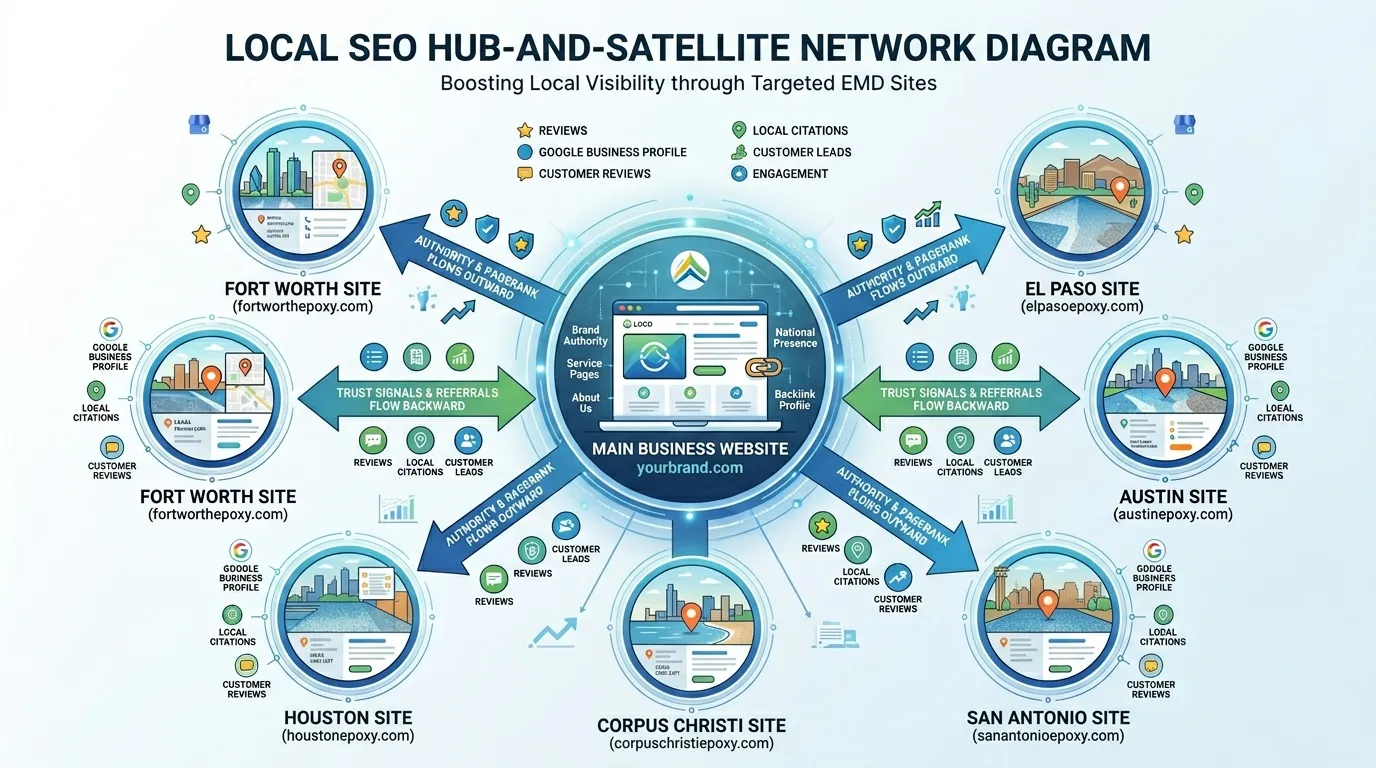
1How It Works
You divide your digital presence into two lanes based on search intent.
The Hub (Parent Site)
Your primary brand website. Builds massive topical authority, houses deep educational content, and closes high-ticket leads.
eliteplumbinghouston.comThe Satellites
Hyper-focused local sites on exact-match domains. Each intercepts bottom-of-funnel searches in a specific city.
plumbersugarland.comThe hub builds your brand authority and closes high-value leads. The satellites intercept bottom-of-funnel searches. People who type “plumber Sugar Land TX” are ready to hire. The exact-match domain feels like the perfect answer.
2What Gets Generated
Each satellite keeps your brand, design, and credentials but rewrites everything else for the target city. Here’s exactly what changes.
eliteplumbinghouston.complumbersugarland.com plumberkaty.com plumberwoodlands.com plumberpearland.comWhat gets regenerated:
- ✓ All blog posts with local references
- ✓ All service pages, localized
- ✓ Homepage content and images
- ✓ Schema markup and geo data
- ✓ Contact details (phone, email, address)
What stays the same:
- - Brand name and logo
- - Site design and layout
- - Service & blog page images
- - Trust signals and credentials
3Why This Isn’t Programmatic SEO
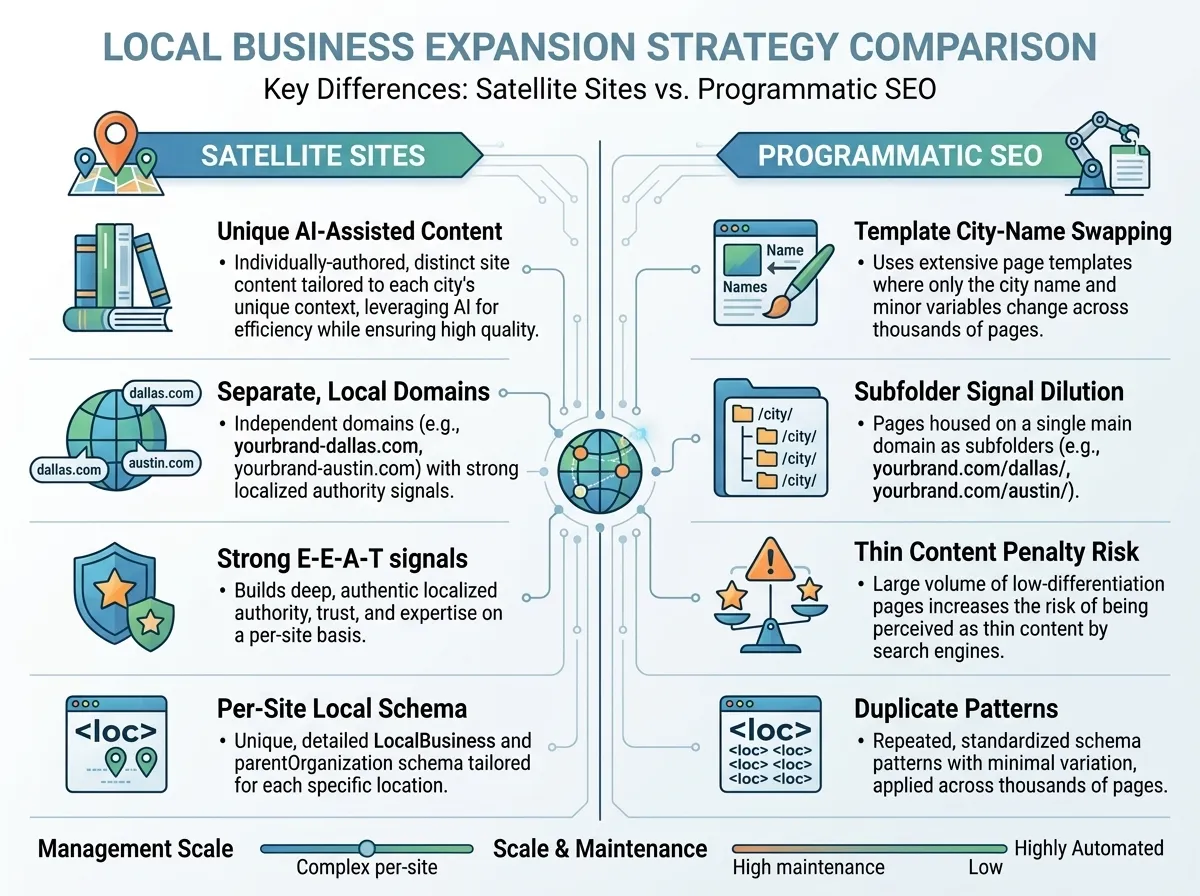
Programmatic SEO generates hundreds of near-identical pages by swapping city names into templates. Google has been actively penalizing this since the 2023 Helpful Content Update. Satellite sites are fundamentally different.
| Programmatic SEO | Satellite Sites | |
|---|---|---|
| Content | Template with city name swapped | 100% unique per site |
| Domain | Subfolders on one domain | Independent domain per city |
| Images | Same stock photos everywhere | Homepage images AI-generated per site |
| Hosting | One server, one deployment | Independent hosting per site |
| Schema / NAP | Same entity everywhere | Unique schema and NAP per site |
| Google’s view | Doorway pages with penalty risk | Legitimate local businesses |
4The Safety Playbook
Google has specific algorithms to catch businesses manipulating search results with multiple sites. Here’s what to watch for, and how LocusPilot handles each risk.
Doorway Page Penalty
Google defines doorway pages as multiple domains targeting specific regions that funnel users to the same destination, offering no unique value. If your satellite is a copy-paste of your hub, it will be de-indexed.
How LocusPilot avoids this:
- ✓ Every page is fully rewritten, not find-and-replace
- ✓ Homepage images are AI-generated fresh for each satellite
- ✓ Each site is independently hosted on its own Cloudflare Pages project
Domain Clustering Filter
If Google detects two sites from the same owner fighting for the exact same keyword, it will filter the weaker site out of results to ensure SERP diversity.
How LocusPilot avoids this:
- ✓ Each satellite targets a different city with different primary keywords
- ✓ The hub ranks for broad terms; satellites rank for city-specific terms
NAP Merging & Suspension
If you use the identical Name, Address, and Phone number across multiple sites, Google Maps will merge them into one entity or suspend your listings.
How LocusPilot avoids this:
- ✓ Each satellite gets a unique phone number, email, and address
- ✓ Schema markup uses distinct geo coordinates per city
5Best Practices
Schema Markup
Each satellite gets its own LocalBusiness schema with unique geo coordinates, areaServed, NAP details, and correct canonical URLs. A parentOrganization property links back to the hub, making it transparent to Google that they’re related branches.
Cross-Linking
On geo expansion satellites, add a single footer link: “Owned and operated by Elite Plumbing Houston.” On your hub, one contextual link per satellite: “Need a plumber in Sugar Land? Visit our Sugar Land division.” Don’t stuff links everywhere.
Unique Phone Numbers
Buy a cheap VoIP/tracking number for each satellite (Google Voice, OpenPhone, CallRail). Forward to your main office. Google sees a unique number; you get lead tracking per city.
Co-Branding
Add a badge: “A Division of Elite Plumbing Houston.” This builds instant trust from the parent brand’s reputation.
6What Every Satellite Includes
Own Domain
Exact-match domain independently hosted on Cloudflare Pages
Rewritten Content
Every blog post, service page, and homepage generated from scratch
AI-Generated Images
Homepage images regenerated with town-specific visual context
Local Schema Markup
Unique LocalBusiness schema with geo, areaServed, and parentOrganization linking to hub
Separated NAP
Unique phone, email, and address for each satellite
Custom Domain
Connect your exact-match domain directly from the dashboard with one click
Sitemap & SEO
Independent sitemap, robots.txt, OpenGraph tags, canonical URLs
SSL Included
Free HTTPS via Cloudflare with no certificate management needed
7Step-by-Step: Launch Your First Satellite Site
Follow these steps to go from zero to a fully deployed satellite site.
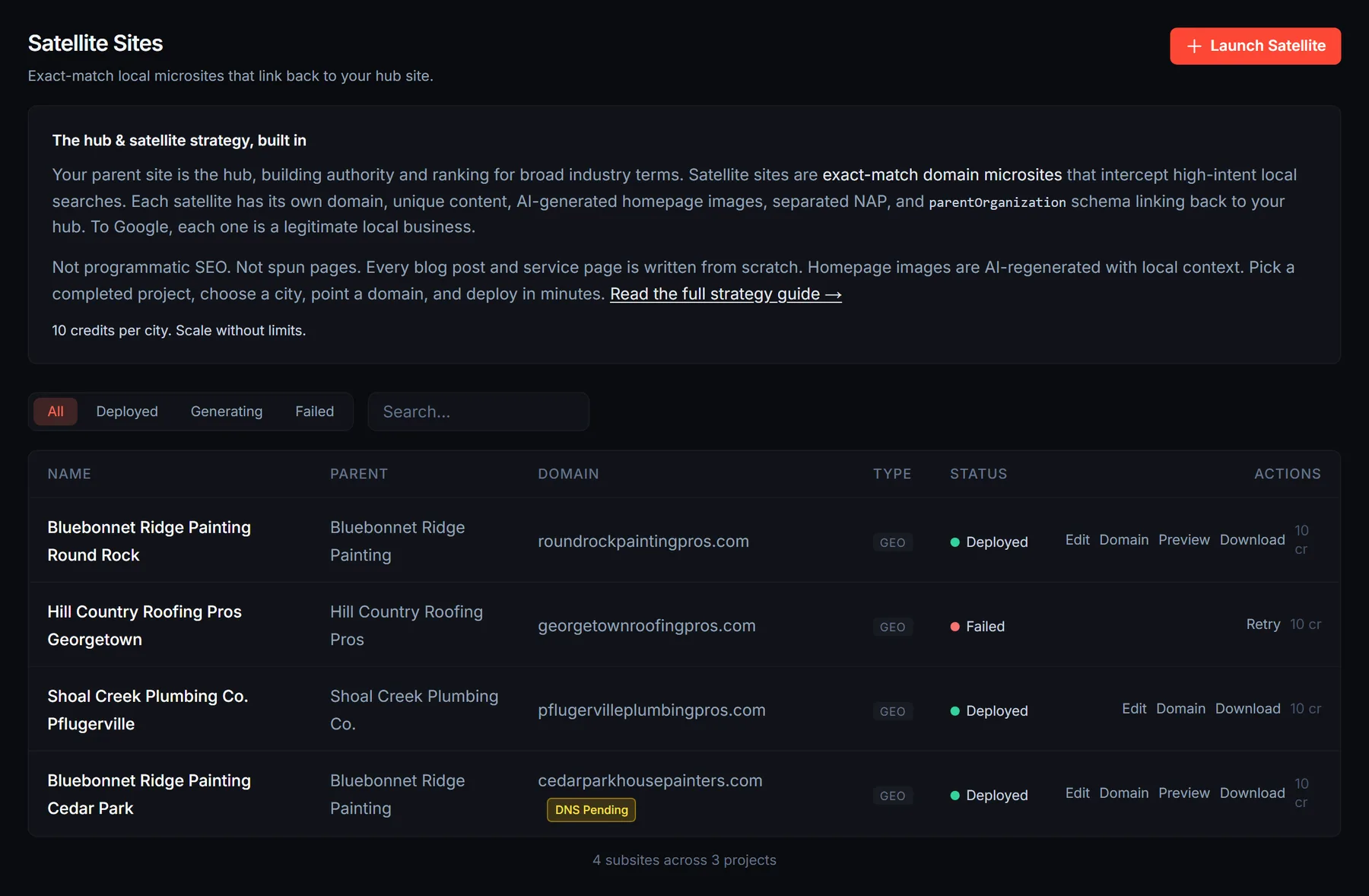
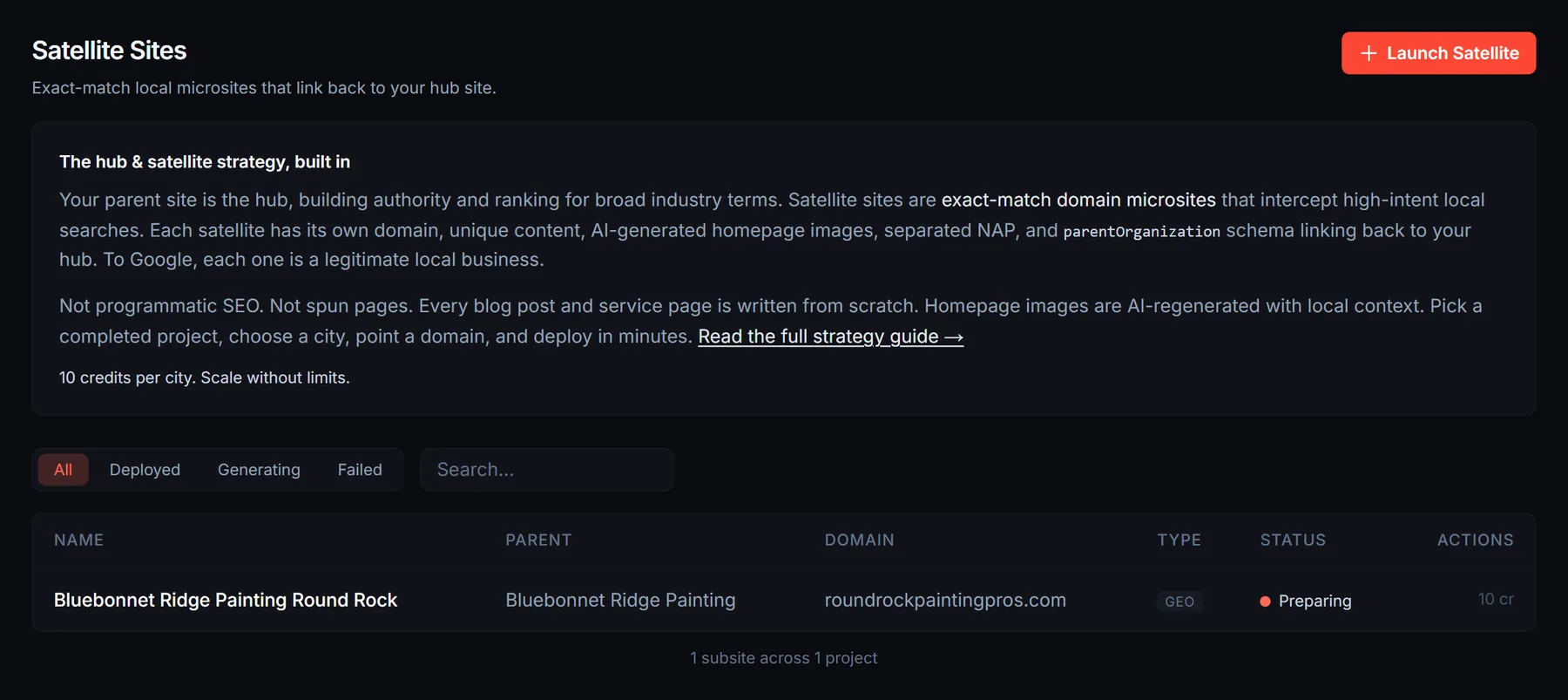
- 1Navigate to Satellite Sites.
Click Satellite Sites in the left sidebar. You’ll see a list of your completed projects and any existing satellites.
- 2Click “Launch Satellite”.
If you have multiple projects, you’ll be asked to select a parent project. Pick the one you want to expand. Make sure the parent site is finalized because all satellites inherit its design and layout.
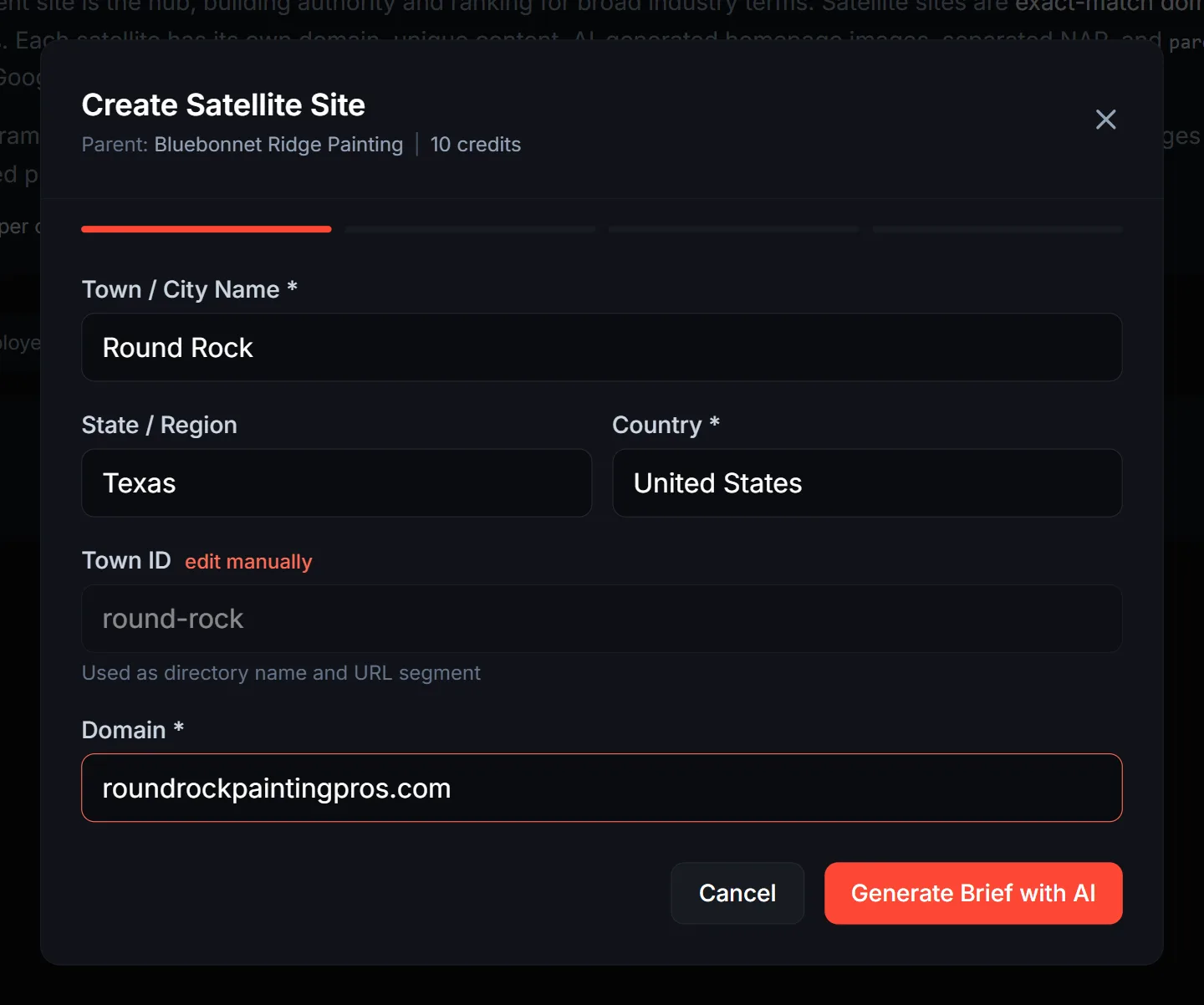
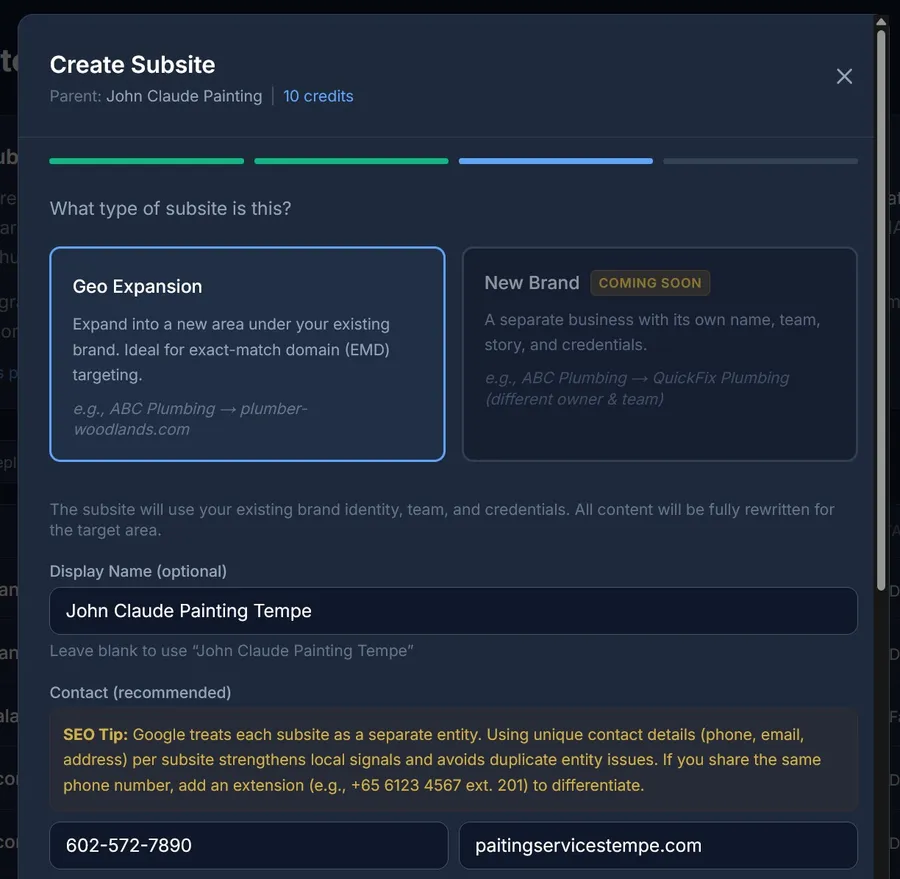
- 3Enter the target city and domain.
Enter the town name (e.g., “Sugar Land”), state, country, and your target domain (e.g., “plumbersugarland.com”). The brand identity stays identical to the hub.
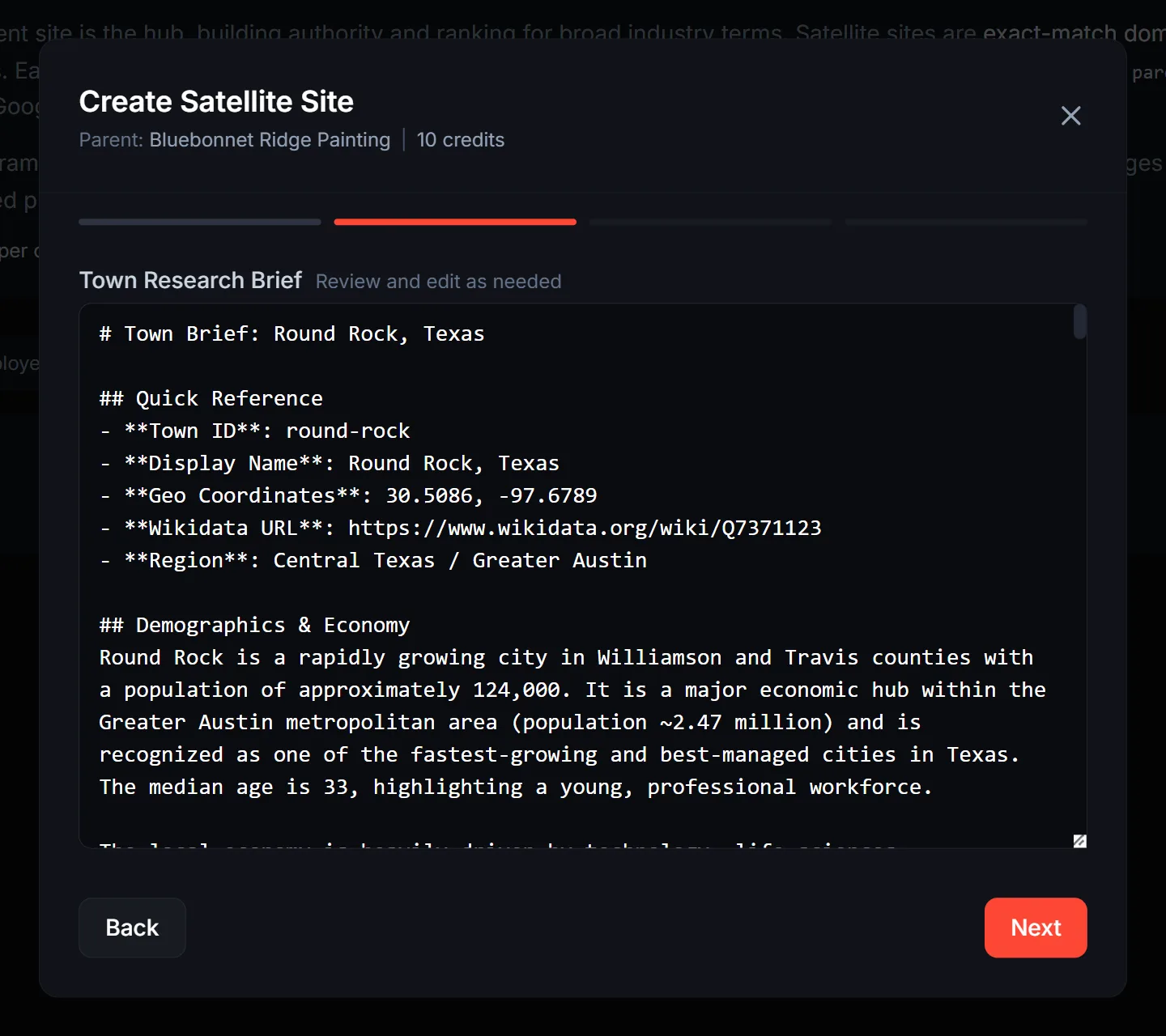
- 4Generate and review the town brief.
Click “Generate Brief with AI” to research the target area automatically. The AI finds key neighborhoods, local landmarks, demographics, competitors, and climate factors. Review and edit the brief as needed. This is what makes each satellite’s content genuinely local, not generic city-name swaps.
Example insight: “Sugar Land is an affluent suburb southwest of Houston known for its master-planned communities like Telfair and New Territory. Most homes are built in the 2000s with modern HVAC systems.”
- 5Add contact details and local presence.
Enter a phone number, email, and address for this city. We recommend at minimum a unique phone number (e.g., a Google Voice or CallRail number) for lead tracking and to avoid NAP conflicts with your hub. You can also add a local presence note describing your team or division in this area.
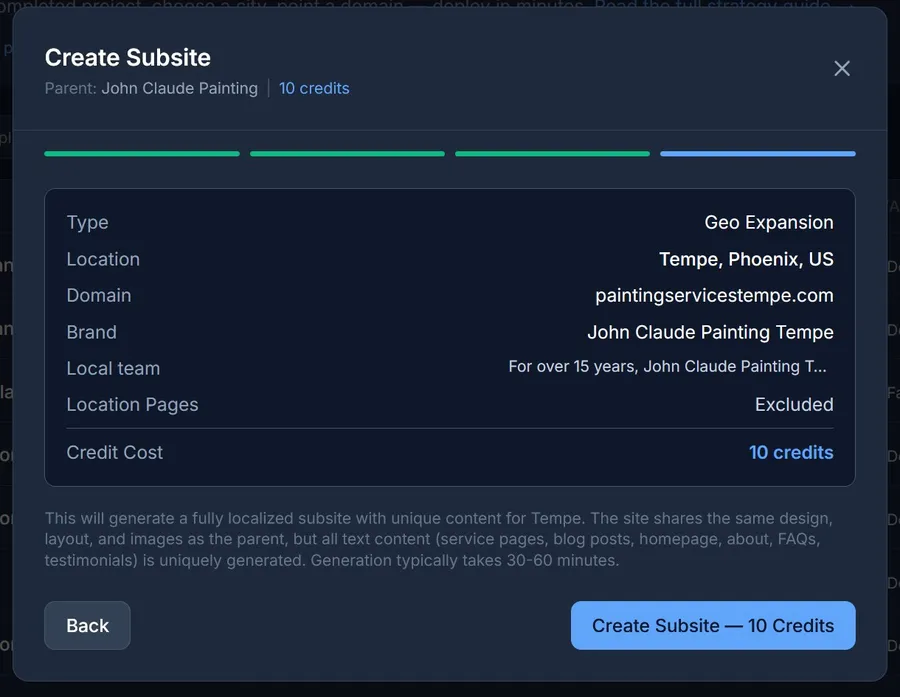
- 6Launch and track progress.
Click Launch Satellite. The AI takes 15-30 minutes to rewrite all content (blog posts, service pages, homepage), regenerate homepage images, configure schema markup, and deploy. Track the status live on the Satellite Sites page. It updates automatically.
What happens behind the scenes:
- ✓ AI rewrites every page with local context, not find-and-replace
- ✓ Homepage images are AI-regenerated with town-specific prompts
- ✓ Schema markup gets unique geo coordinates, areaServed, and NAP
- ✓ Schema includes
parentOrganizationlinking to the hub - ✓ Site is built and deployed to its own Cloudflare Pages project
8Step-by-Step: Editing Your Satellite
After deployment, you can edit any satellite directly from the dashboard. No code download required.
- 1Click “Edit” on a deployed satellite.
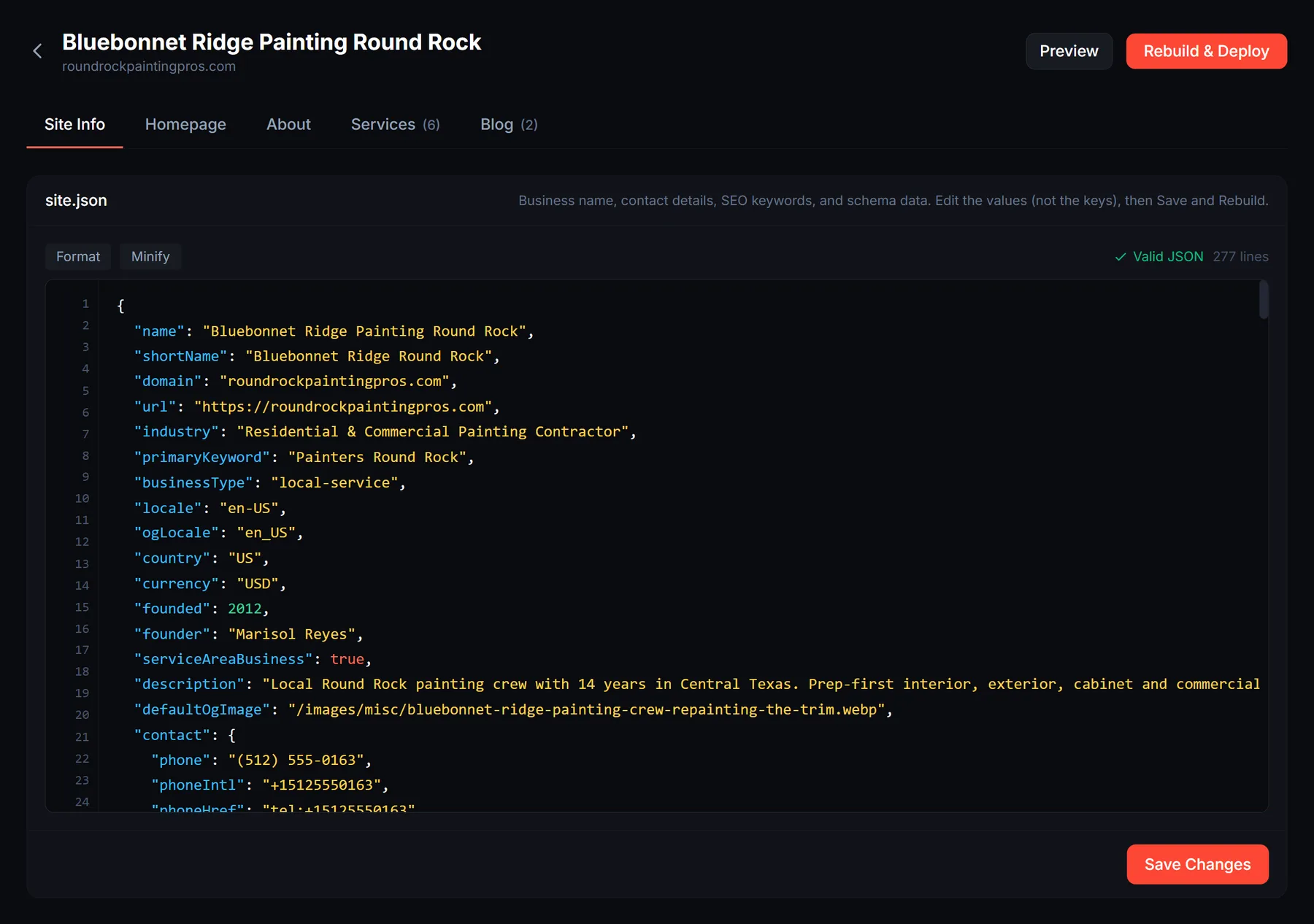
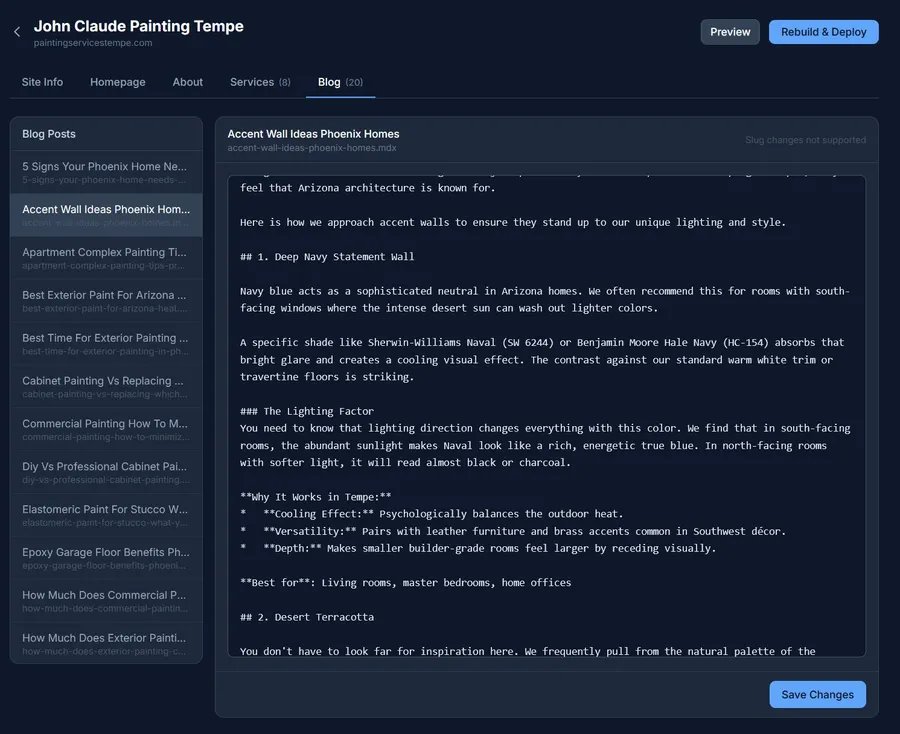
This opens the built-in editor with five tabs: Site Info, Homepage, About, Services, and Blog.
- 2Edit config files (Site Info, Homepage, About).
These are JSON files that control your site’s data. The editor has syntax highlighting, line numbers, and real-time validation. Edit the values (the text after the colon), not the keys. Common edits:
- • Site Info: phone number, email, address, business name
- • Homepage: hero heading, subtitle, testimonials, CTA text
- • About: company story, team info, credentials
Use the Format button to clean up messy JSON. The green “Valid JSON” indicator confirms your syntax is correct before saving.
- 3Edit content pages (Services, Blog).
Select a page from the sidebar. These are MDX files (Markdown with frontmatter). You can edit the title, description, and body text directly. Save each file individually.
- 4Save and Rebuild.
After saving your changes, click Rebuild & Deploy in the top-right. The satellite is rebuilt and redeployed in about 5 minutes. Your changes go live automatically.
Tip: For more advanced edits, you can also download the source code as a ZIP and use any AI coding tool (Cursor, Claude Code, Windsurf) to modify it locally. Re-upload to your own hosting when done.
9Step-by-Step: Connecting a Custom Domain
Each satellite gets a free *.pages.dev preview URL by default. To go live on your exact-match domain, connect it here.
- 1Click “Domain” on a deployed satellite.
A modal opens with your target domain pre-filled (the domain you entered during creation). You can change it if needed.
- 2Click “Add Domain”.
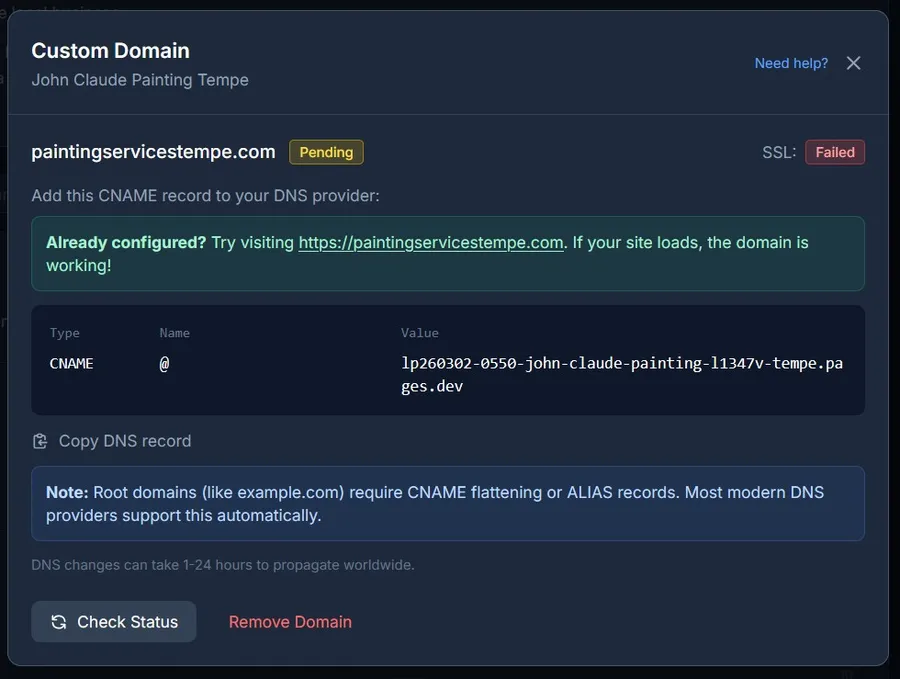
This registers the domain with Cloudflare Pages. You’ll see a CNAME record that needs to be added to your DNS.
- 3Add the CNAME record at your domain registrar.
Log into your domain provider (GoDaddy, Namecheap, Cloudflare, etc.) and add the CNAME record shown. The modal gives you the exact values to copy.
Type
CNAMEName
@ or wwwValue
your-project.pages.devFor root domains (example.com without www), your DNS provider needs to support CNAME flattening. Most modern providers (Cloudflare, Namecheap) handle this automatically.
- 4Click “Check Status” to verify.
DNS propagation takes 1–24 hours (usually under 30 minutes with Cloudflare). Once verified, the status turns green and your satellite is live at
https://yourdomain.comwith free SSL.
Domain status indicators:
For detailed DNS instructions by provider, see the Custom Domain Guide.
Frequently Asked Questions
Can I launch satellites in any city, even if I don’t have a physical office there?
Yes. Many service businesses (plumbers, electricians, cleaners, consultants) serve a wide metro area from a single location. Each satellite targets a city you actually serve. Just use “Serving the Sugar Land area” instead of a physical address on the satellite.
Is this the same as building a PBN (Private Blog Network)?
No. PBNs are networks of sites built to pass link juice. Satellite sites don’t exist for backlinks. Each is a standalone business presence that generates its own leads. Google penalizes PBNs, but properly separated satellite sites are a legitimate local SEO strategy.
How many satellites can I launch?
As many cities as you serve. Most businesses start with 3–5 high-priority cities and expand from there. Each satellite is 10 credits with no monthly per-site fees.
Do satellites get blog posts too?
Yes. Every satellite gets fully rewritten blog posts with local references, landmarks, and neighborhood mentions. The blog structure mirrors the hub, but the content is 100% unique to each city.
What about the images? Are they the same across satellites?
Homepage images are regenerated for each satellite using AI, with prompts tailored to the local area. Service page and blog images use the same high-quality visuals from the hub, which is fine since the content around them is fully different.
How do I edit a satellite after it’s deployed?
Click “Edit” on any deployed satellite to open the built-in editor. You can edit business info, homepage content, about page, service pages, and blog posts directly. Save your changes and click “Rebuild & Deploy”. Updates go live in about 5 minutes.
Can I connect my own domain?
Yes. Click “Domain” on any deployed satellite, add your domain, then configure the CNAME record at your domain registrar. DNS usually propagates in under 30 minutes. Free SSL is included automatically via Cloudflare.
What if I break the JSON while editing?
The editor validates in real-time and shows a red error bar with the exact line number if something is wrong. The “Save” button won’t save invalid JSON. Use the “Format” button to auto-fix indentation issues.
Can I change the URL slugs, service pages, or blog post titles?
Not yet. Changing slugs or renaming pages could break internal links across the site. For now, you can edit the content within each page, but the page structure (URLs, number of pages) stays the same as the parent site.
Can I use the AI Site Agent to modify a satellite?
No. The AI Site Agent is designed for parent sites only. Satellite sites are structurally tied to their parent, so the agent cannot modify them independently. Use the built-in satellite editor to make content and configuration changes.
Can I add new blog posts or service pages to a satellite?
No. Satellites mirror the parent site’s page structure. Adding or removing pages is not supported. If you need a fully customizable site for a specific city, create a new standalone project instead and use the AI Site Agent to modify it freely.
Can I change the colors, fonts, or theme on a satellite?
Satellites inherit the parent site’s design, including colors, fonts, and layout. There is no separate theme editor for satellites. If you need a completely different brand identity, use the Clone & Rebrand feature from your project’s status page instead.
Can I replace or upload images on a satellite?
Not currently. Homepage images are AI-regenerated during creation with local context. Service and blog images are inherited from the parent. There is no image editor or upload feature for satellites at this time.
Can I run Deep Optimize on a satellite?
No. The Deep Optimize feature is only available for parent projects. Satellite content is already generated with local SEO signals built in. If you want to further optimize a specific city’s site, create it as a standalone project instead.
Can I download the source code of a satellite?
You can download the compiled website as a ZIP file, which is ready to host anywhere. Downloading the full Astro source code is only available for parent projects.
Need a completely different brand?
Satellite sites expand your existing brand into new cities. If you need a fully independent site with a new business name, team, story, and credentials, use Clone & Rebrand instead. It creates a standalone site from your existing project with completely rewritten identity and content for just 20-27 credits. Find it on your completed project’s status page.
Ready to Scale?
Each satellite is 10 credits. A fully unique website with its own domain, original content, and AI-generated homepage images, deployed in minutes.
No monthly fees per satellite. No per-city subscription. Build once, it’s yours.
Launch Your First Satellite